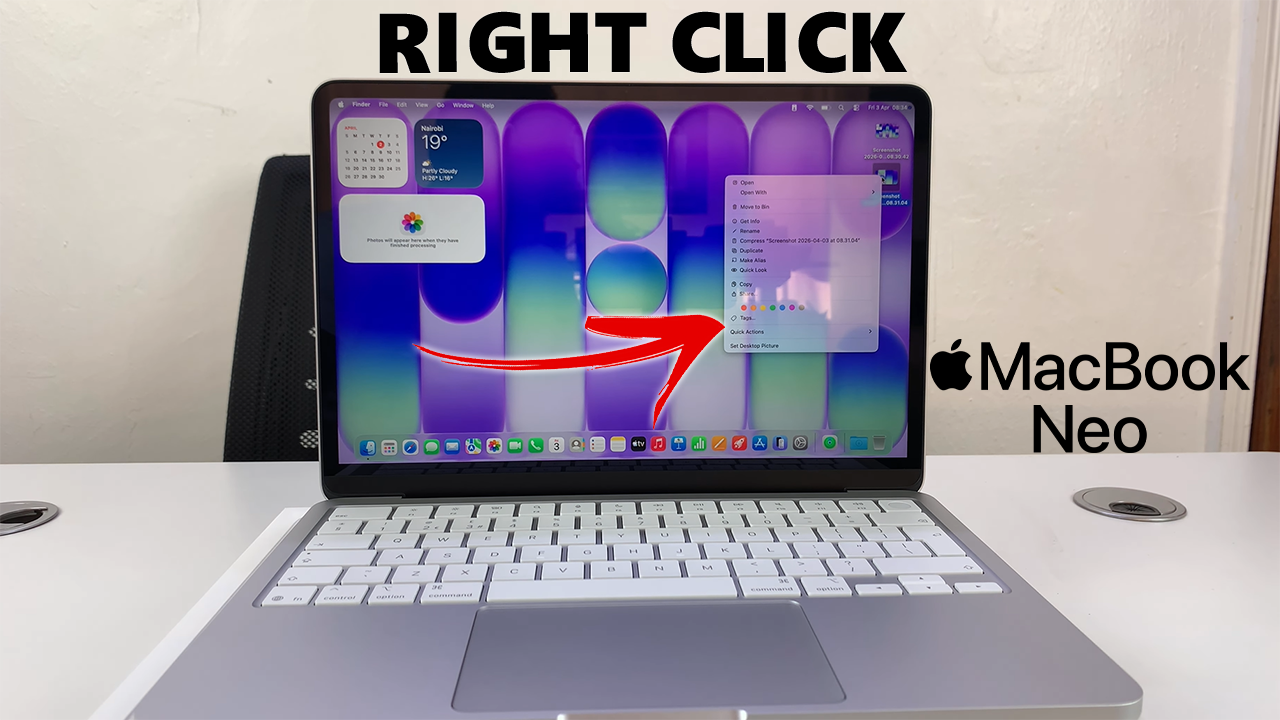
If you’re new to the MacBook Neo, one of the first things you might notice is that the trackpad works differently from a typical Windows laptop.
Right-clicking, or accessing the context menu, can feel tricky at first. Luckily, we’re here to show you how to do it.
In this guide, we’ll show you the simple method to right-click on your MacBook Neo.
Read: How To Remove Apps From Dock On MacBook Neo
Right Click On MacBook Neo
Two-Finger Click on the Trackpad
The most common way to right-click on a MacBook is using the trackpad. Simply place two fingers on the trackpad.
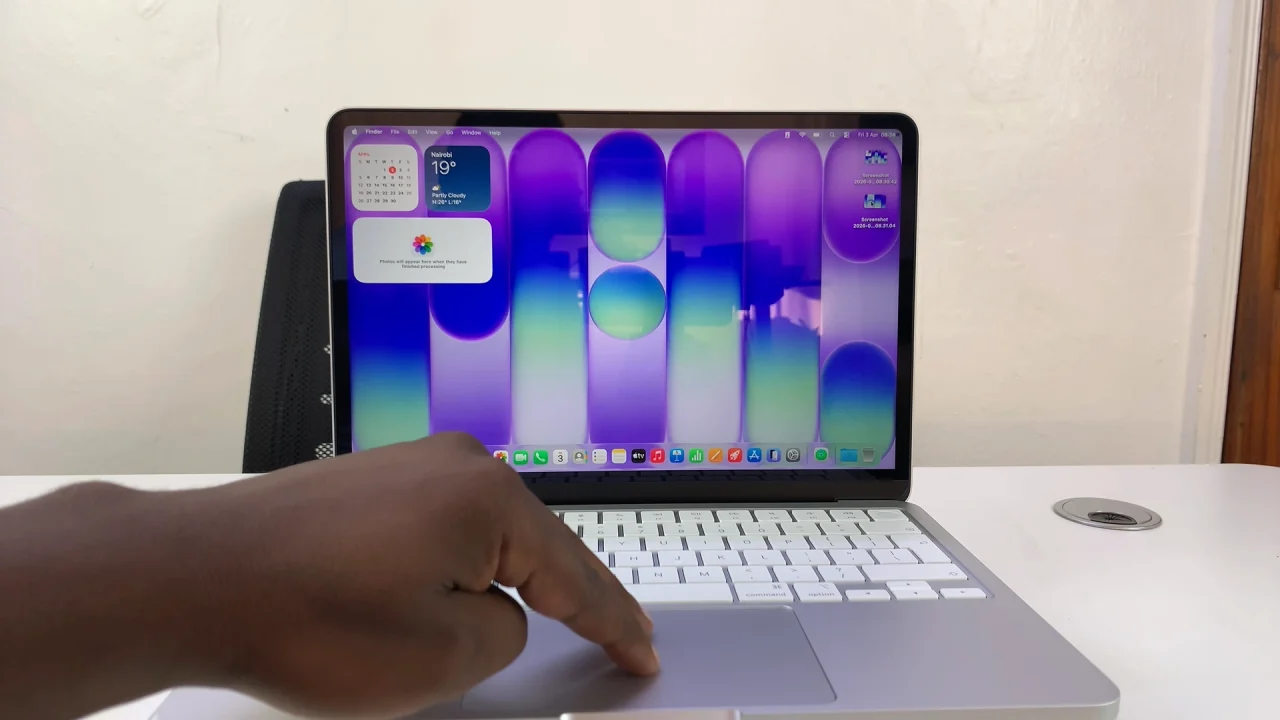
Tap lightly anywhere on the trackpad with both fingers at the same time. The context menu will appear — just like a right-click on Windows.
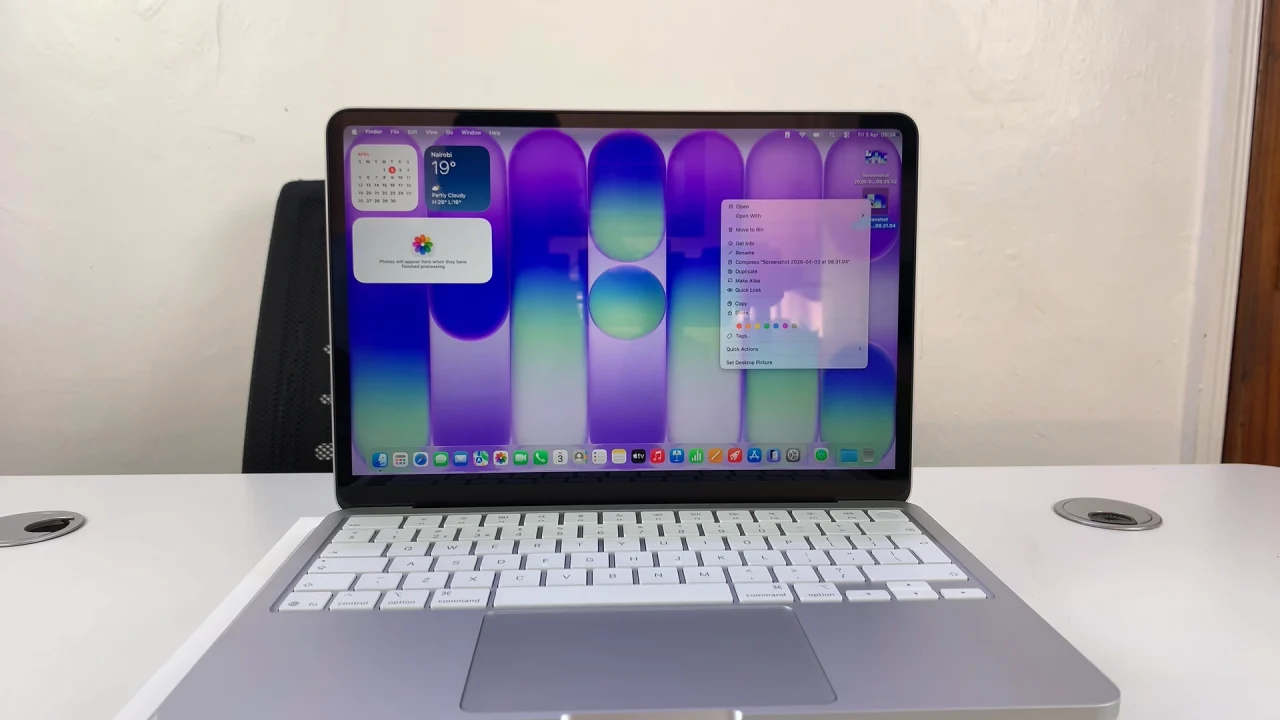
You can adjust the trackpad sensitivity in System Settings -—> Trackpad to make this easier.
Enable Right Click On MacBook Neo
MacBooks let you adjust how right-click works. If you want the enable the right click on your MacBook Neo, simply click on the Apple logo in the top-left corner.
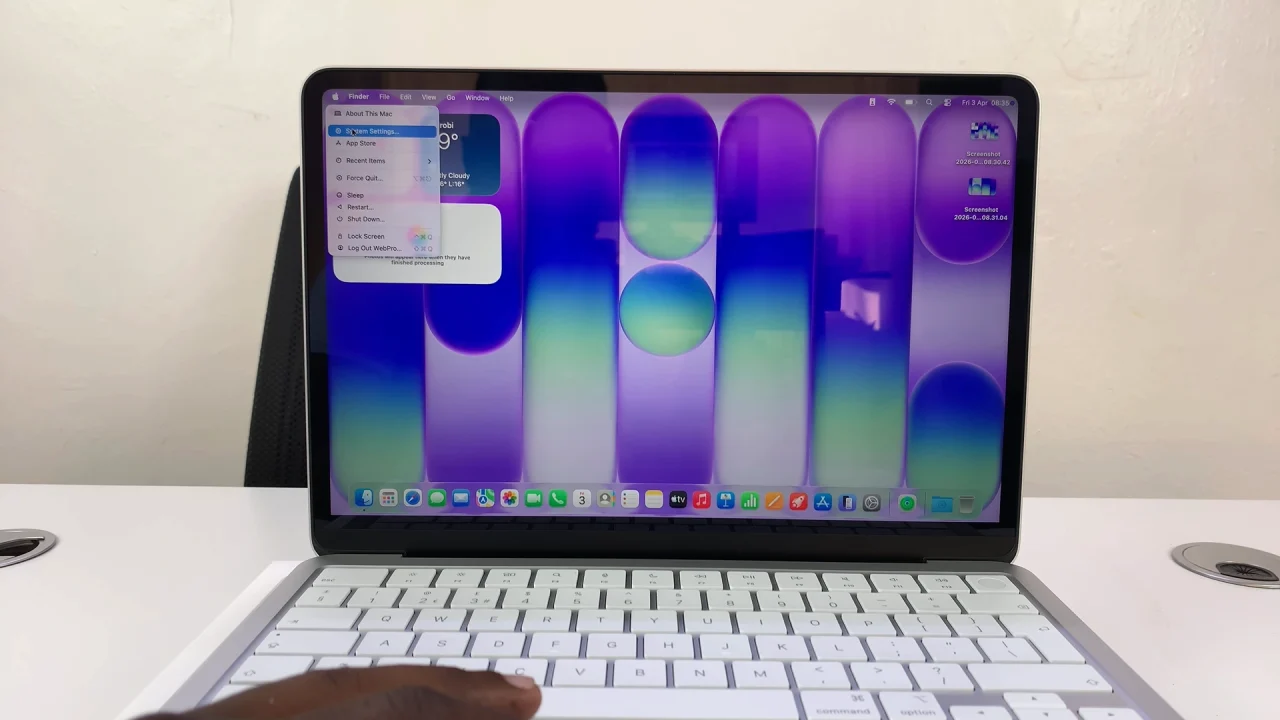
Then, select System Settings and choose Trackpad. Here, click on the drop-down options next to Secondary Click and choose your preferred method. Two-finger Click is selected by default.
You can likewise choose either Click in the bottom right corner or Click in the bottom left corner.
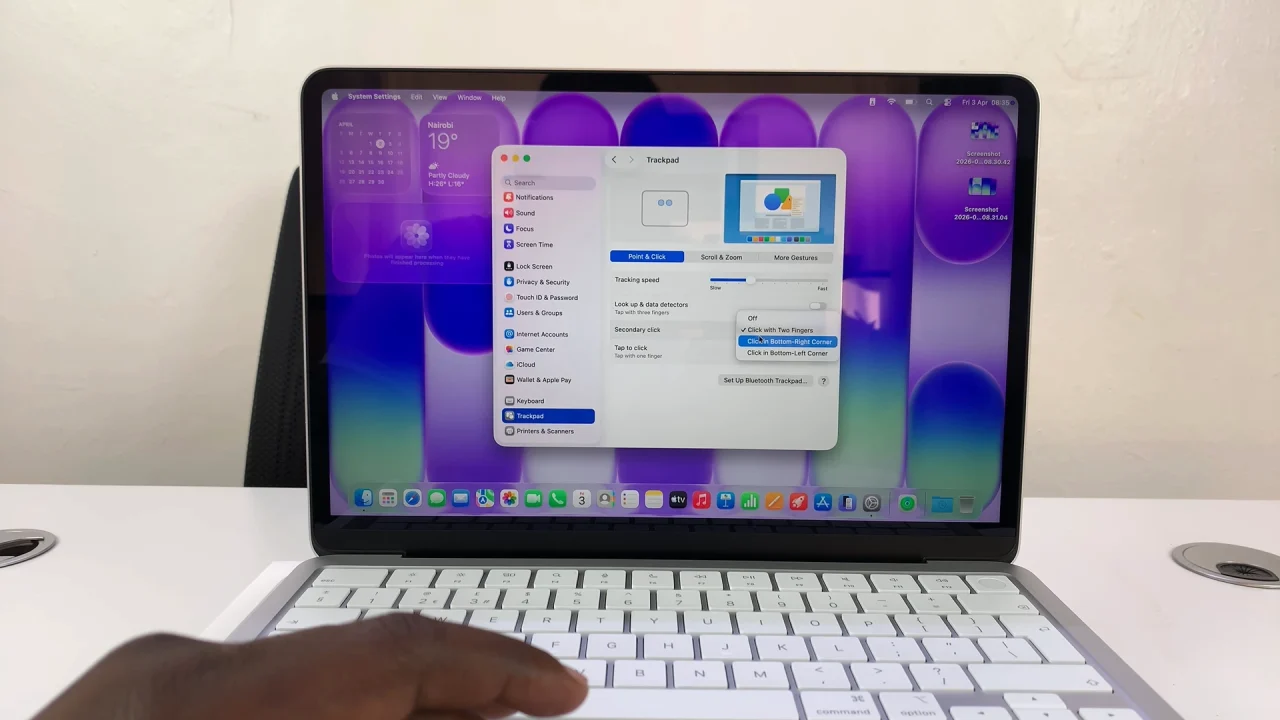
Customizing these options can make right-clicking faster and more comfortable.
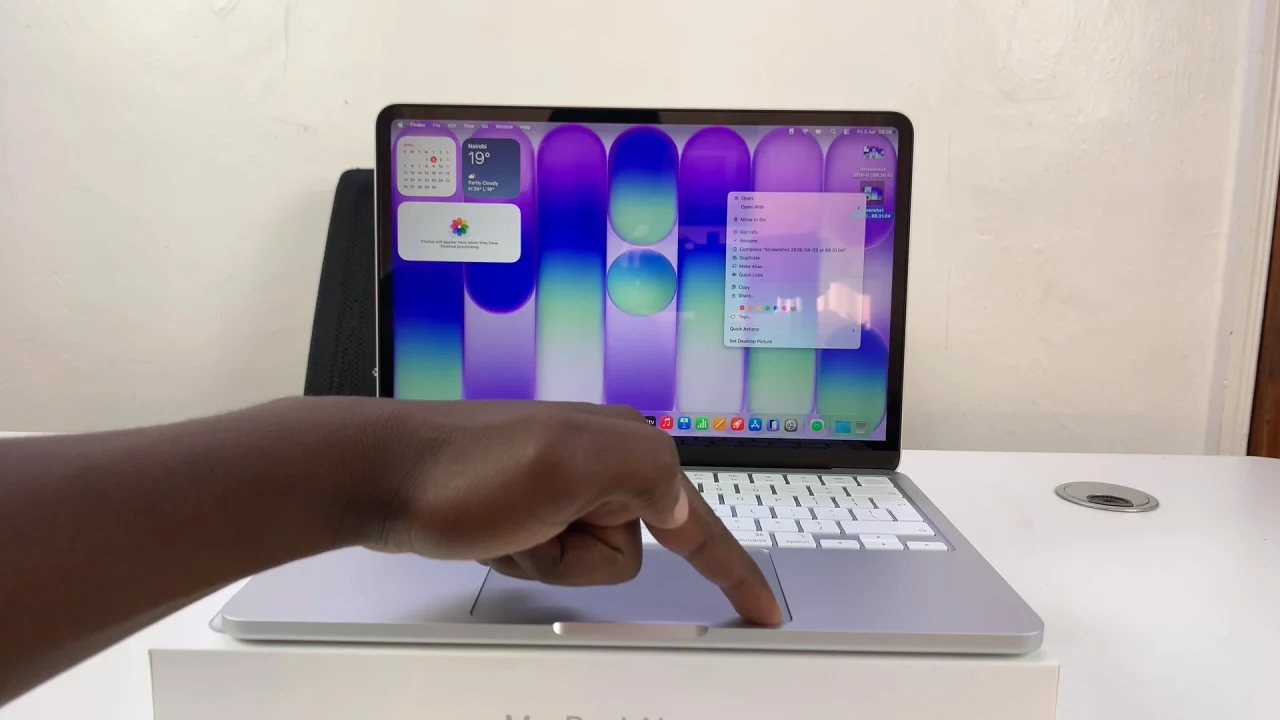
Control + Click
If you prefer using a keyboard shortcut, you can do a right-click using the Control key.
Hold down the Control (⌃) key on your keyboard. Click once on the trackpad while holding the Control key. The context menu will pop up.
This method works anywhere you can click, and it’s especially useful if you’re not used to multi-finger gestures.