If you already have the Sony WF-1000XM6 true wireless earbuds in your collection, you will already be aware of the power and features that these true wireless earbuds have to offer. However, one feature that you can implement for a more personal experience is renaming your Sony WF-1000XM6 true wireless earbuds.
Renaming your Sony WF-1000XM6 true wireless earbuds on Android will make it much easier for you to manage multiple Bluetooth devices and will also enable you to personalize your true wireless earbuds. Whether you are using multiple devices such as phones and tablets, renaming your Sony WF-1000XM6 true wireless earbuds will ensure that you do not face any issues while using them.
In this article, we will be telling you how you can rename your Sony WF-1000XM6 true wireless earbuds on Android.
Watch: How To Set Up Speak To Chat On Sony WF-1000MX6
Rename Sony WF-1000XM6 Earbuds On Android
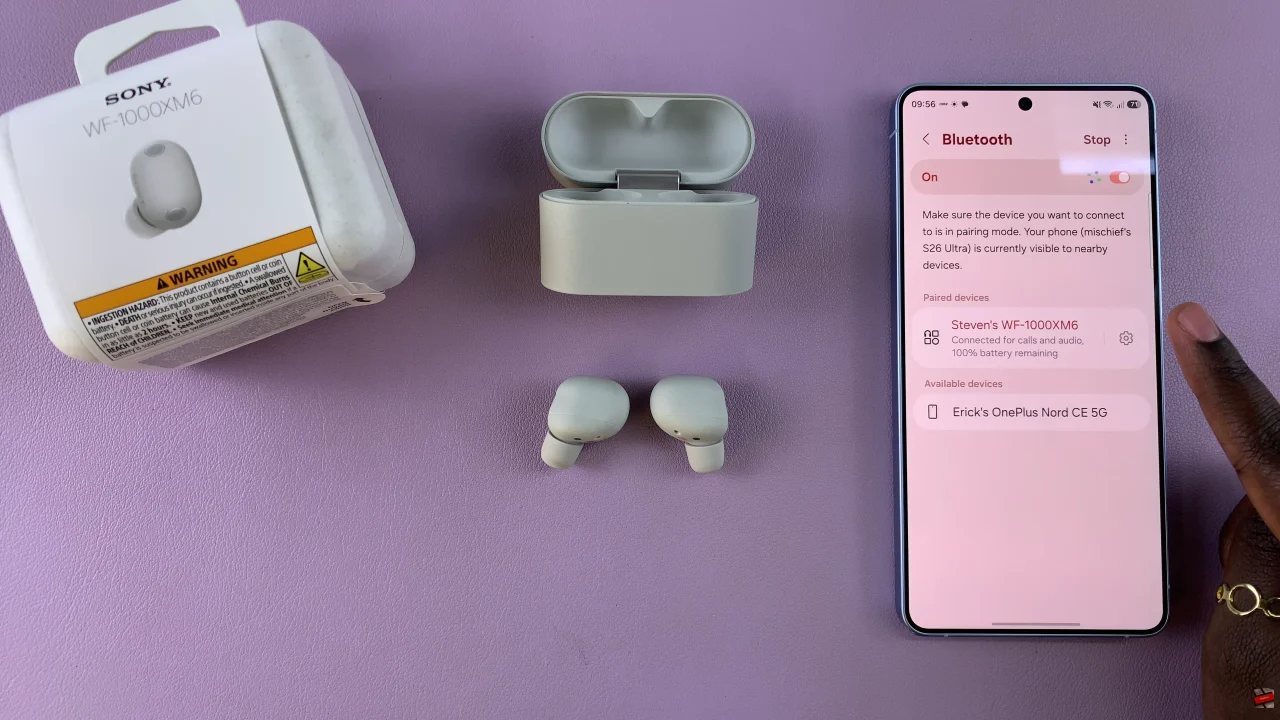
Begin by accessing the Bluetooth settings on your Android device. To do this, go to Settings and select ‘Bluetooth‘. Within the Bluetooth settings, find the Sony WF-1000XM6 earbuds and tap on the ‘Settings‘ icon next to it.
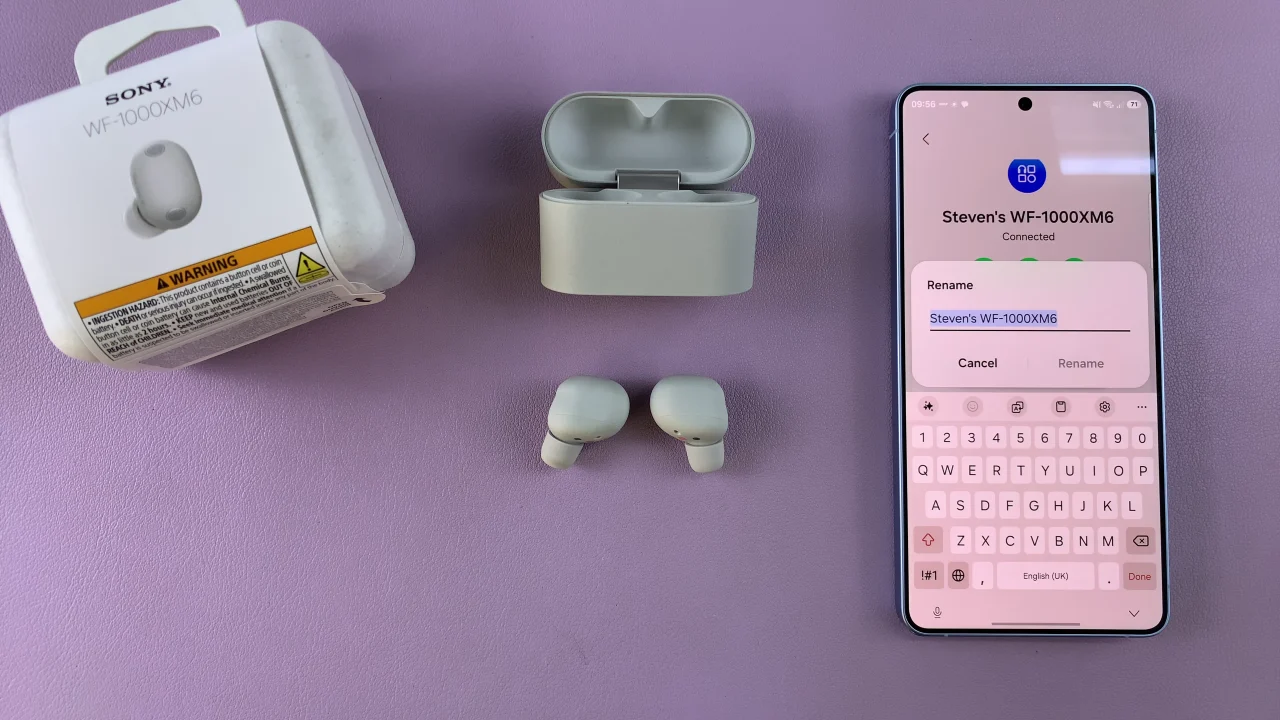
Following this, locate the ‘Rename‘ icon within the device details. From here, type in the new name you’d like to use for your earbuds. Once done, tap on ‘Rename‘ to confirm the changes.
By following the step-by-step process outlined in this guide, you can quickly give your earbuds a unique, recognizable name, making it easier to manage multiple devices and avoid connectivity confusion. Try it today and enjoy a more seamless, personalized listening experience!