WebPro Education

Tech tips everyday
Menu
  • REVIEWS
  • HOW TO
  • TECH NEWS
  • About Us
Home
how to
How To Pair & Connect Bluetooth Speaker To MacBook Neo
how to

How To Pair & Connect Bluetooth Speaker To MacBook Neo

Erick Wachira April 7, 2026

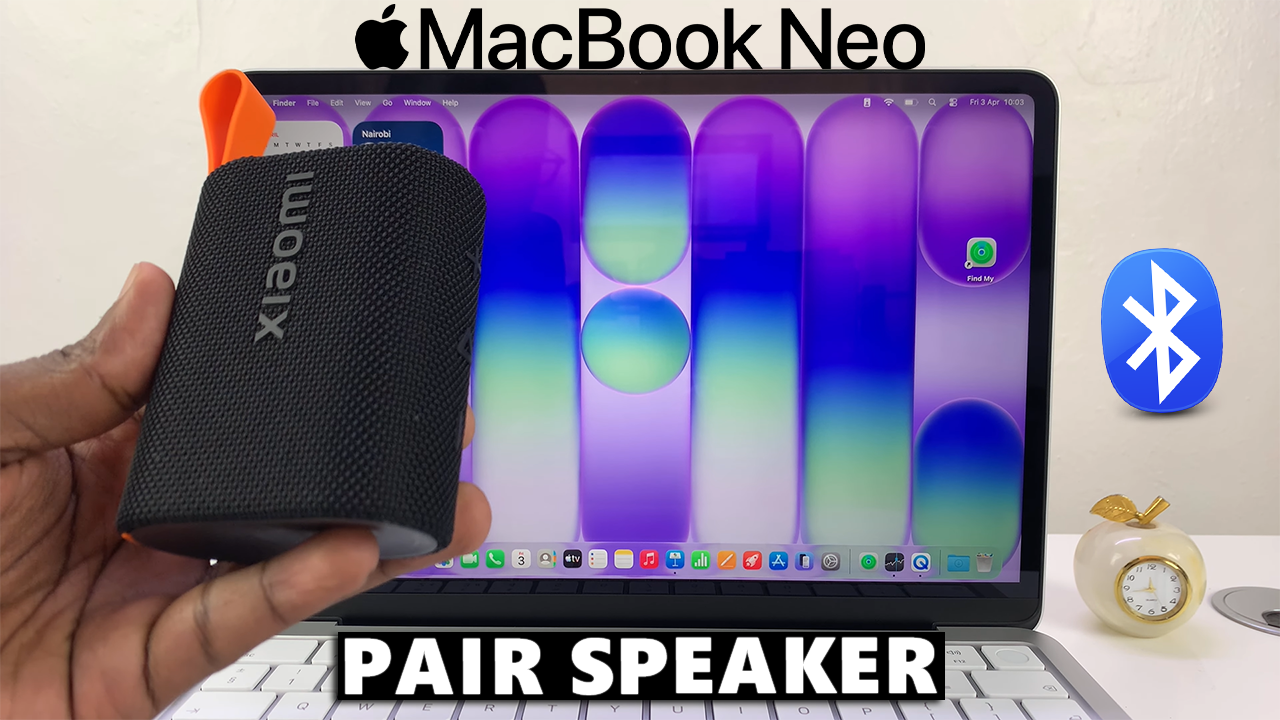
If you want to enjoy better audio quality from your MacBook Neo, connecting a Bluetooth speaker is a great solution.

Whether you’re streaming music, watching movies, or taking video calls, pairing your MacBook Neo with a wireless speaker is quick and easy.

This guide will walk you through every step to pair & connect your Bluetooth headphones to your MacBook Neo.

Read: How To Pair & Connect Bluetooth Headphones To MacBook Neo

Pair & Connect Bluetooth Speaker To MacBook Neo

Before anything else, ensure your Bluetooth speaker is powered on and ready to pair. Most Bluetooth speakers have a dedicated pairing button—press and hold it until you see a blinking light or hear an audio cue. This indicates the speaker is in pairing mode.
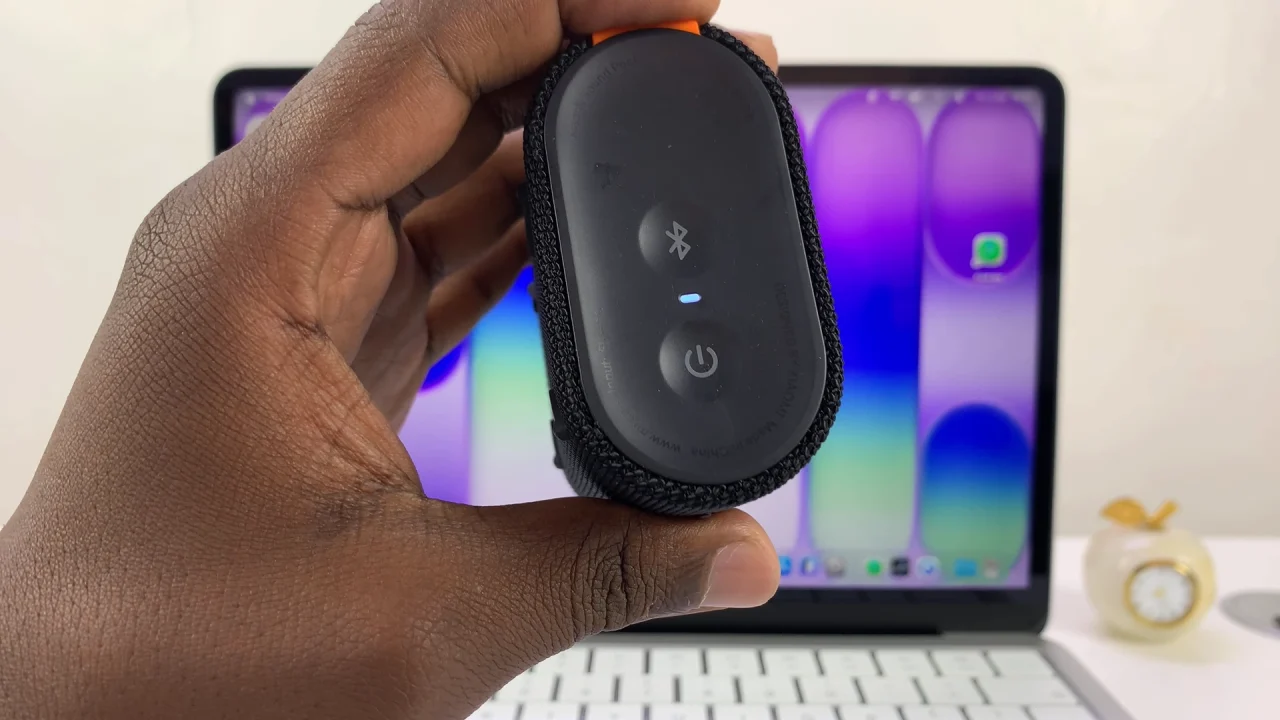
Xiaomi Bluetooth Speaker Pairing Mode

If your speaker doesn’t enter pairing mode automatically, check the manual for specific instructions.

Click the Control Center in the top-right corner of your screen and click on the arrow next to Bluetooth. Make sure Bluetooth is turned on.
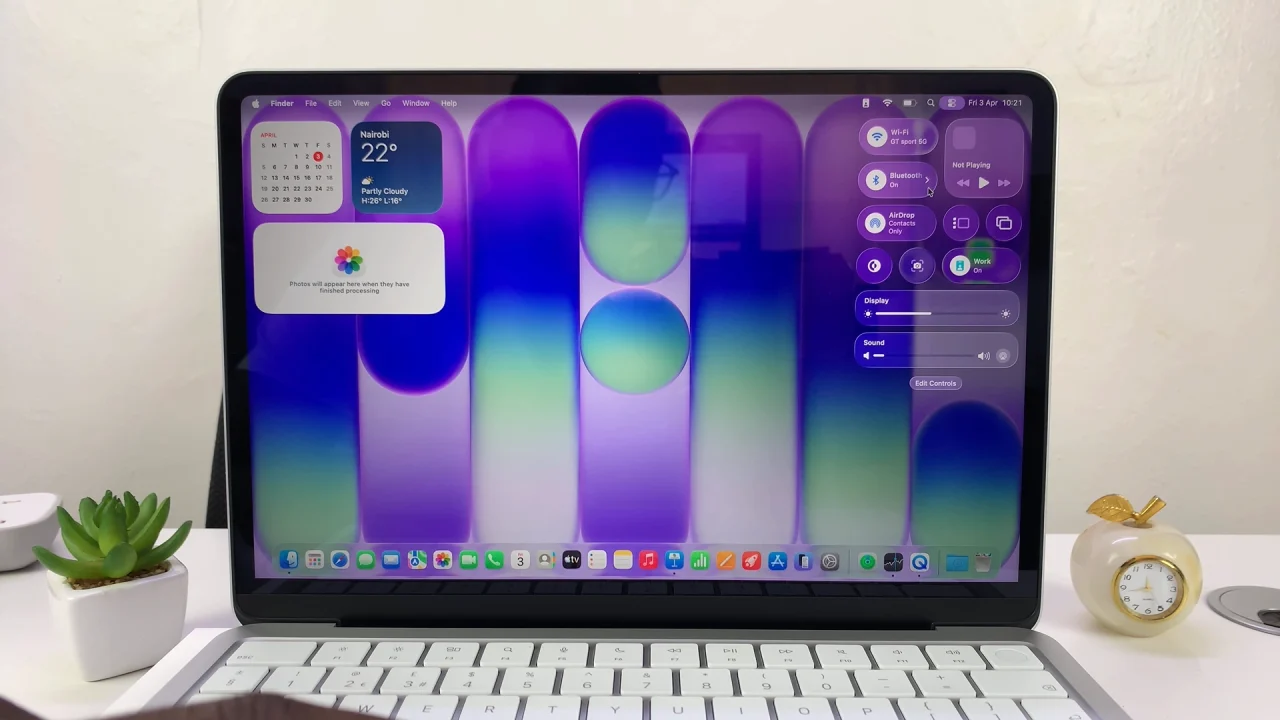
How To Pair & Connect Bluetooth Speaker To MacBook Neo

Select the Bluetooth Settings option.
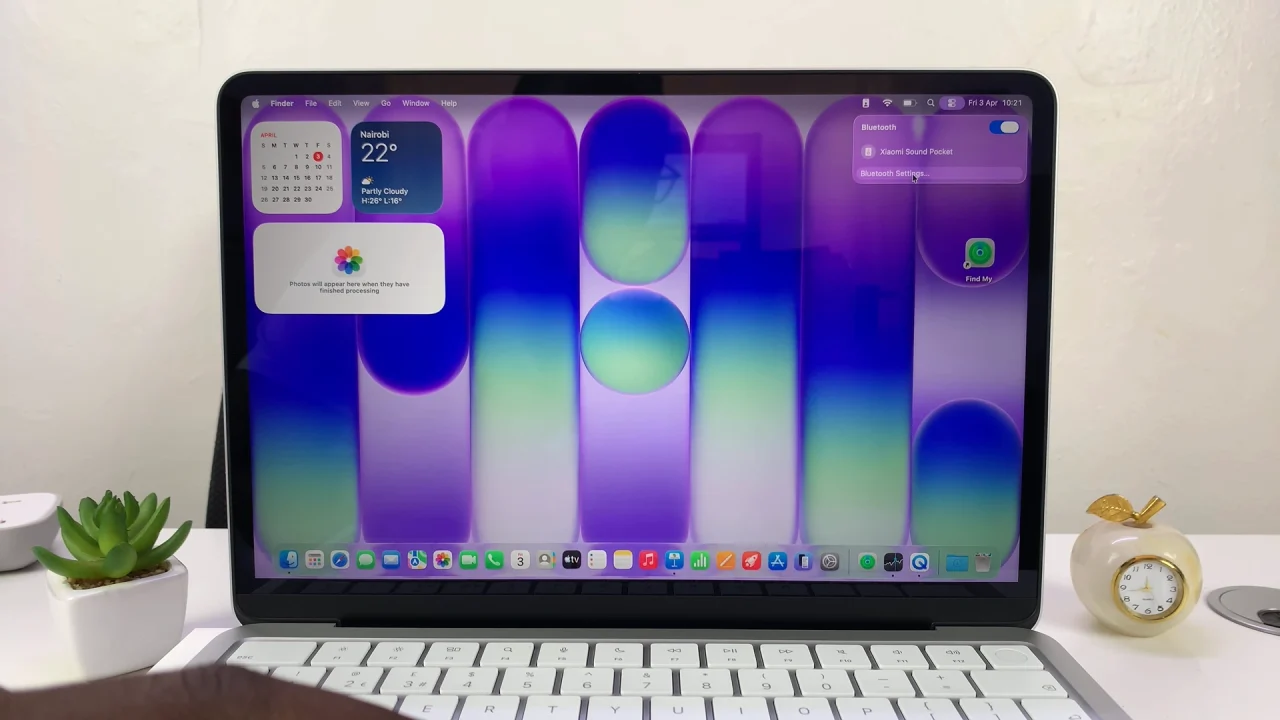
Bluetooth Settings On MacBook Neo

Your MacBook Neo will start scanning for nearby devices. In the list of available devices, find the name of your Bluetooth speaker. Click Connect next to your speaker.
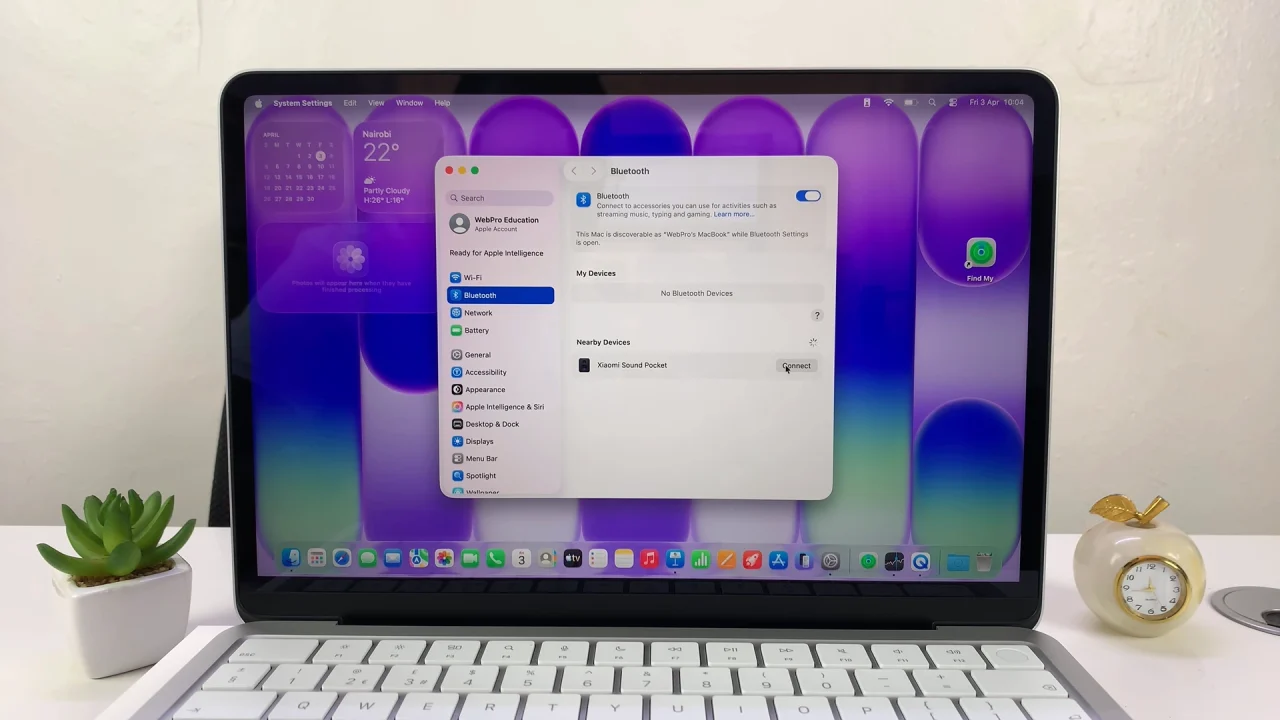
How To Connect Bluetooth Speaker To MacBook Neo

Wait a few moments—your MacBook Neo should confirm that the device is connected.
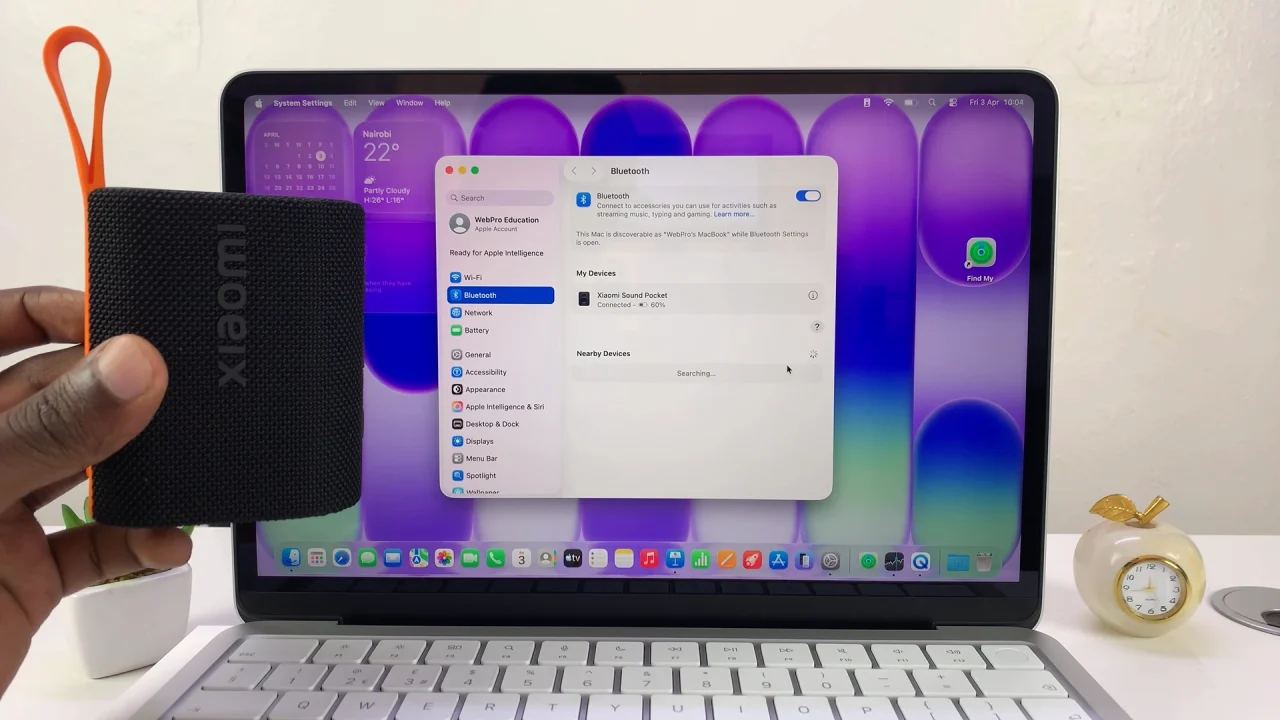
Pair Bluetooth Speaker To MacBook Neo

Once connected, it’s time to make sure your speaker is working properly. Play a song or video on your MacBook Neo. Check if the sound comes through the Bluetooth speaker.

If the sound is still coming from your MacBook’s internal speakers, go to Control Center and click the arrow next to Sound.
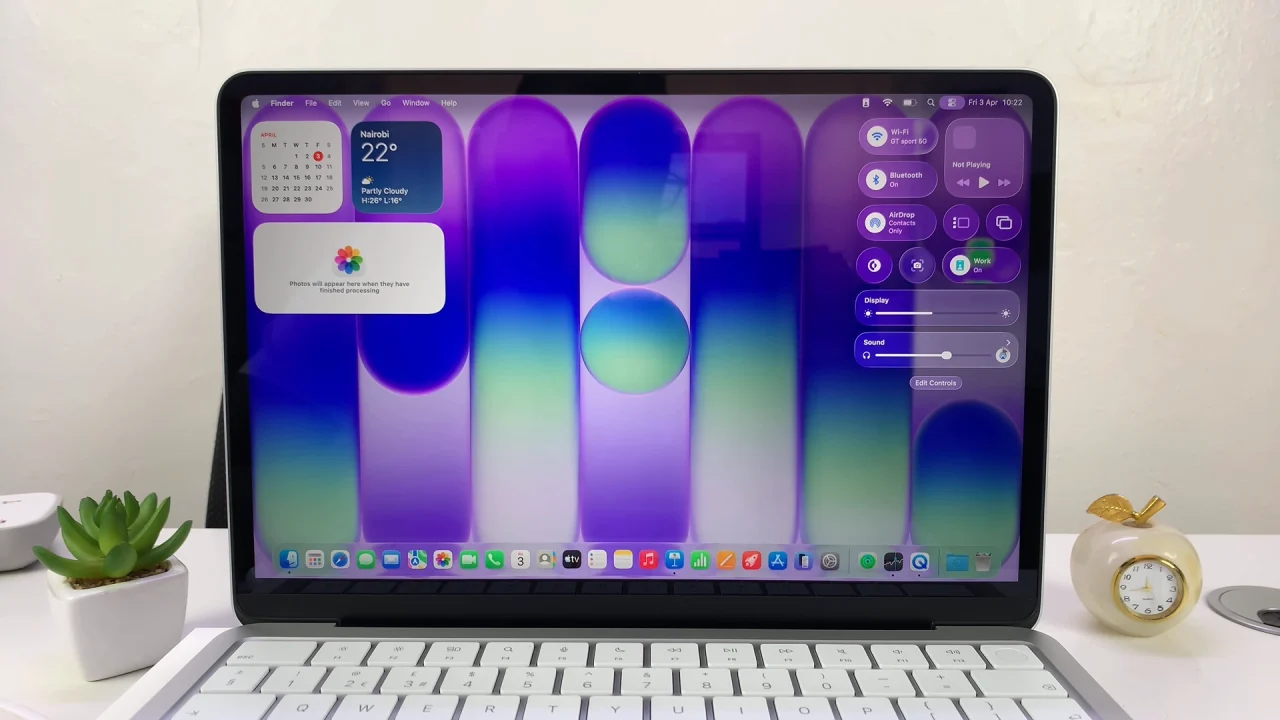
Pair & Connect Bluetooth Speaker To MacBook Neo

Select your Bluetooth speaker from the list of options.
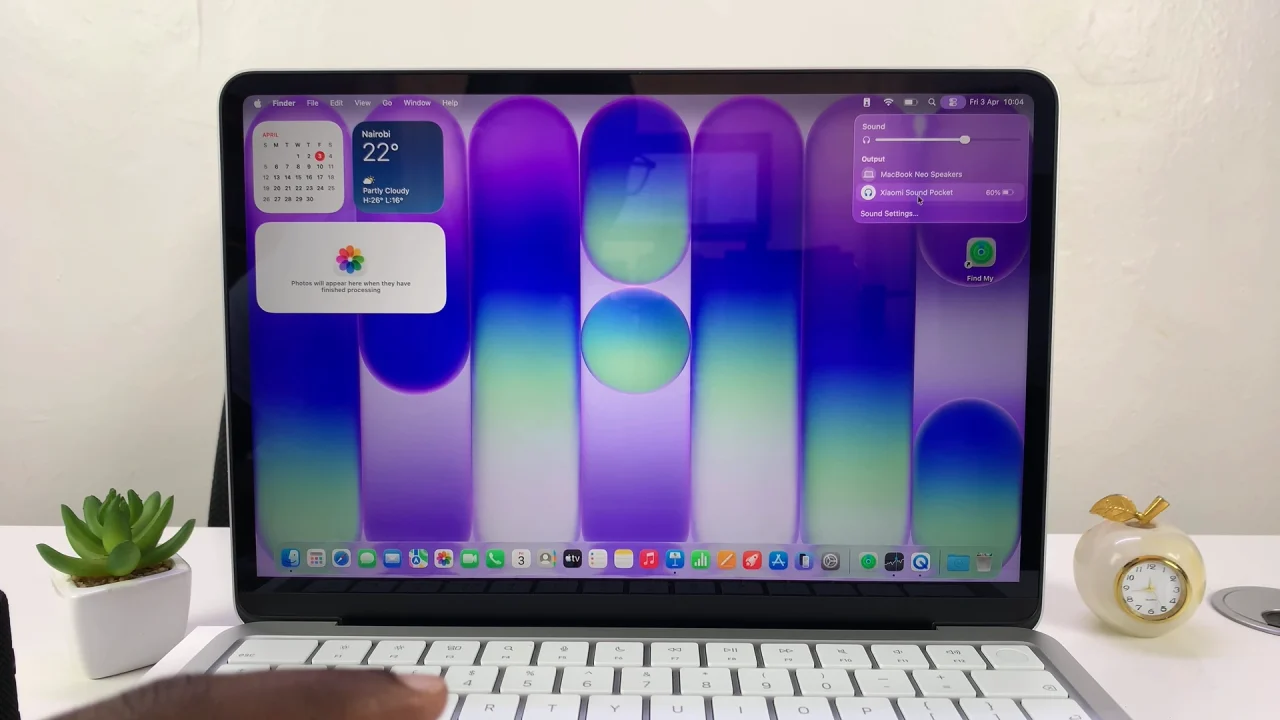
Sound Output Settings On MacBook Neo

Watch: Connect Bluetooth Headphones To MacBook Neo

Share
Tweet
Linkedin
Reddit
Tumblr
Stumble
Whatsapp
Telegram
Email
Prev Article
Next Article

Related Articles

How To Delete Your Spotify Account
If you have made the decision to get rid of …

How To Delete Your Spotify Account

How To Rename Dock On Google Pixel Tablet

How To Rename Dock On Google Pixel Tablet

  • How To Right Click On MacBook Neo
  • How To Remove Apps From Dock On MacBook Neo
  • How To Pair & Connect Bluetooth Speaker To MacBook Neo
  • How To Pair & Connect Bluetooth Headphones To MacBook Neo
  • How To Launch Apps On MacBook Neo
DMCA.com Protection Status

Associates Disclosure

WebPro Education is a participant in the Amazon Services LLC Associates Program, an affiliate advertising program designed to provide a means for sites to earn advertising fees by advertising and linking to amazon.com.

WebPro Education

Tech tips everyday
Copyright © 2026 WebPro Education

Ad Blocker Detected

Our website is made possible by displaying online advertisements to our visitors. Please consider supporting us by disabling your ad blocker.

Refresh