If you want to enjoy better audio quality from your MacBook Neo, connecting Bluetooth headphones is a great solution.
Whether you’re streaming music, watching movies, or taking video calls, pairing your MacBook Neo with a wireless Bluetooth headphones is quick and easy.
This guide will walk you through every step to pair & connect your Bluetooth headphones to your MacBook Neo. Connect and use AirPods, Bose, Sony, or any other Bluetooth headphones.
Watch: How To Launch Apps On MacBook Neo
Pair & Connect Bluetooth Headphones To MacBook Neo
Before anything else, ensure your Bluetooth headphones are powered on and ready to pair. Most Bluetooth headphones have a dedicated pairing button—press and hold it until you see a blinking light or hear an audio cue. This indicates the headphones are in pairing mode.
If your headphones don’t enter pairing mode automatically, check the manual for specific instructions.
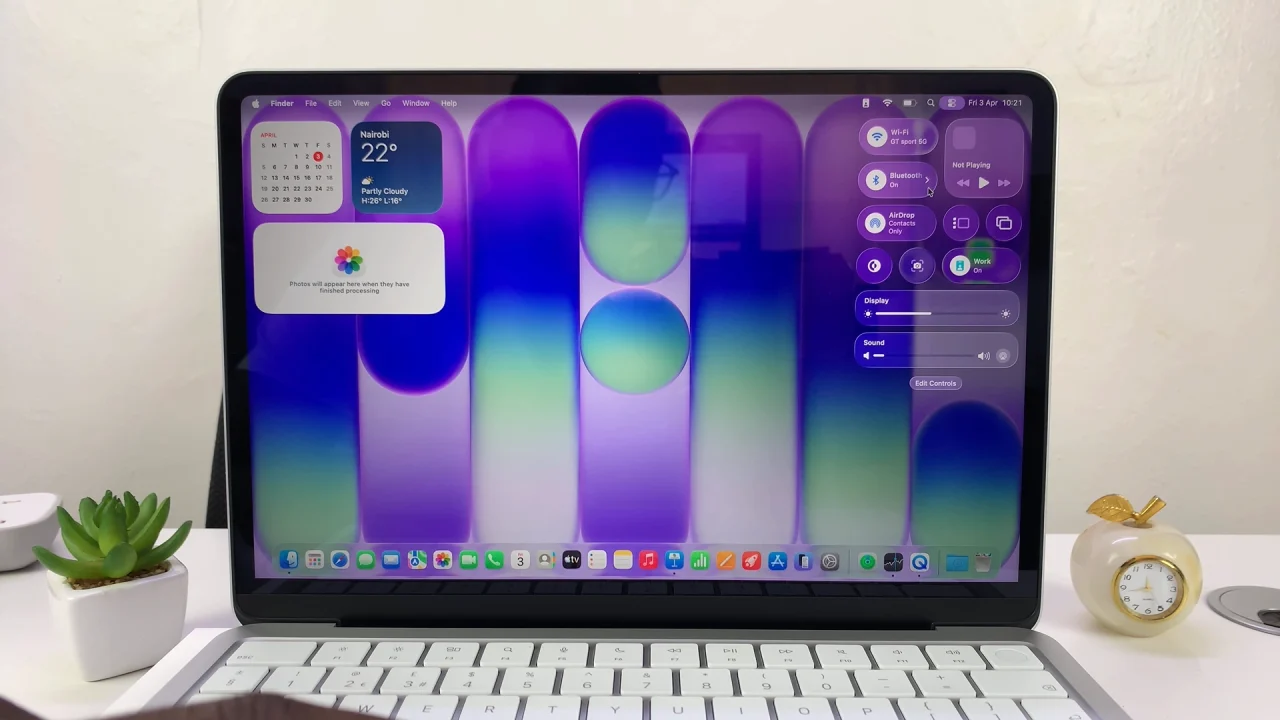
Click the Control Center in the top-right corner of your screen and click on the arrow next to Bluetooth. Make sure Bluetooth is turned on.
Select the Bluetooth Settings option.
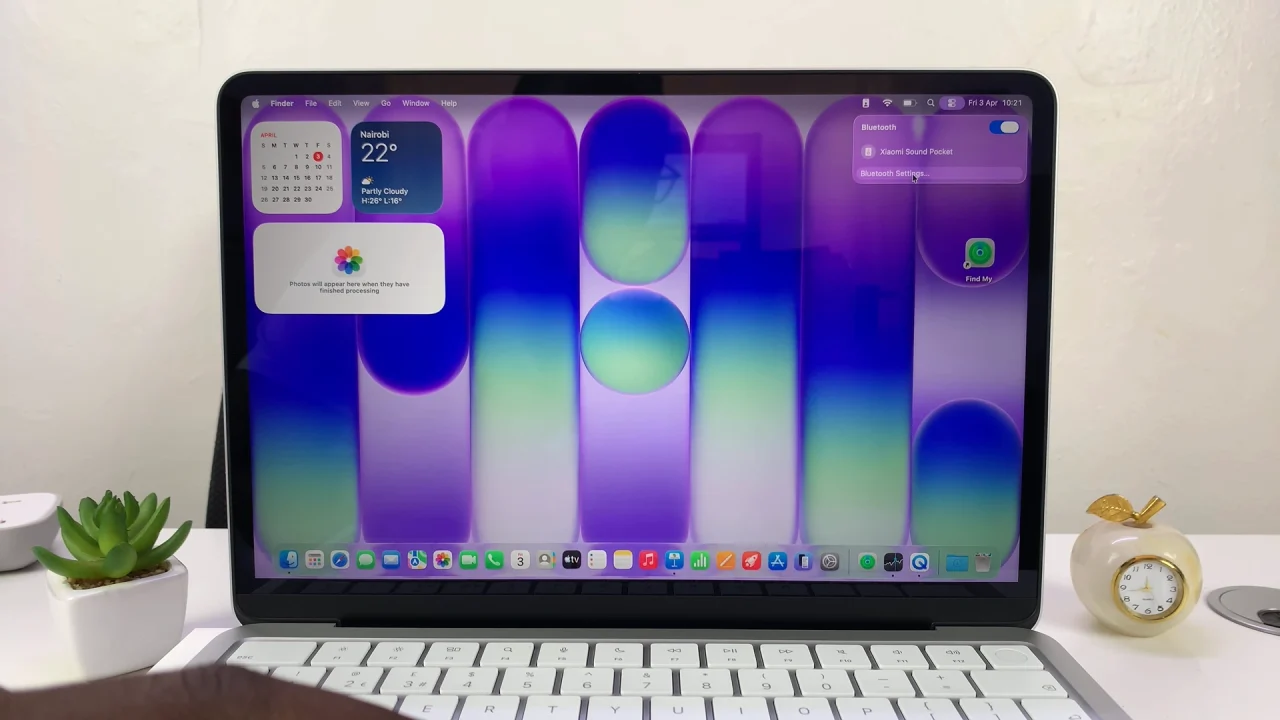
Your MacBook Neo will start scanning for nearby devices. In the list of available devices, find the name of your Bluetooth headphones. Click Connect next to your headphones.
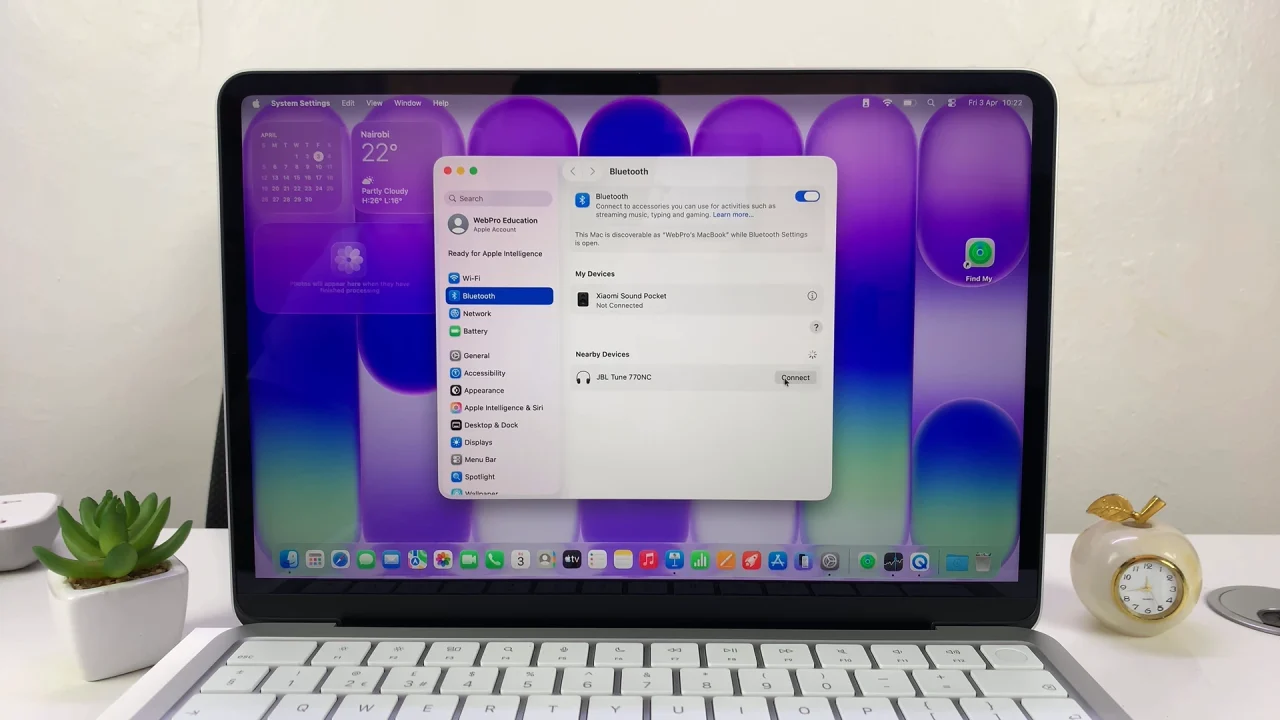
Wait a few moments—your MacBook Neo should confirm that the device is connected.
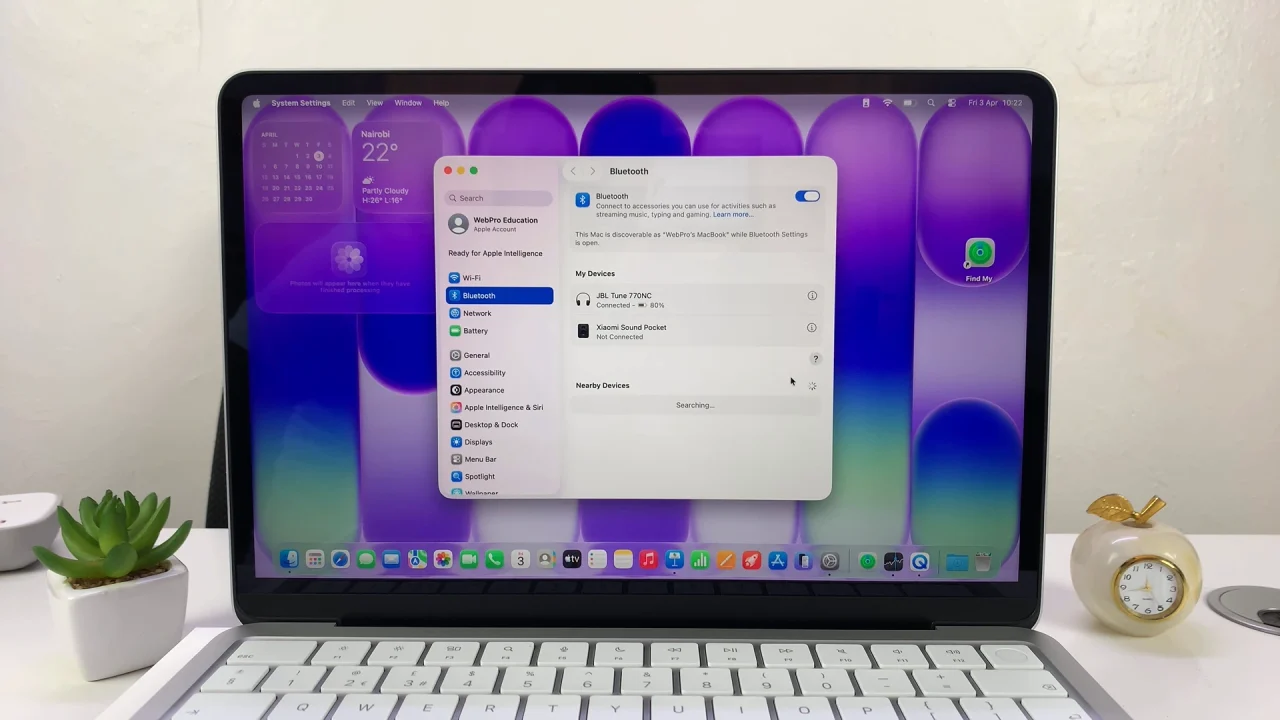
Once connected, it’s time to make sure your headphones are working properly. Play a song or video on your MacBook Neo. Check if the sound comes through the Bluetooth headphones.
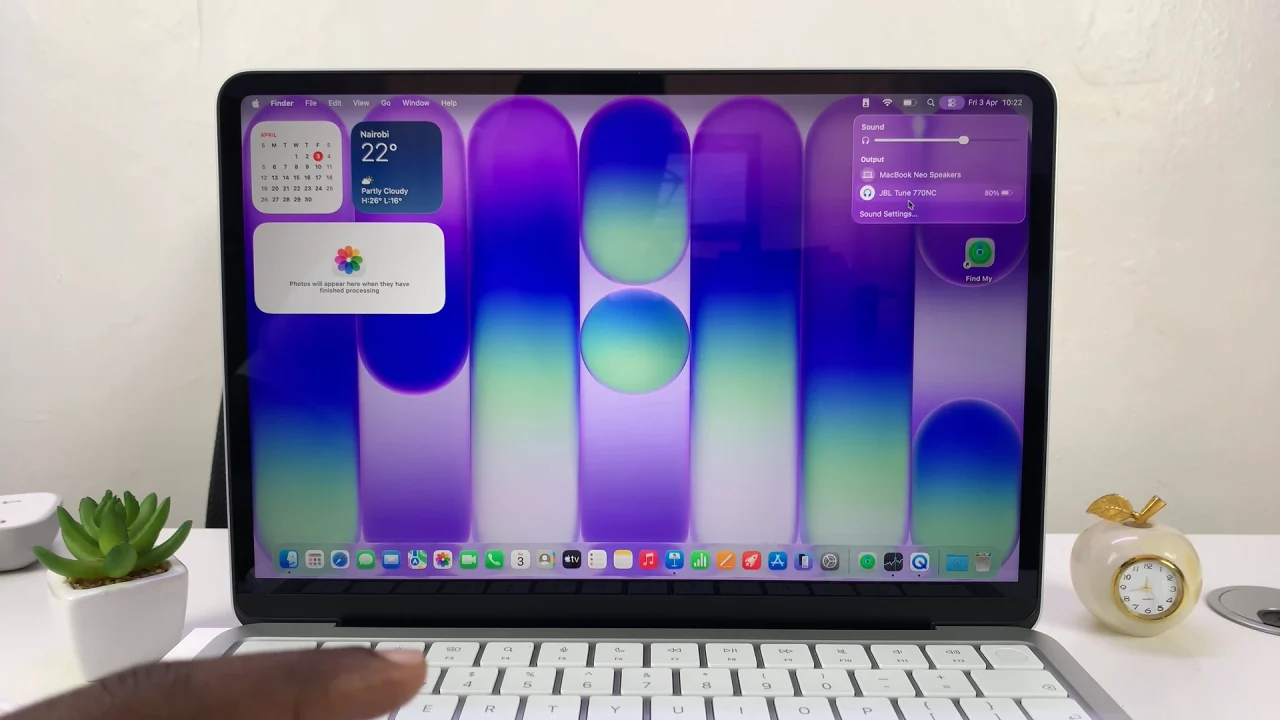
If the sound is still coming from your MacBook’s internal speakers, go to Control Center and click the arrow next to Sound.
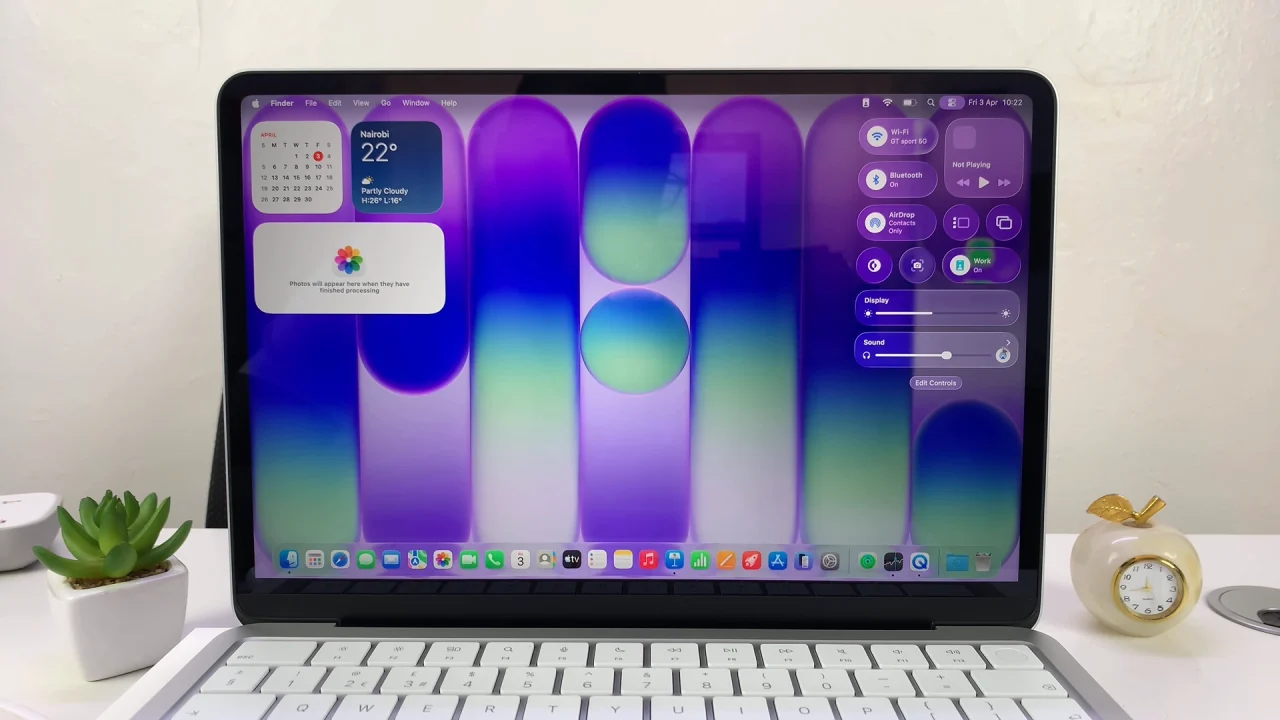
Select your Bluetooth headphones from the list of options.