The Sony WF-1000XM6 earbuds provide incredible audio through their earbud technology, great noise cancellation technology, and a very comfortable product to wear. However, many people don’t know how to properly manage their microphone while on a call. Knowing how to mute or unmute your microphone will help you whether you are on a business call, chatting with friends or playing video games.
We will guide you through step by step on how you can effectively use earbuds microphone to effectively manage your calls in the next few paragraphs. You will know how to mute & unmute your microphone during calls on Sony WF-1000XM6 without any breaks and so on.
After reading this article, you will be confident in knowing how to effectively control the microphone functions on your Sony WF-1000XM6 earbuds while maintaining your privacy with clear and professional-level calls each and every time you make a call.
Watch: How To Enable Speak To Chat On Sony WF-1000XM6
Mute & Unmute Microphone During Calls On Sony WF-1000XM6
Begin by launching the Sony Connect app on your device. If you don’t have the app installed, head to App Store or Google PlayStore and download it from there. Then, scroll down and tap on ‘Device Settings‘ within the app.
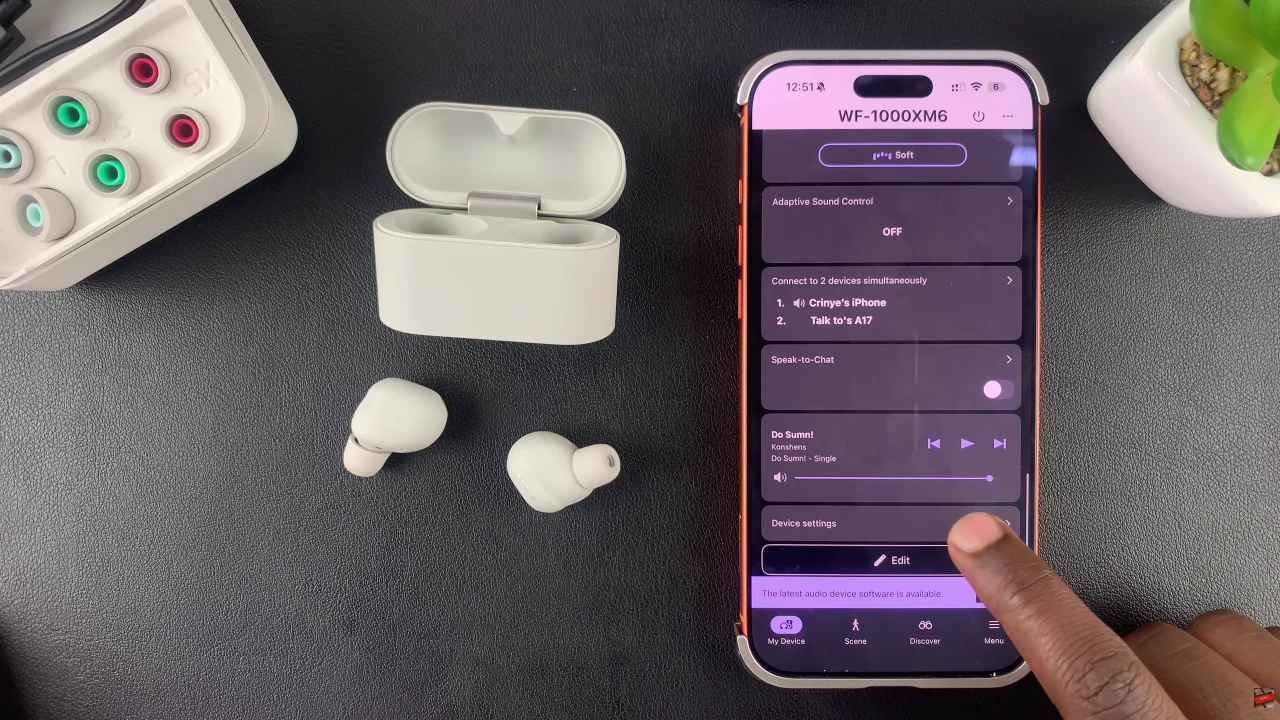
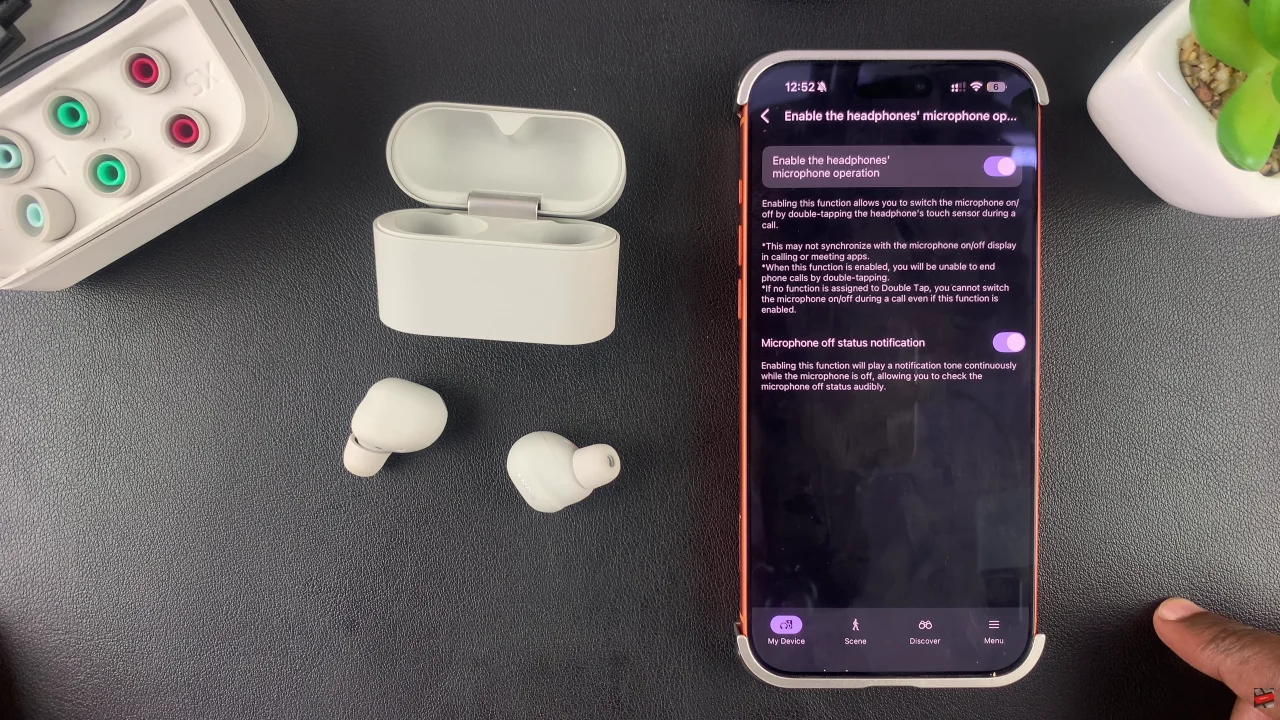
At this point, tap on ‘Controls‘ and select ‘Enable headphones’ microphone operation‘ from the menu that appears.
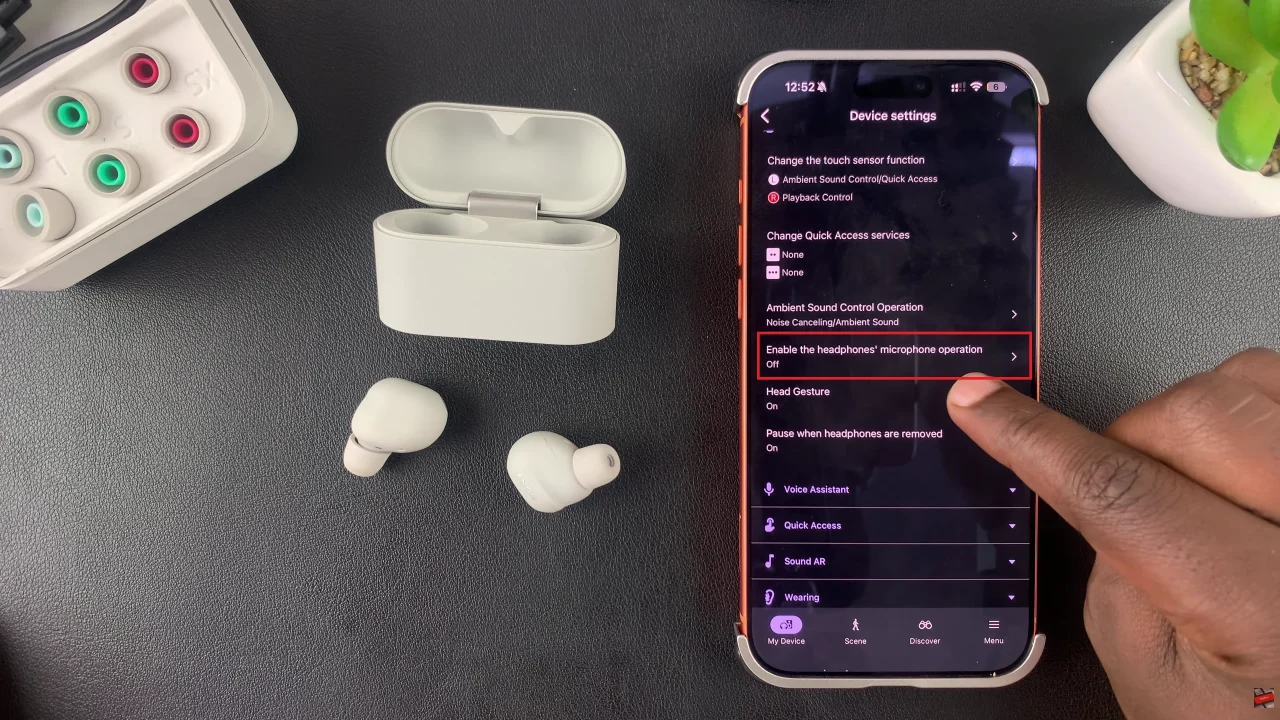
Now, you’ll see a brief description of what this feature is all about. Simply toggle ON the switch next to the ‘Enable headphones mic operation’. Once enabled, whenever you’re on an active call, you can easily double tap the touch sensor on your earbud to mute or unmute your microphone.
By learning how to mute and unmute mic during calls, you can prevent unwanted background noise, protect your privacy, and maintain crystal-clear communication. Take advantage of both the on-earbud gestures and the Sony Headphones Connect app settings to customize your call experience.