In this article, you’ll learn how to turn on Live Captions on the Samsung Galaxy S26 / S26 Ultra. The Live Captions feature is an accessibility tool that converts spoken audio into real-time text on your screen, making it easier to follow videos, calls, and other media. It is especially helpful when you are in noisy environments or prefer reading captions instead of listening.
Understanding how to enable Live Captions on the Galaxy S26 / S26 Ultra helps you improve how you interact with audio content in everyday use. Once activated, the feature automatically displays captions whenever supported media is playing, ensuring you do not miss important spoken information.
This guide will take you through simple step-by-step instructions to activate Live Captions so you can start using it immediately on your Samsung Galaxy S26 / S26 Ultra.
Watch: How To Enable Mono Audio On Samsung Galaxy S26 / S26 Ultra
Turn On Live Captions On Samsung Galaxy S26 / S26 Ultra:
Start by opening the Settings app on your Samsung Galaxy S26. This is where all system features are managed, including accessibility tools that improve how you use your phone every day. Inside Settings, go to Accessibility, which is designed to help users adjust features for better viewing and listening. This section includes tools like captions, sound adjustments, and hearing support options.
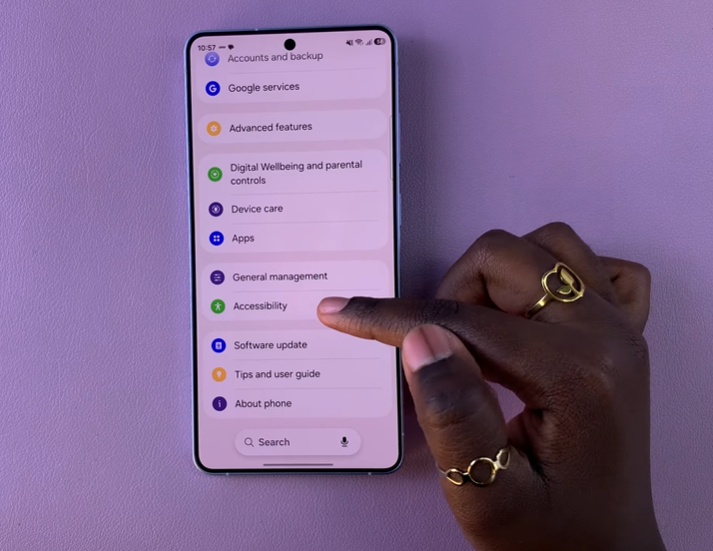
Choose Hearing Enhancement to access features that improve audio understanding. This option is useful when you need clearer sound support or when you rely on visual text for audio content.
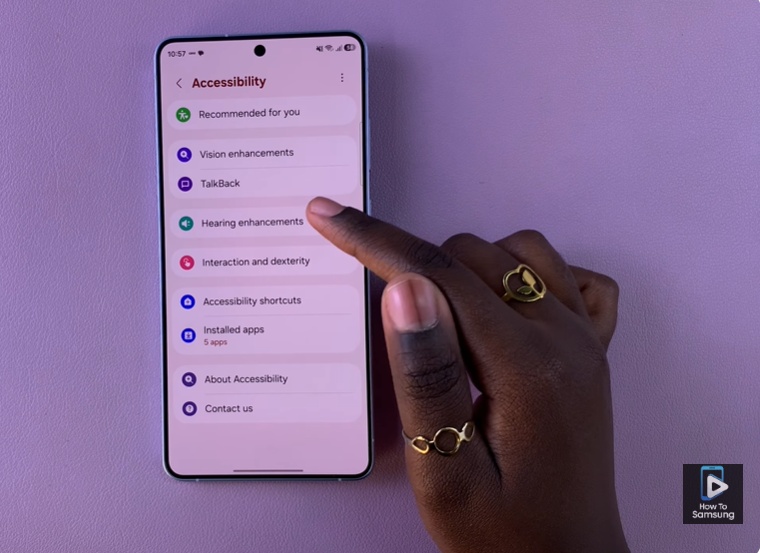
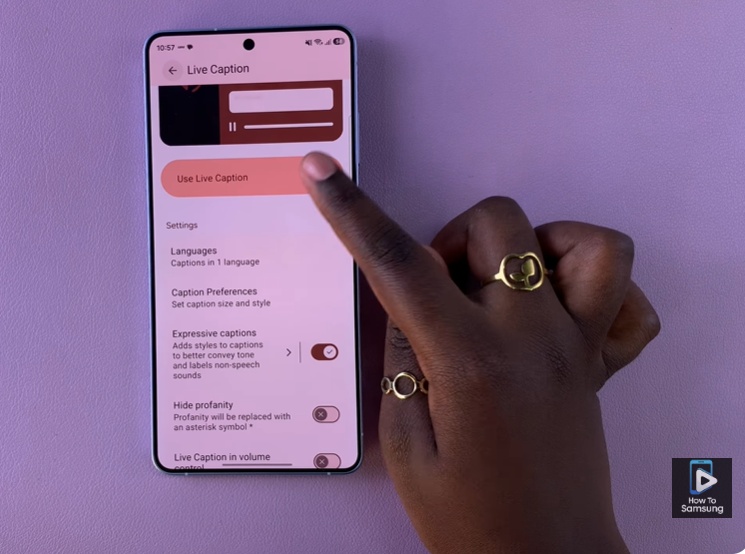
Now open Live Caption, a feature that automatically converts spoken words into text on your screen. It is helpful when watching videos, attending calls or using apps in noisy environments.
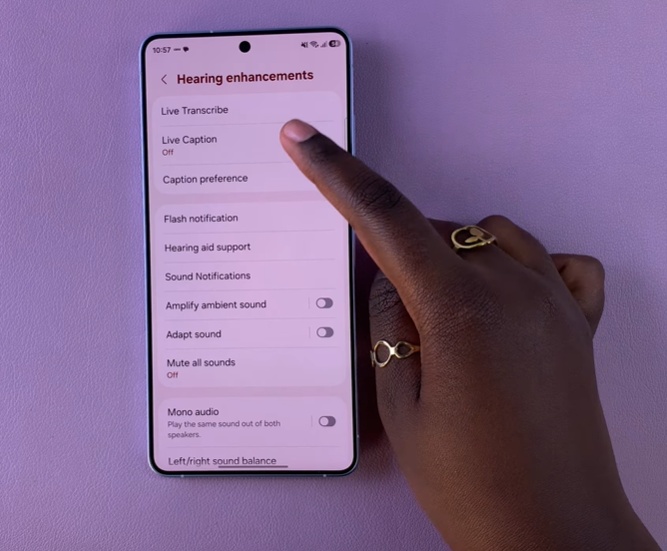
Finally, turn on Live Caption to activate it on your device. Once enabled, your Samsung Galaxy S26 will instantly display real-time captions, making it easier to follow conversations without needing sound.
Read: How To See Wi-Fi Password On Samsung Galaxy S26 / S26 Ultra