The Sony WF 1000XM6 comes equipped with various intelligent features that aim to improve the overall performance as well as the efficiency of the battery. One such intelligent feature is the Automatic Power Saving Mode, which helps in the efficient utilization of the battery by turning the earbuds off when not in use.
This feature is extremely helpful for those who use their earbuds frequently and don’t want to charge the device repeatedly. However, for some, it might not be the best option as it requires turning the device on every time. Therefore, it is essential to comprehend how to disable this feature in order to gain control over the use of the earbuds.
Here, we will provide you with the steps to enable & disable the Automatic Power Saving Mode on the Sony WF-1000XM6.
Watch: How To Disable Touch Sensor Controls On Sony WF-1000XM6
Enable & Disable Automatic Power Saving Mode On Sony WF-1000XM6
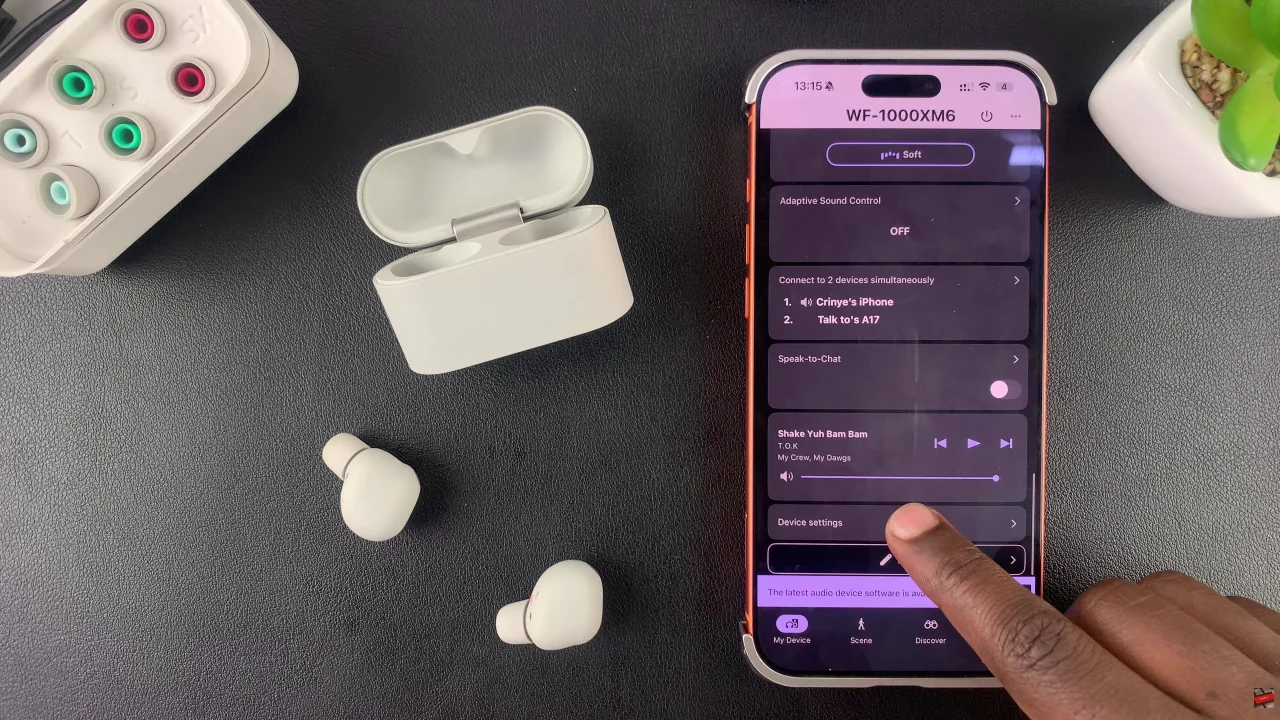
Begin by launching the Sony Connect app on your device. If you don’t have the app installed, head to App Store or Google PlayStore and download it from there. Then, scroll down and select the ‘Device Settings‘ within the app.
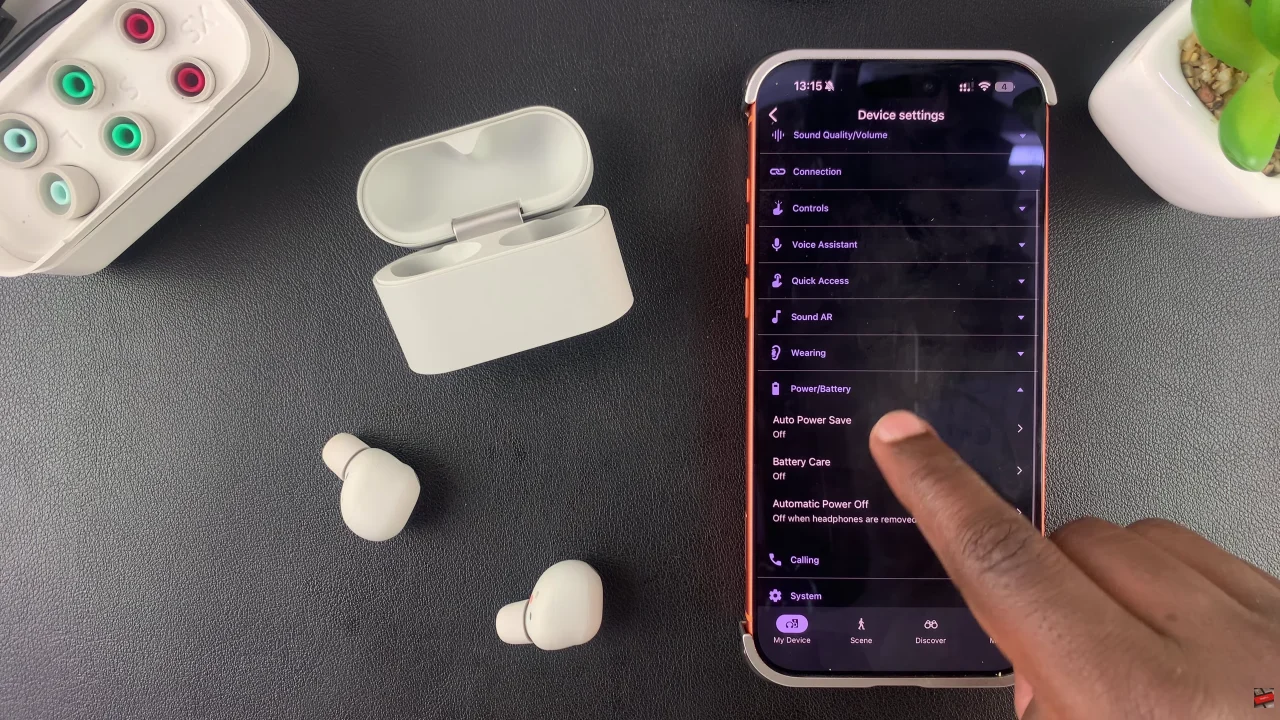
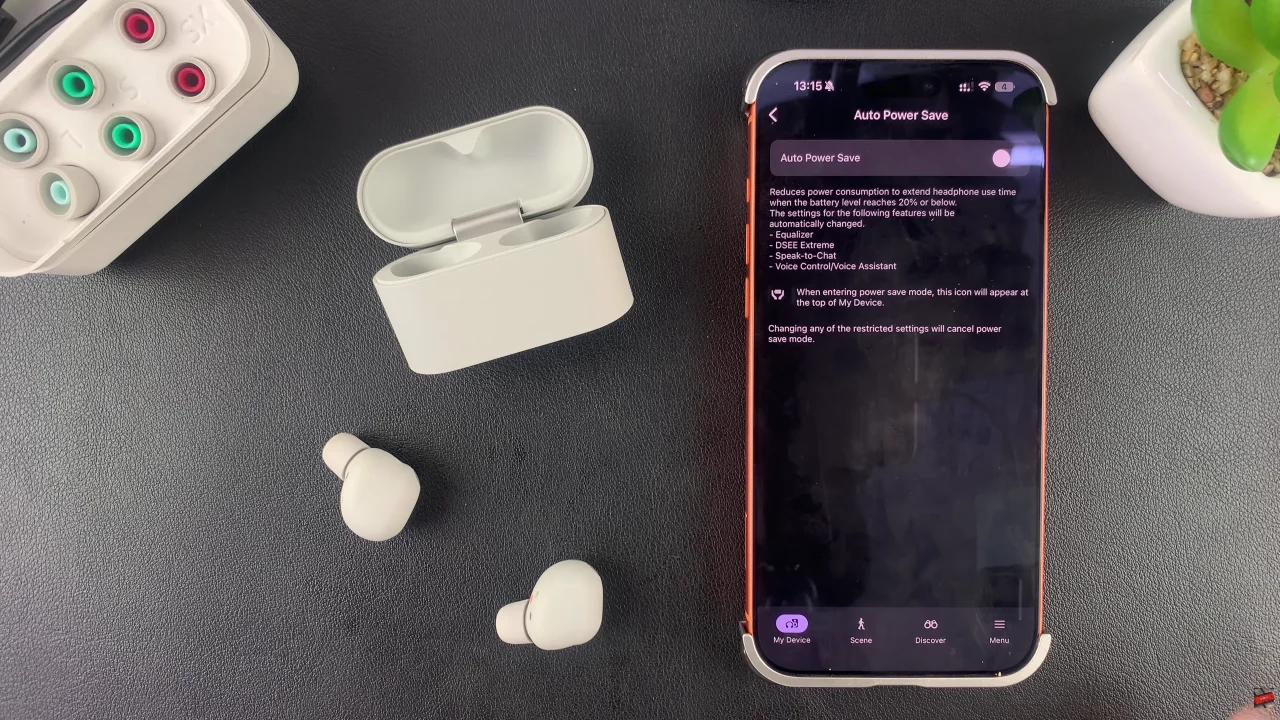
At this point, tap on ‘Power/Battery‘ and select ‘Auto Power Save‘ from the menu that appears.
Here, you’ll see a brief description of what this feature is all about. To enable it, toggle ON the switch. However, if you don’t want this feature enabled, you can simply turn it off by toggling the switch to the OFF position.
In conclusion, managing auto power save on the Sony WF-1000XM6 is a simple yet powerful way to control battery usage and overall performance. Whether you choose to enable it for longer battery life or disable it for convenience, this feature ensures your earbuds work exactly how you want them to.
Read: How To Add Photos Widget To Home Screen On Samsung Galaxy A17 5G