If you’re having trouble with your MacBook Neo going into screensaver mode while you are trying to do something on the computer (such as watching video and long documents or presenting), it can become an annoyance. Luckily, macOS allows you to completely customize how and when to activate a screensaver, and it only takes a few easy steps to disable it.
In this article, you will learn how to disable the screen saver on your MacBook Neo very conveniently. You’ll also learn how to configure your machine’s display settings for different activities. There is no need to worry; if you have never worked with screensaver options before, you’ll have no problems following this tutorial.
We will also discuss where in the System Preferences you can find your screensaver options, the screensaver’s connection to the display sleep option, and some tips and tricks to keep your screens active when needed. By the end of the article, you should have complete control over your MacBook Neo’s screen capability, making it work as you want.
Watch: How To Turn ON MacBook Neo
Disable Screen Saver On MacBook Neo
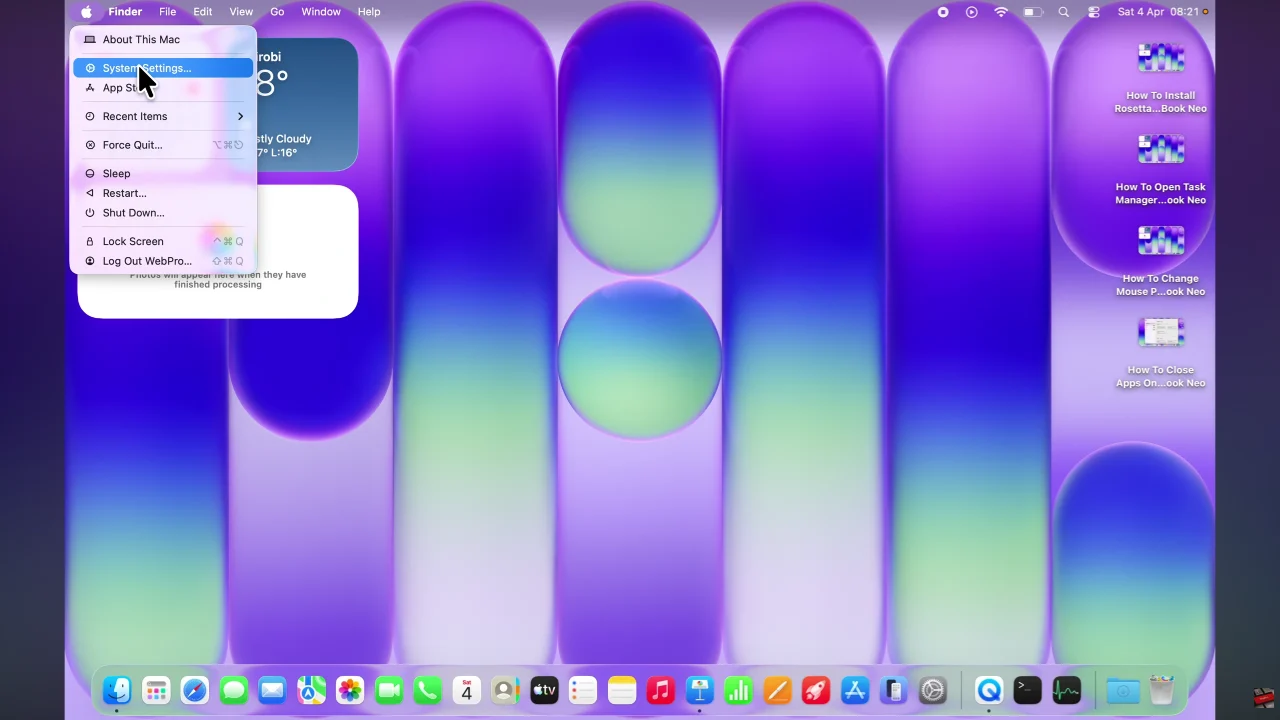
Start by clicking on the Apple logo located at the top right corner of the screen. Then, tap on ‘System Settings‘ from the menu that appears.
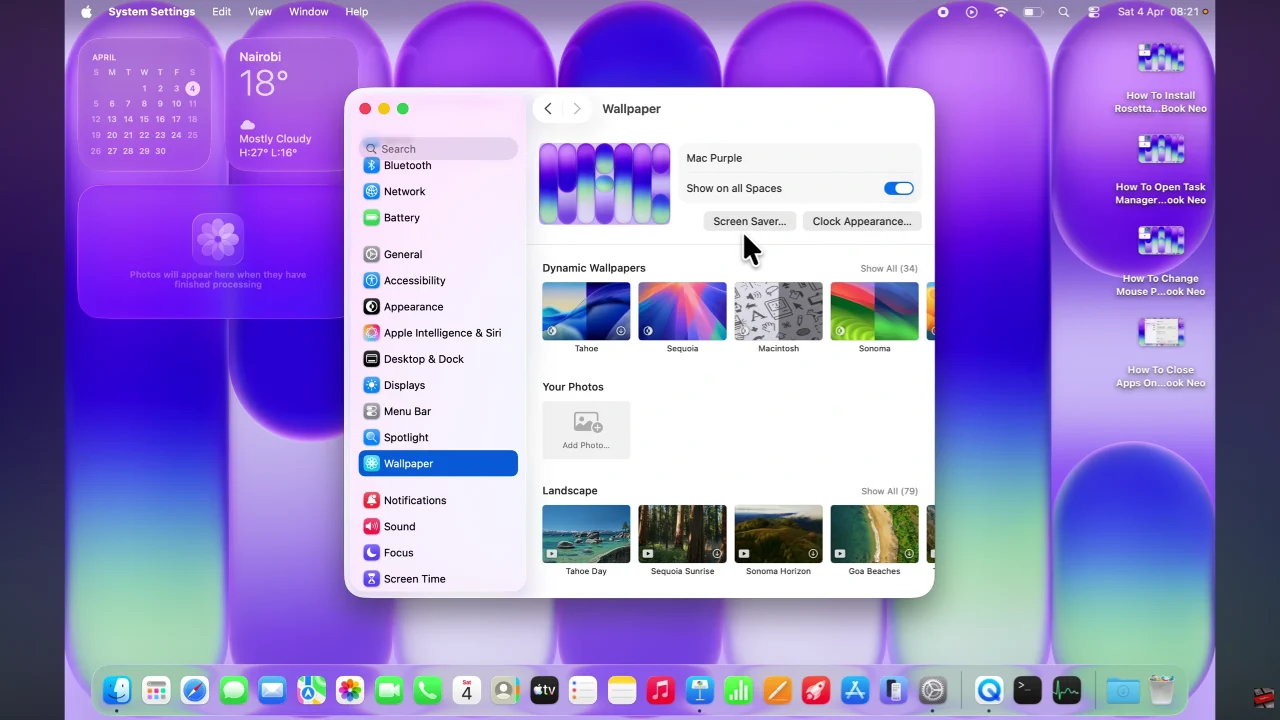
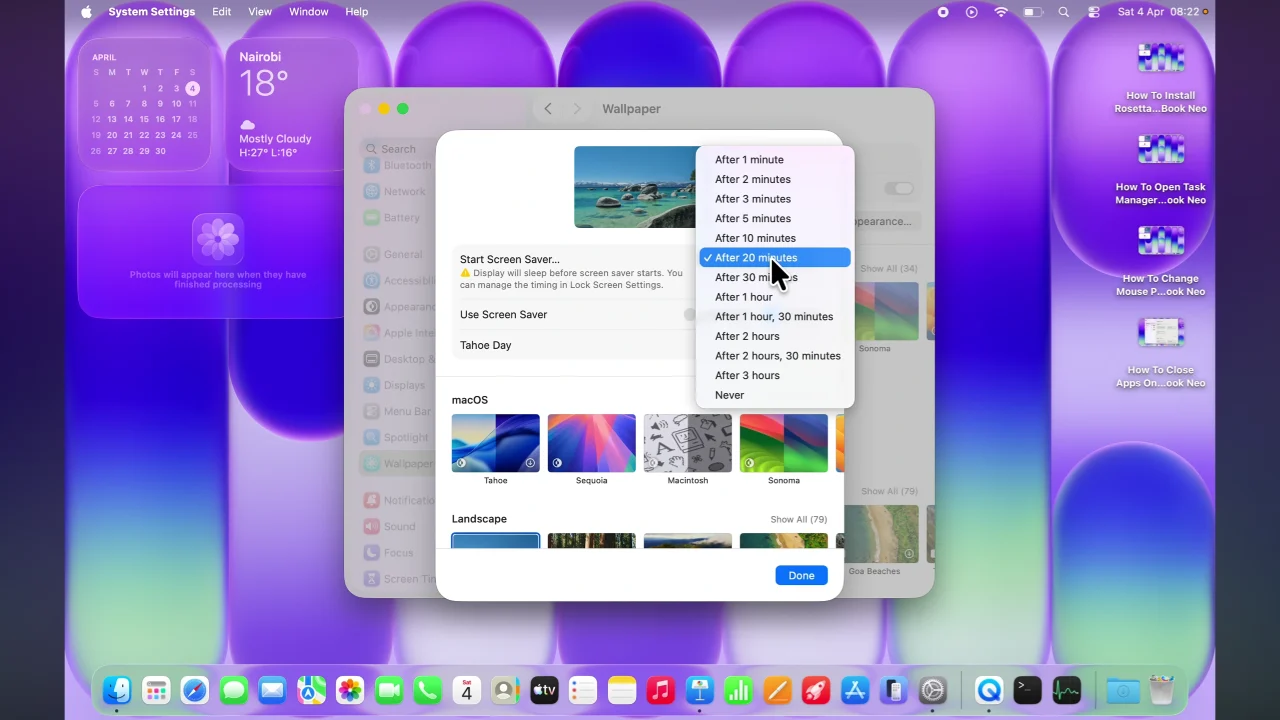
Following this, scroll through the settings and select ‘Wallpaper‘. Within the Wallpaper settings, click on ‘Screen Saver‘ to access the settings.
At this point, you’ll notice a drop-down arrow next to the Start Screen Saver option. Now, click on the arrow and from the options that appears, click on ‘Never‘. Afterwards, click on ‘Done‘ to apply the changes.
Now that you know how to turn off the screen saver, you also have better control over your display behavior and power settings. Whether you choose to disable it completely or just extend the idle time, these small changes can make a big difference in how your MacBook Neo performs during daily use.