To ensure that your MacBook Neo is running at peak performance and that you have as little delay as possible, you must know how to exit apps correctly. Most people think all you have to do to quit an app is to hit the red “X” button and wait for it to disappear from the screen; however, while this does remove the visual representation of the program from the screen, it may not completely quit the app from running on your computer.
When an app does not fully quit, the app is still running in the background of your MacBook Neo and taking up space in system memory (RAM) or consuming your laptop’s battery, which can drastically affect how well your computer responds to other applications. If your computer is slow due to unresponsive applications, being familiar with exiting applications will help you improve system performance when using your MacBook Neo.
In this article, I will take you through a step-by-step process to close apps on your MacBook Neo.
Watch: How To Disable Screen Saver On MacBook Neo
Close Apps On MacBook Neo
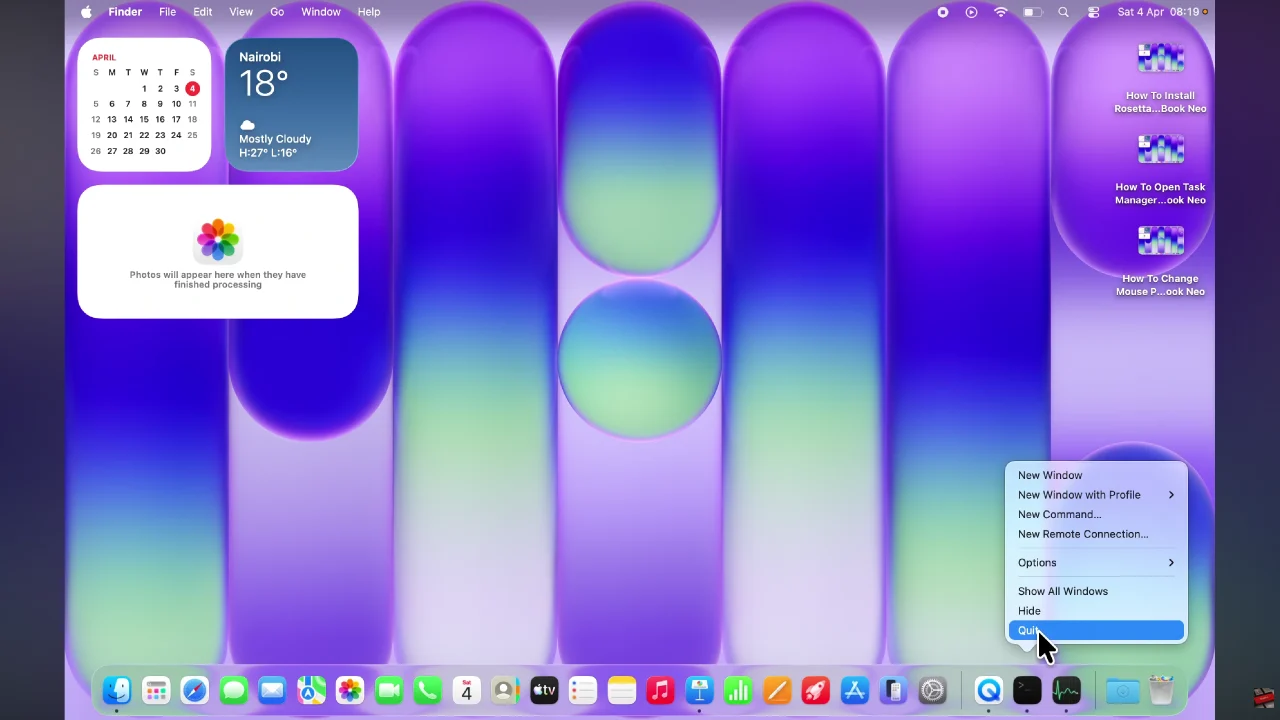
Begin by identifying the application you’d like to close on your MacBook Neo. These apps can be found within the Dock panel on your device.
Following this, right click on the application icon within the Dock panel and a menu will appear. From here, tap on ‘Quit‘ and this will close the app. Repeat the same process for all the applications you’d like on your MacBook.
In conclusion, closing apps on your MacBook Neo is more than just a basic task—it’s an important habit that helps keep your device running efficiently and smoothly. By understanding the difference between simply minimizing an app and fully quitting it, you can take better control of your system’s performance and avoid unnecessary slowdowns.