If you’ve recently started using a MacBook Neo, you might have noticed that typing certain symbols, like the hashtag (#), isn’t as straightforward as on other keyboards.
Whether you’re posting on social media, coding, or writing documents, knowing how to type a hashtag is essential. In this guide, we’ll show you exactly how to type a hashtag on your MacBook Neo.
The MacBook Neo keyboard can have slight variations depending on your region. Most MacBook Neo keyboards follow the standard US or UK layout, but some models may have different placements for symbols. The hashtag (#) symbol is typically located above the number 3 key.
Watch: Stop Apps From Opening On Startup On MacBook Neo
Type Hashtag On MacBook Neo
Here’s the simple step-by-step process:
Locate the number 3 key on your keyboard. Hold down the Shift key. Press the number 3 key while holding Shift.
Release both keys — you should see the # symbol appear.
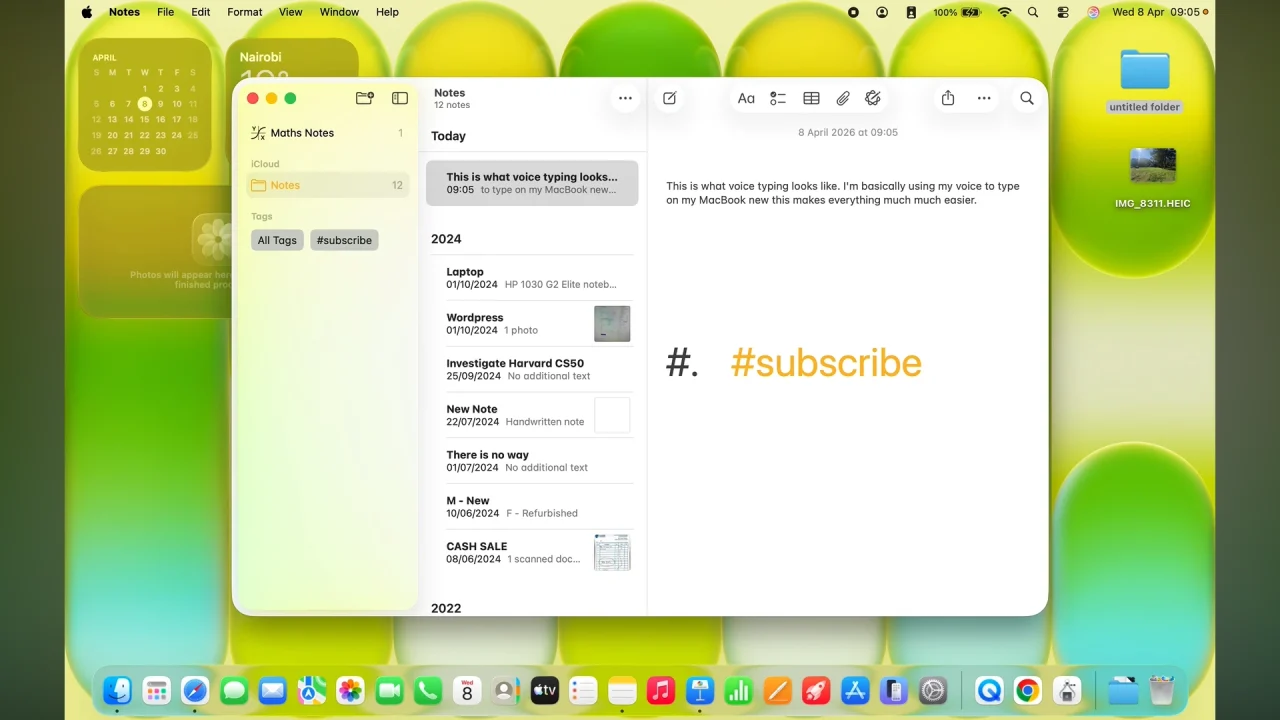
If you’re using a keyboard layout other than US, the hashtag key may be in a different position. Check your keyboard settings if Shift + 3 doesn’t work.
Using Keyboard Viewer
If you’re unsure about key positions:
Open System Settings and select Keyboard. Enable Show Keyboard & Emoji Viewer in menu bar.
Click the keyboard icon in the menu bar and select Show Keyboard Viewer. Hold down Shift to see where the # symbol is located.
This visual guide helps you quickly identify all symbols on your MacBook Neo keyboard.
Typing Hashtags in Different Apps
Typing a hashtag works the same across most apps, including social media apps like Twitter, Instagram, and Facebook; Word processors like Pages or Microsoft Word;
Coding environments for languages like Python or HTML.
Just hold Shift + 3 and type your hashtag, no matter which app you’re using.
Troubleshooting
- Shift + 3 doesn’t work: Check your keyboard layout in System Settings; you may need to switch to the US layout.
- Using an external keyboard: Make sure it’s set to the correct layout in your MacBook Neo settings.
- Keyboard shortcuts not working: Restart your MacBook Neo; sometimes, minor software glitches can block key inputs.
Read: How To Stop Apps From Opening On Startup On MacBook Neo