If you’re setting up your camera or upgrading storage, this guide will walk you through the process to insert a microSD card in your Xiaomi Smart Camera C701, safely and correctly.
Adding a MicroSD card to your Xiaomi Smart Camera C701 is one of the easiest ways to enable local video storage, record footage continuously, and reduce reliance on cloud subscriptions.
Before you begin, make sure you have a compatible MicroSD card (usually Class 10 or higher recommended). Your Xiaomi Smart Camera C701 should also be powered off (for safety).
Read: How To Set Up Xiaomi Smart Camera C701
Insert MicroSD Card In Xiaomi Smart Camera C701
As stated above, ensure you turn off your smart camera before proceeding. Simply unplug the USB-C cable from power or tap on the camera power button in Xiaomi Home app.
Once you power off the camera, locate the MicroSD card slot is typically hidden for a clean design. Gently tilt the camera lens upward (or rotate it, depending on the model orientation).
Look for a small slot labeled with a microSD logo above it. The slot is usually positioned under the camera lens for protection and discreet access.
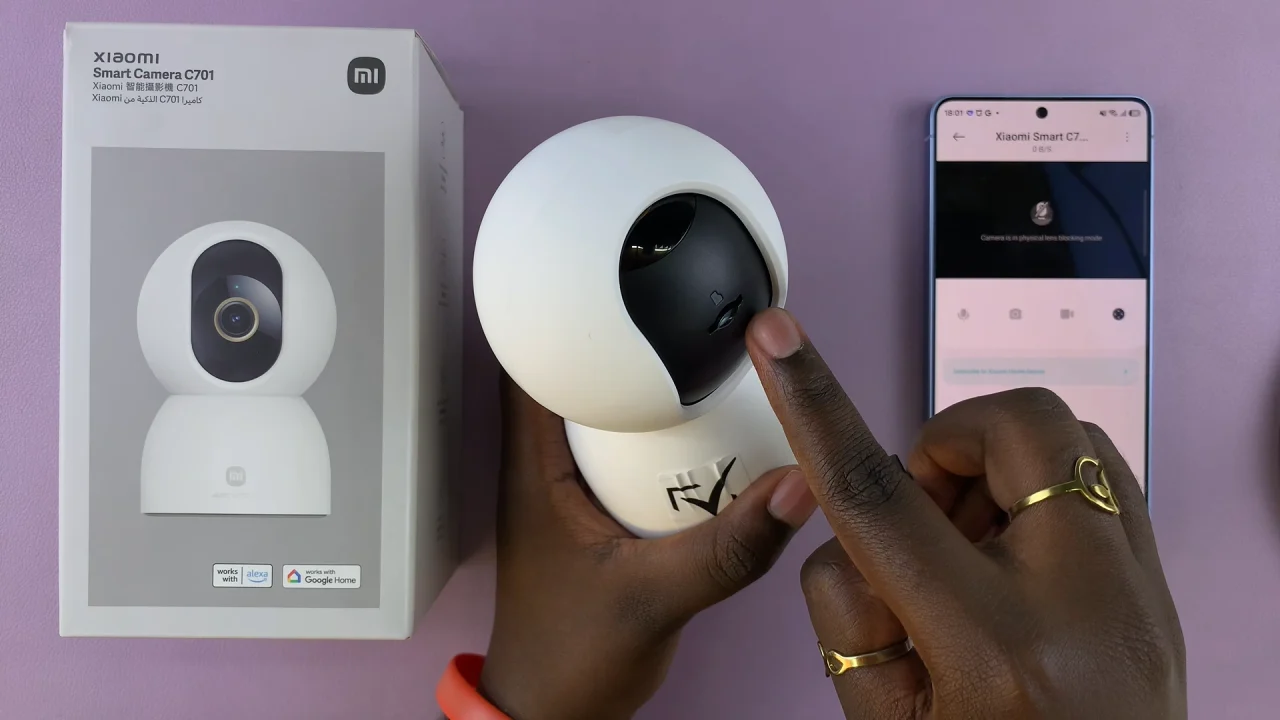
Now, hold the MicroSD card with the metal contacts facing downward (or toward the device’s internal connectors). Carefully slide the card into the slot.
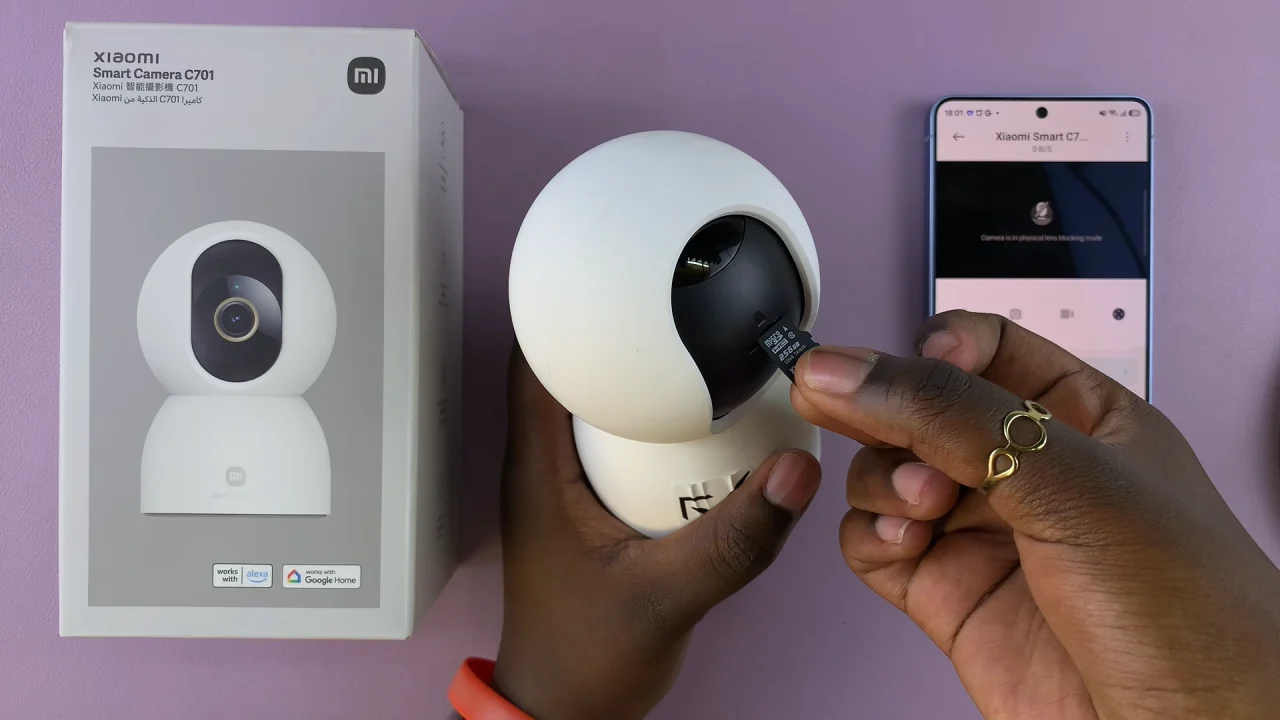
Push gently until you feel a slight click, indicating it’s securely in place. Avoid forcing the card in. If it doesn’t slide in easily, double-check the orientation.
Once the card is inserted, turn the camera back on by re-inserting the USB-C power cable. Wait for it to boot up completely. The camera should automatically detect the MicroSD card.
Format the MicroSD Card
To ensure proper performance, it is recommended that you format the microSD card. Simply open the Xiaomi Home app on your phone and select your camera.
Select Storage Management and choose Manage Storage.
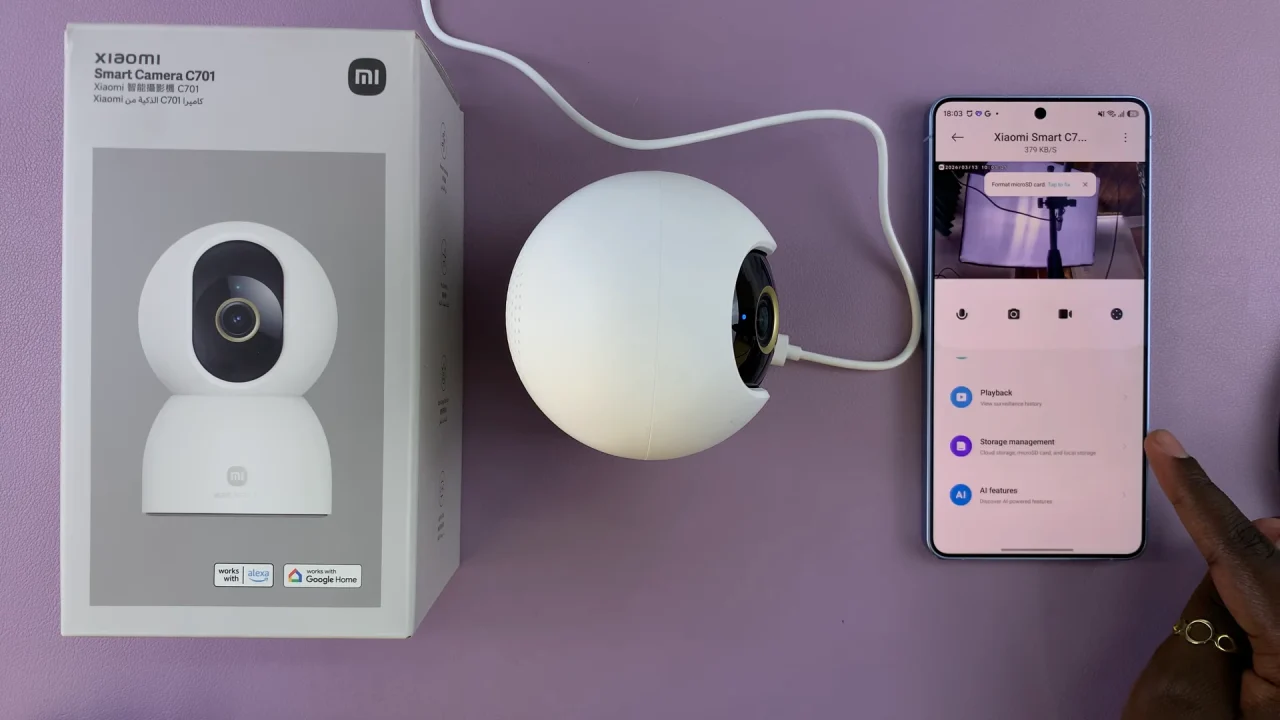
Choose your microSD card and tap on Format SD Card. Confirm your choice by tapping on OK.
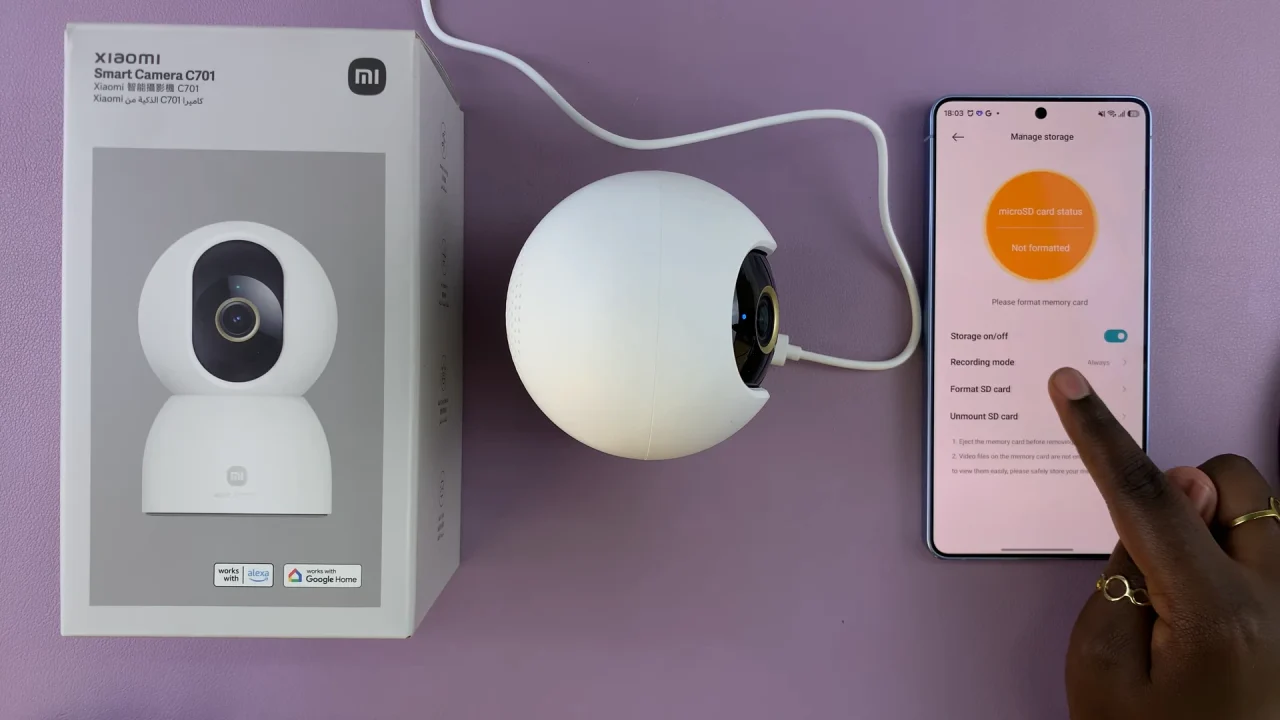
Formatting prepares the card for smooth recording and avoids compatibility issues.
It is also recommended that you use Class 10 / UHS-1 cards for reliable video recording. Also, choose storage size based on your needs (e.g., 32GB, 64GB, 128GB).
It is important to regularly format the card to maintain performance and avoid removing the card while the camera is recording.
Troubleshooting
If your camera doesn’t detect the MicroSD card, reinsert the card properly. Restart the camera, format the card using another device, then try again. Ensure the card is not damaged or unsupported