Organizing oneself may turn into a troublesome process if one is surrounded by an abundance of various tasks, reminder notes, and thoughts coming from all directions. This problem can be resolved by using the application called Sticky Notes which can be found on a MacBook Neo computer.
It offers a person the ability to record ideas, make fast reminders, and organize his or her workflow without going deeper into more complicated software. This article will guide you through the steps on how to use Sticky Notes on your MacBook.
After reading the article, you will be able to make full use of this great tool.
Watch: How To Use Voice Typing On MacBook Neo
Use Sticky Notes On MacBook Neo
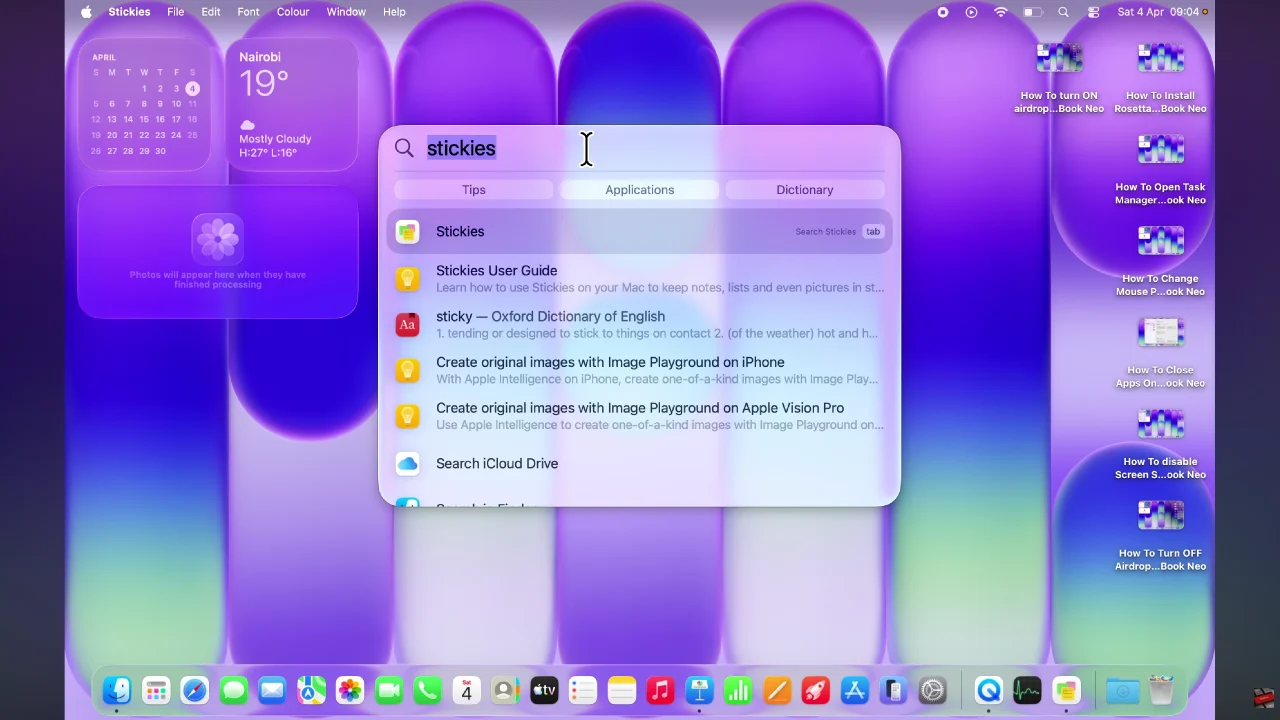
Begin by accessing the Spotlight feature on your MacBook Neo. Click on the Spotlight search icon in the top right corner and type in ‘Stickies‘ from the menu that appears.
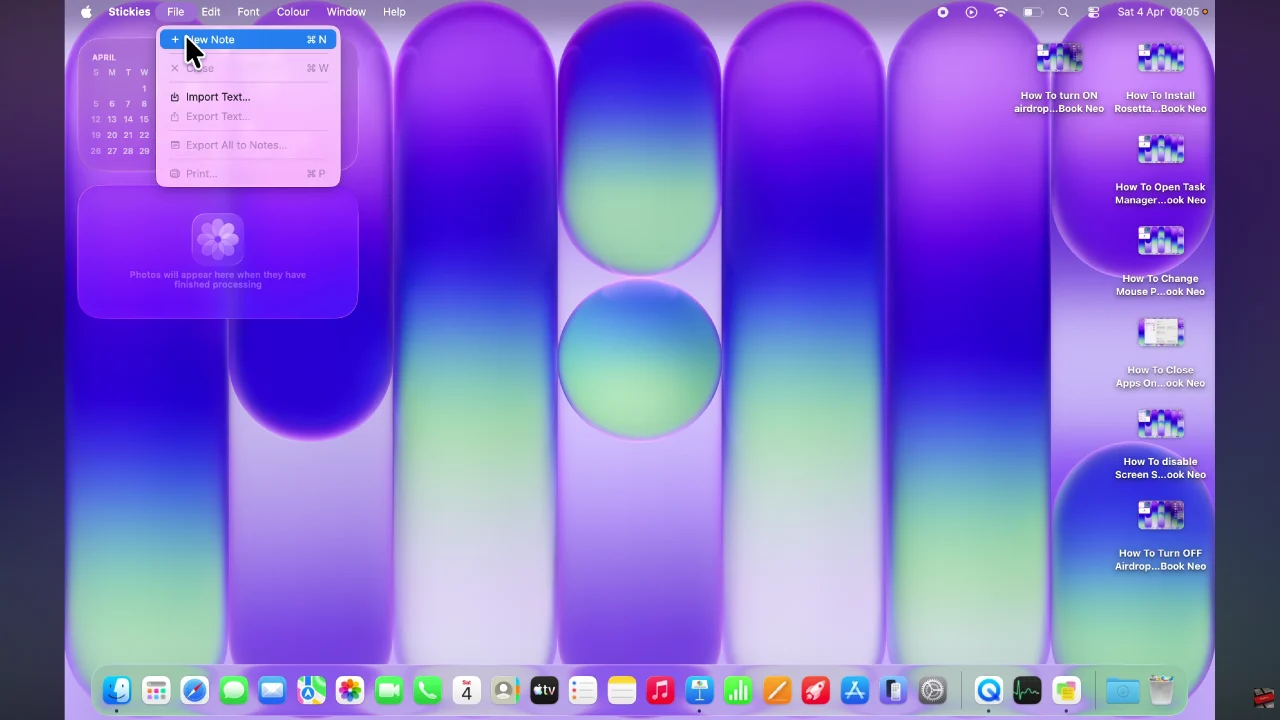
Following this, click on the ‘Files‘ option located in the top right corner. Then, click on ‘New Note‘ and a sticky note will appear on your screen. You can now type in the content for your sticky note.
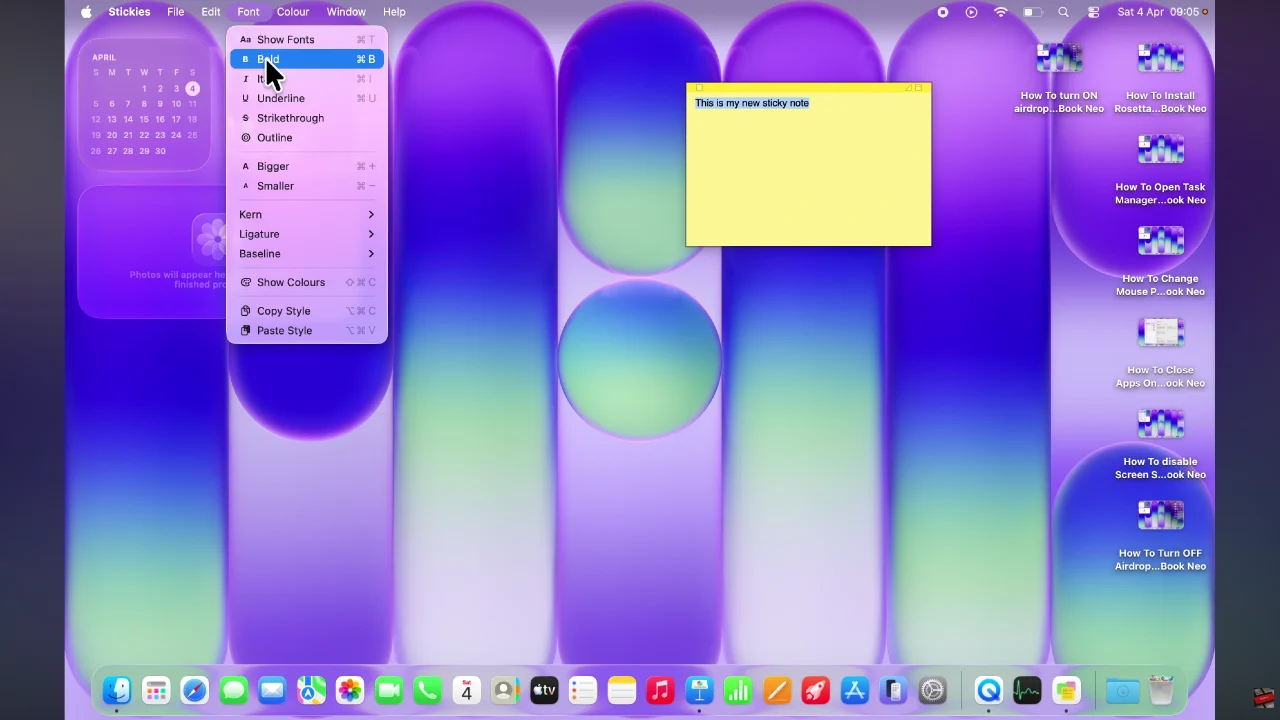
Additionally, you can customize the sticky notes by changing fonts, colours, and much more. Highlight your written text and click on the options at the top right corner.
In summary, using Sticky Notes on MacBook Neo is an easy and effective way to keep your ideas, reminders, and tasks organized. From creating and editing notes to customizing them by color and priority, these simple tools can significantly improve your productivity and ensure that important information is always at your fingertips.