If your MacBook Neo feels slow when you turn it on, chances are that too many apps are opening automatically at startup. While some apps like system utilities are essential, others may be unnecessary and can slow down your Mac’s boot time.
Fortunately, macOS allows you to manage which apps launch when you start your MacBook Neo. Here’s a step-by-step guide to stop apps from opening on startup on your MacBook Neo.
Automatic startup apps can:
Slow down boot time: More apps launching means your Mac takes longer to be ready.
Consume memory and CPU: Unnecessary apps running in the background can affect performance.
Cause distractions: Apps opening automatically can clutter your desktop and notifications.
By managing startup apps, you can make your MacBook Neo faster and more efficient.
Read: How To Scan QR Codes On MacBook Neo
Stop Apps From Opening On Startup On MacBook Neo
There are three common methods you can use to disable startup apps on your MacBook. We’ll go through each of them.
Using System Settings
This is the most effective and is the focal point of this article. What you need to do is click the Apple menu at the top-left corner of your screen.
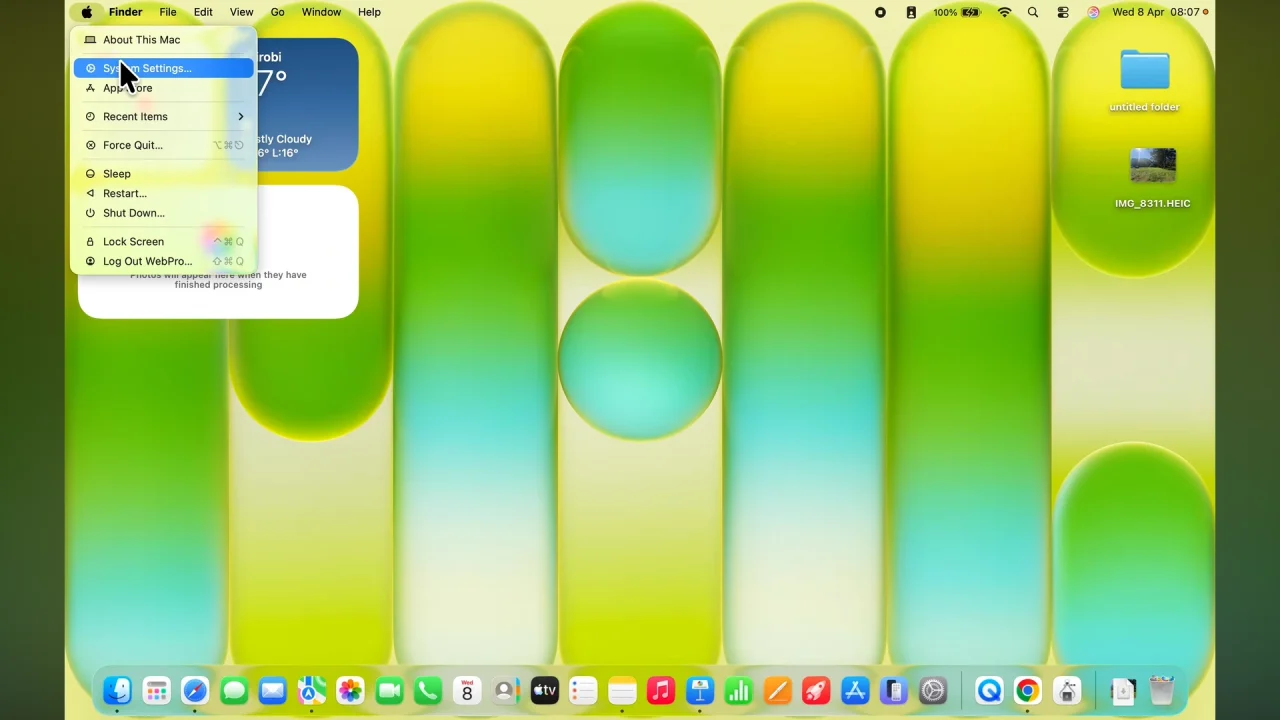
Next, select System Settings and navigate to General —> Login Items & Extensions. You can also use the search bar to find Login Items & Extensions.
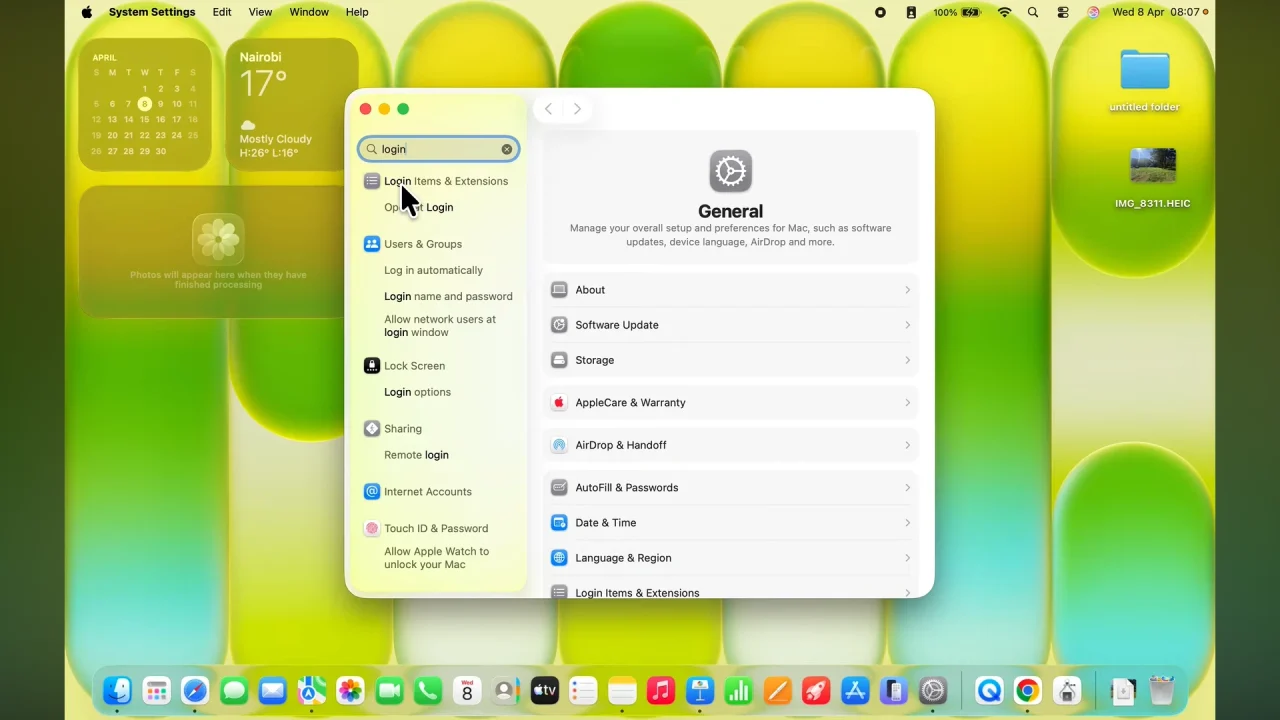
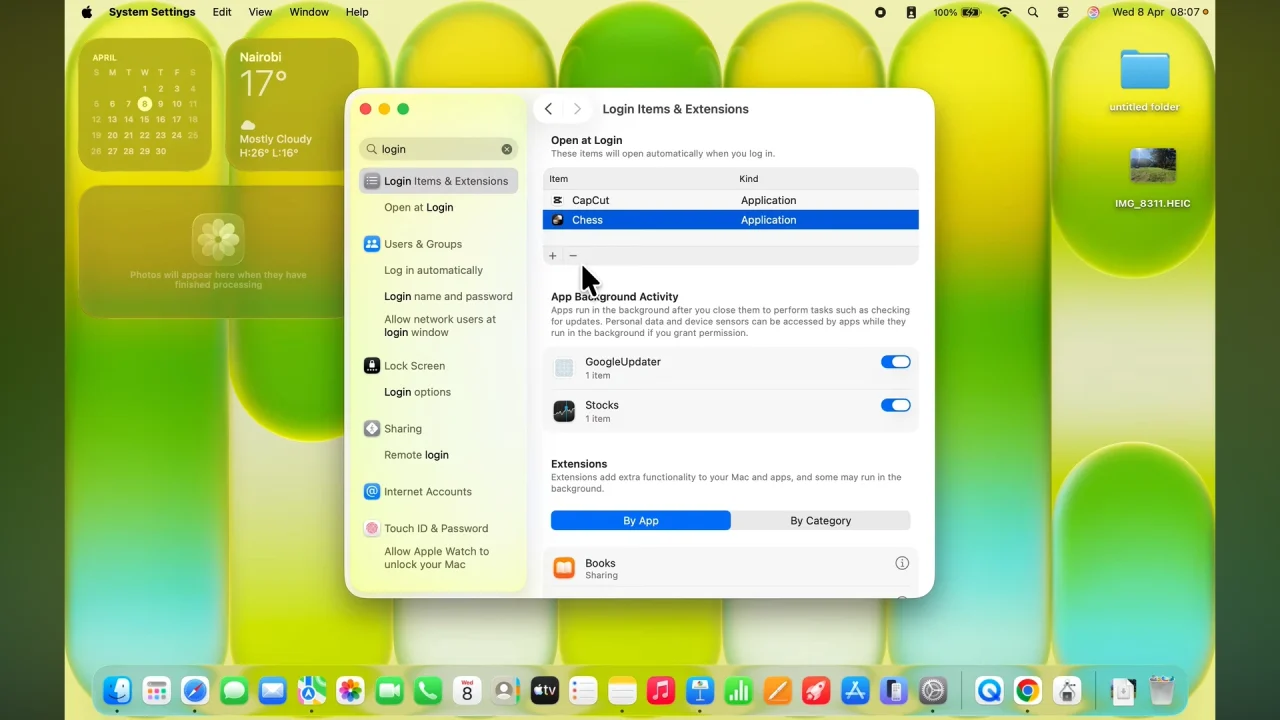
Under the Open at Login section, you’ll see a list of apps set to open automatically.
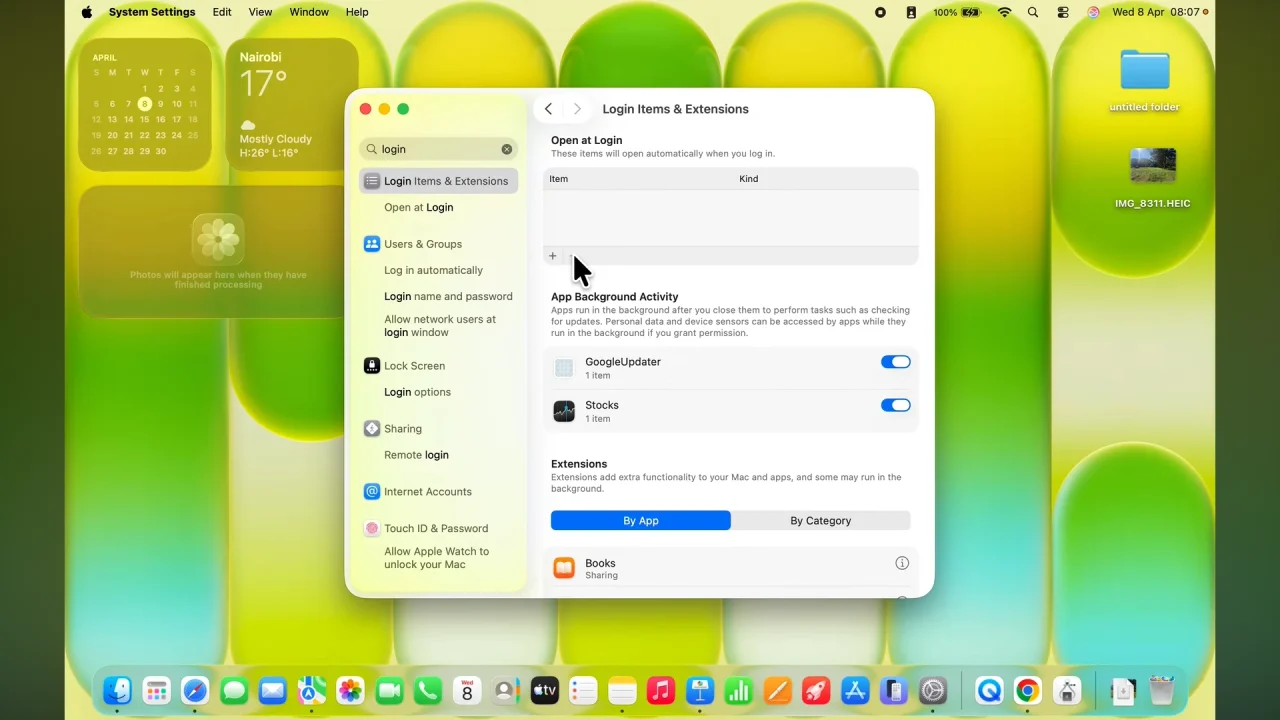
To remove an app, select it and click the minus (-) button.
Do this for all the startup apps you want to disable.
Tip: If you just want to temporarily prevent an app from opening, you can hold the Shift key while logging in.
Using the Dock
Some apps are set to open on startup via the Dock. to stop this, right-click (or Control + click) the app icon in your Dock.
Hover over Options and uncheck Open at Login.
This prevents that app from launching automatically the next time you start your MacBook Neo.
Check App Preferences
Certain apps have built-in settings to launch on startup. Open the app you want to manage.
Go to the app’s Preferences or Settings menu. Look for an option like Open at startup or Launch at login and disable it.
Additional Tips
Regularly review startup apps: New apps often add themselves to startup without notice.
Avoid removing essential apps: System utilities, antivirus, or cloud storage apps may need to run at startup.
Restart your Mac after changes to ensure they take effect.
Watch: Scan QR Codes On MacBook Neo