The Sony WF-1000XM6 earbuds have received much acclaim due to their extraordinary sound quality and intelligent capabilities that allow users to enjoy music and other types of audio with ease. One of the greatest characteristics of the Sony WF-1000XM6 is the Speak to Chat feature which allows your music to be paused automatically when you begin talking.
The Speak to Chat feature is very user-friendly and has also proven itself to be quite secure as well as very user-friendly. This article provides steps on how to set up the Speak to Chat function on your Sony WF-1000XM6 earbuds.
After finishing this article, you will be ready to utilize the Speak to Chat feature of the Sony WF-1000XM6 as well as many other intelligent features of the Sony WF-1000XM6.
Watch: How To Auto Update Sony WF-1000XM6 Earbuds
Set Up Speak To Chat On Sony WF-1000XM6
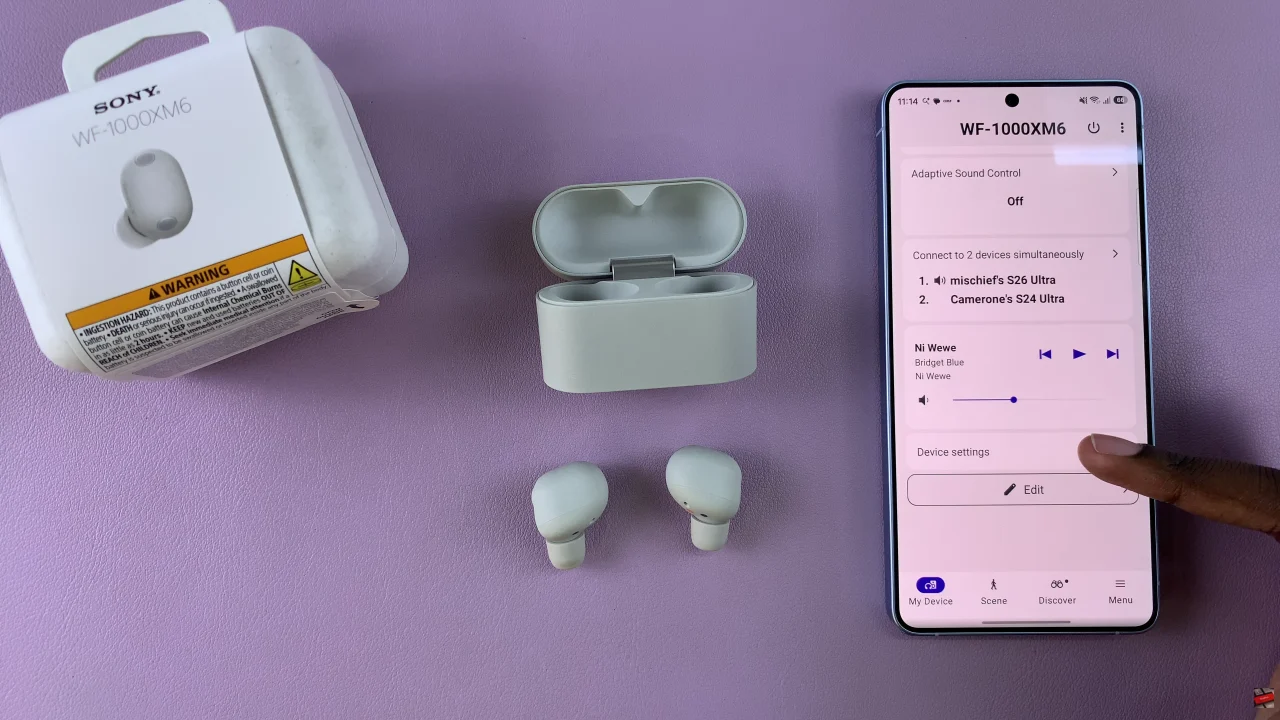
Begin by launching the Sony Connect app on your device. If you don’t have the app installed, head to App Store or Google PlayStore and download it from there. Then, scroll down and find the ‘Device Settings‘ within the app.
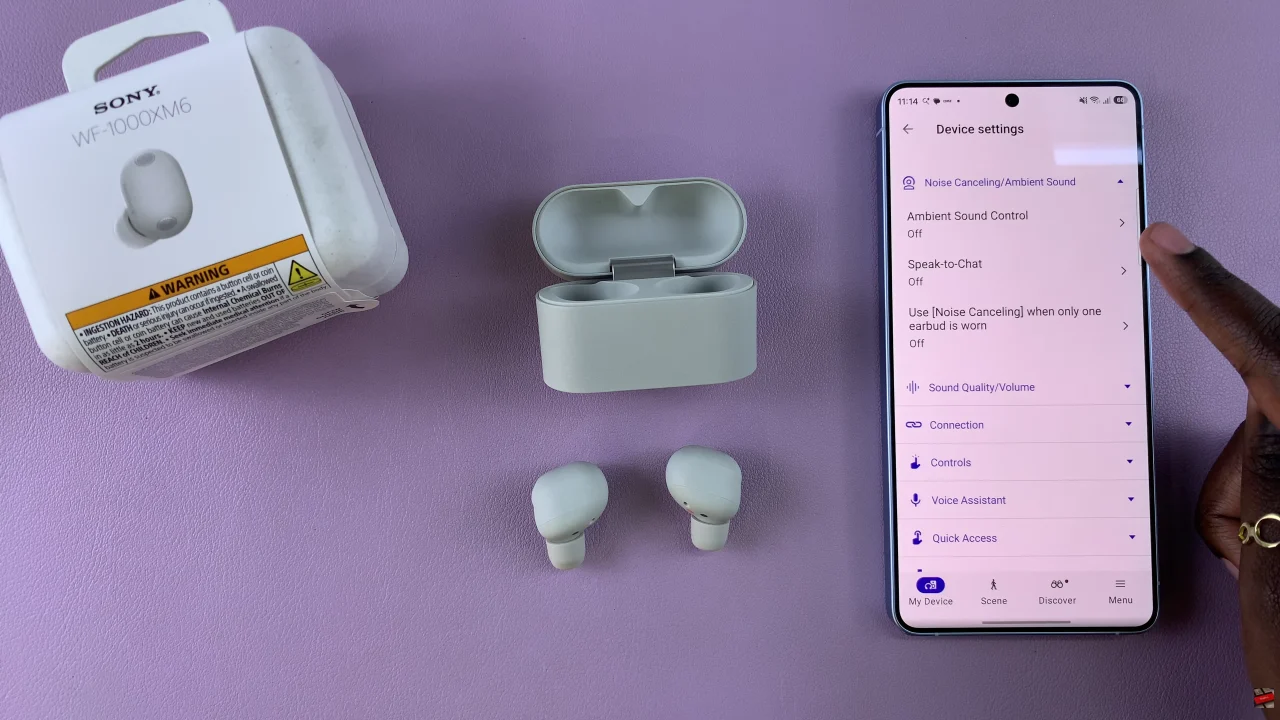
Following this, tap on ‘Noise Cancelling/Ambient Sound‘ and select ‘Speak-to-chat‘ from the menu that appears.
Now, you’ll see a brief description of what this feature is all about. To enable it, toggle ON the switch. Additionally, you can tap on ‘Experience It’ to test out the feature.
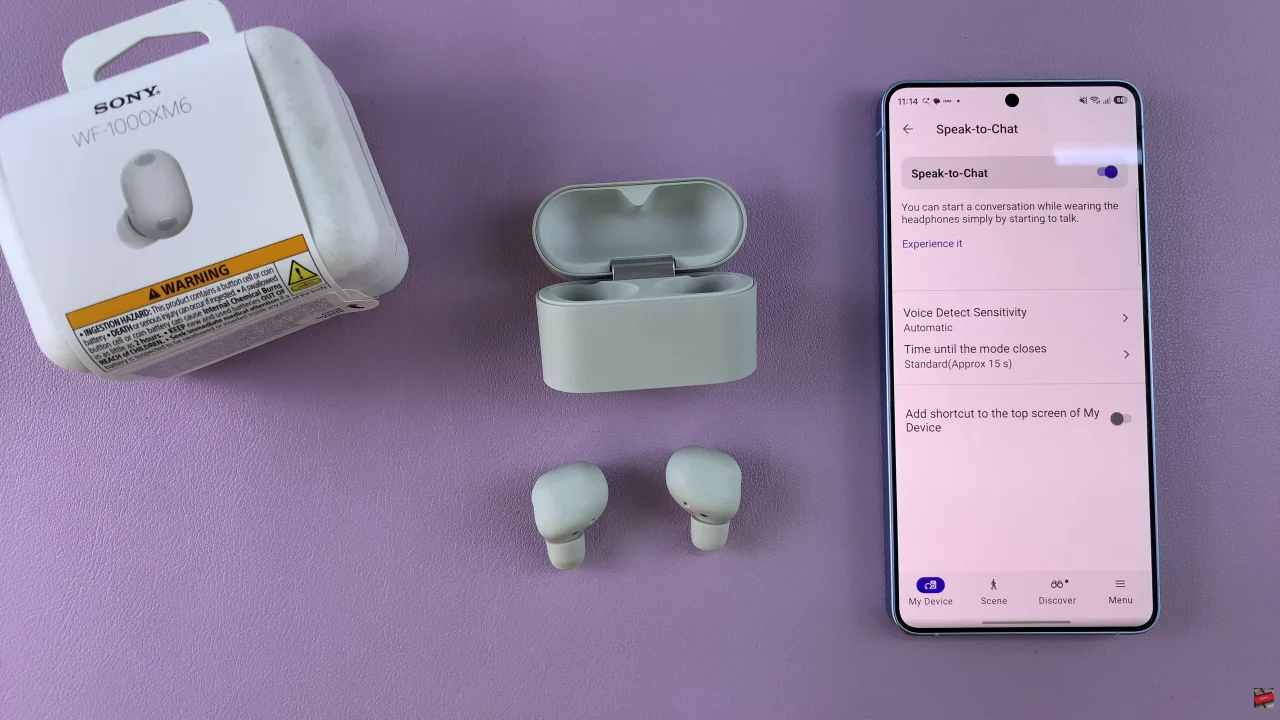
By enabling this feature, your music automatically pauses whenever you start speaking, allowing for seamless conversations without the need to remove your earbuds. Don’t forget to explore other Sony WF-1000XM6 tips and tricks to unlock even more functionality from your earbuds and make every listening moment exceptional.