WebPro Education

Tech tips everyday
Menu
  • REVIEWS
  • HOW TO
  • TECH NEWS
  • About Us
Home
how to
How To Set Password On Xiaomi Smart Camera C701
how to

How To Set Password On Xiaomi Smart Camera C701

Erick Wachira March 27, 2026

Keeping your home security camera protected is essential, and setting a strong password on your Xiaomi Smart Camera C701 is one of the easiest ways to do it.

In this guide, we’ll show you step-by-step how to set or change your camera password on your Xiaomi Smart Camera C701. Ensure your footage remains private and secure.

Read: How To Enable Fire Detection On Xiaomi Smart Camera C701

Set Password On Xiaomi Smart Camera C701

To start, make sure your Xiaomi Smart Camera C701 is connected to your Wi-Fi network and linked to the Xiaomi Home app on your smartphone. Open the app and sign in with your Xiaomi account if you haven’t already.

From the app’s home screen, locate your Xiaomi Smart Camera C701 device. Tap on the camera to access its settings and live feed.
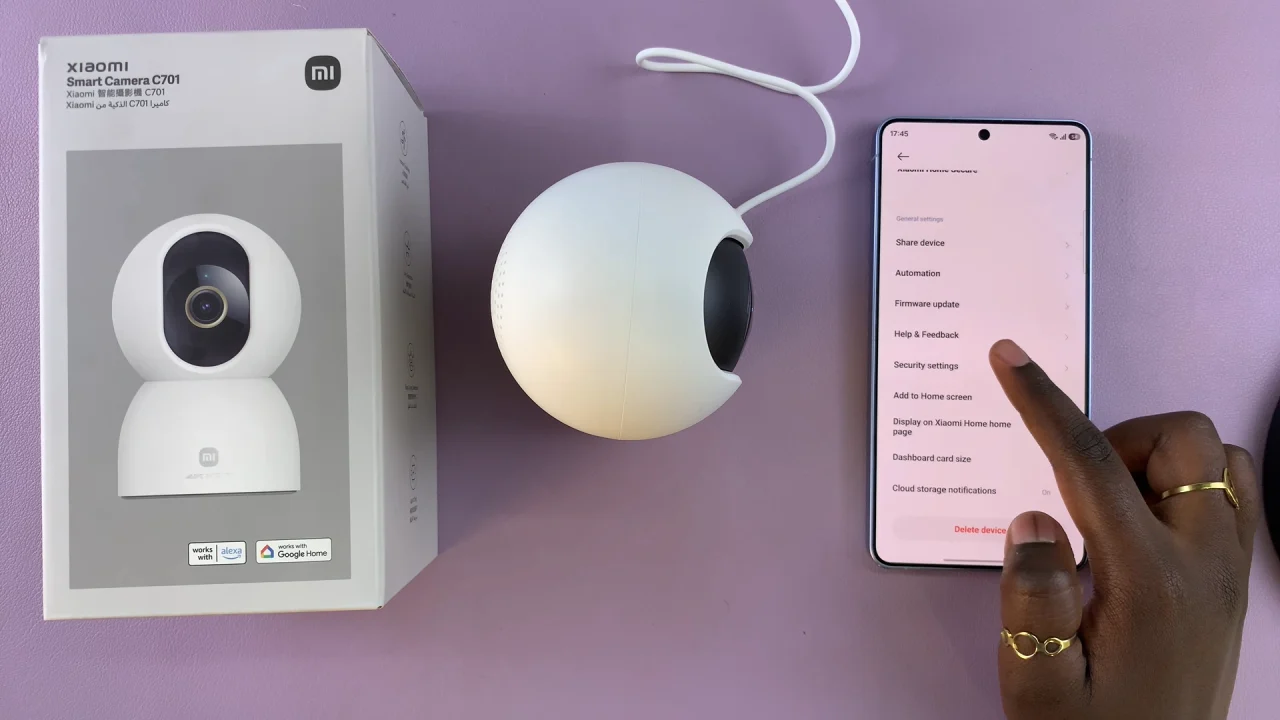
Xiaomi Smart Camera C701 Security Settings

In the camera interface, find the three dots in the top-right corner. From there, scroll down and select Security Settings and choose Use Passwords.
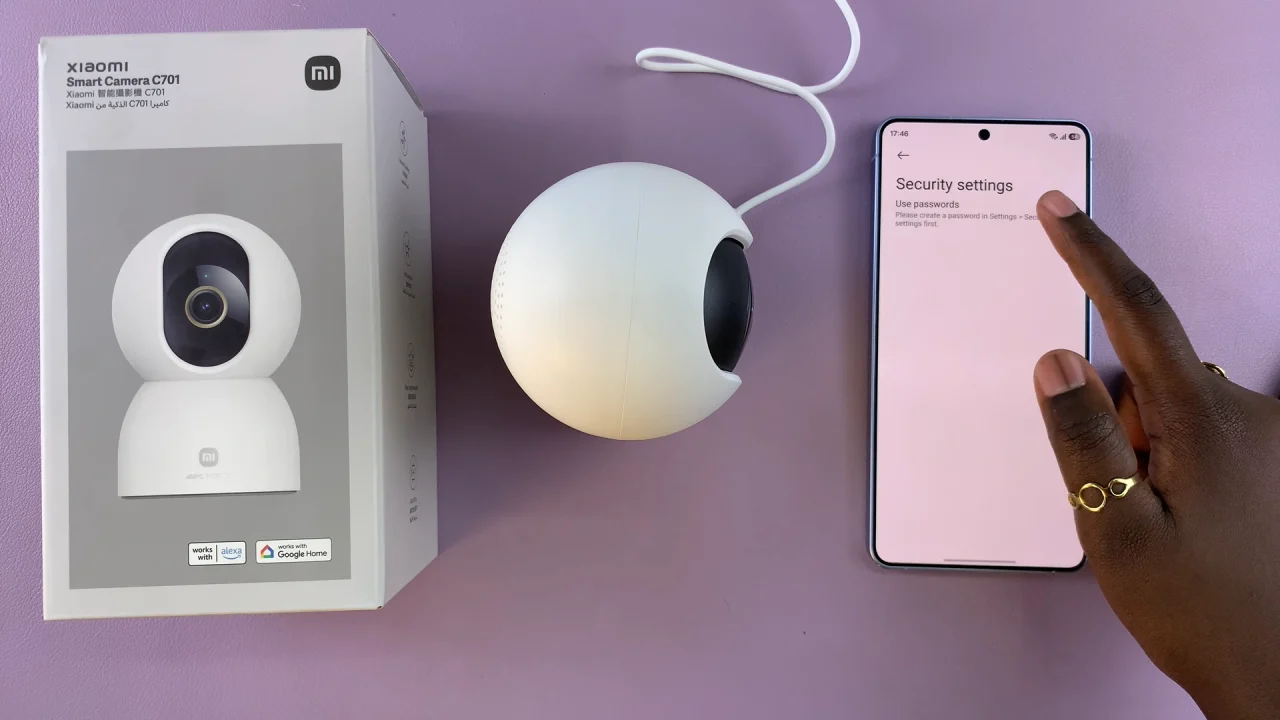
How To Set Password On Xiaomi Smart Camera C701

Tap on Set New Password and enter your new password.
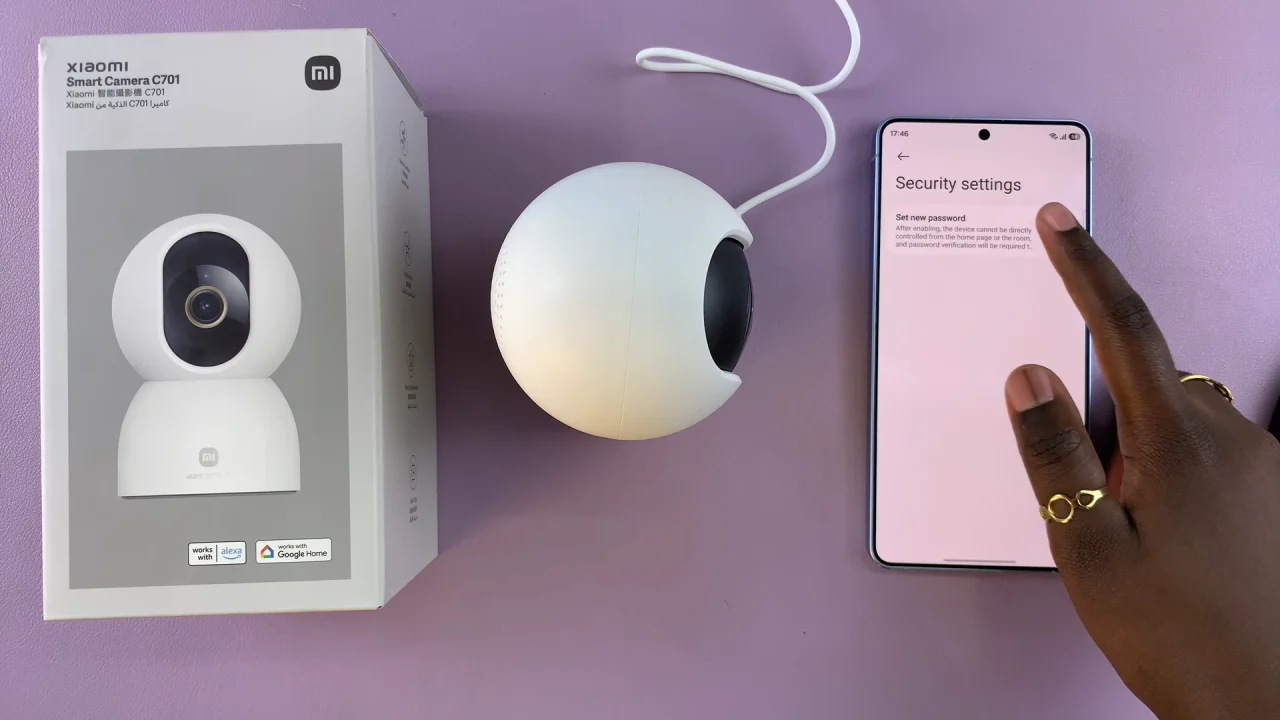
How To Set New Password On Xiaomi Smart Camera C701

Make sure it’s strong and unique — a mix of letters, numbers, and symbols is best. Confirm the password by entering it again.
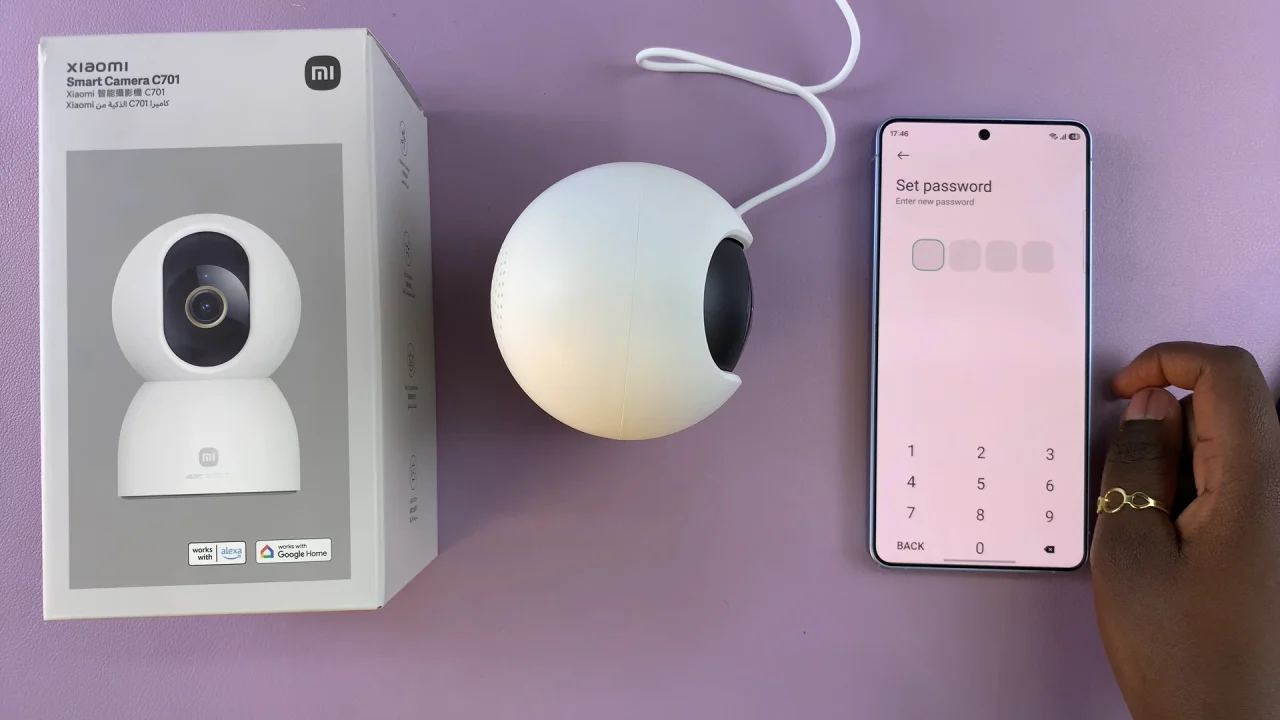
Set Password On Xiaomi Smart Camera C701

Finally, toggle on the switch next to your camera.
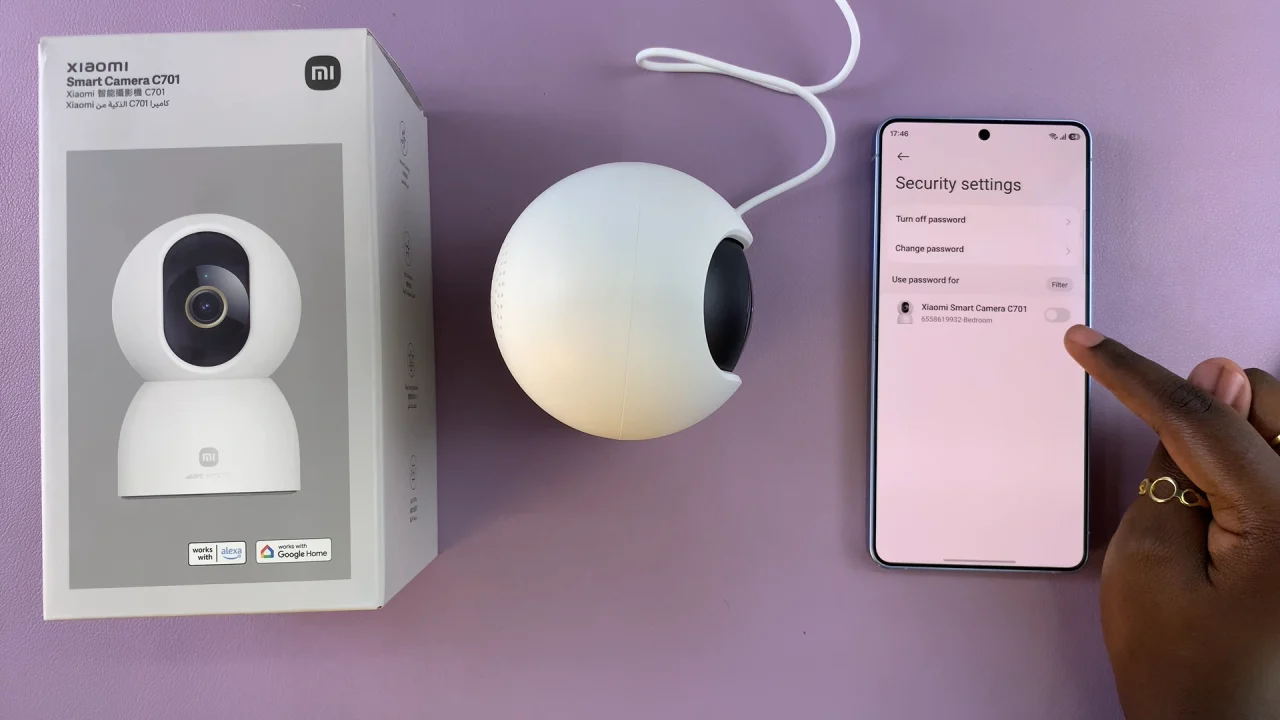
Enable Password On Xiaomi Smart Camera C701

Once saved, your Xiaomi Smart Camera C701 will now require this password whenever someone tries to access it via the app.

Tips for a Strong Password

Use at least 8–12 characters.

Mix uppercase, lowercase, numbers, and symbols.

Avoid common passwords like 123456 or password.

Change your password regularly for added security.
Watch: Enable Fire Detection On Xiaomi Smart Camera C701

Share
Tweet
Linkedin
Reddit
Tumblr
Stumble
Whatsapp
Telegram
Email
Prev Article
Next Article

Related Articles

How To Enable Developer Options On Samsung Galaxy A24

How To Enable Developer Options On Samsung Galaxy A24

How To Force Shutdown iPhone Without Touch Screen

How To Force Shutdown iPhone Without Touch Screen

  • How To Add Timestamps To Photos On Xiaomi Smart Camera C701
  • How To Turn ON Status Light Of Xiaomi Smart Camera C701
  • How To Turn ON Pet Detection On Xiaomi Smart Camera C701
  • How To Set Password On Xiaomi Smart Camera C701
  • How To Recover Deleted Voice Recordings On Samsung Galaxy S26 Ultra
DMCA.com Protection Status

Associates Disclosure

WebPro Education is a participant in the Amazon Services LLC Associates Program, an affiliate advertising program designed to provide a means for sites to earn advertising fees by advertising and linking to amazon.com.

WebPro Education

Tech tips everyday
Copyright © 2026 WebPro Education

Ad Blocker Detected

Our website is made possible by displaying online advertisements to our visitors. Please consider supporting us by disabling your ad blocker.

Refresh