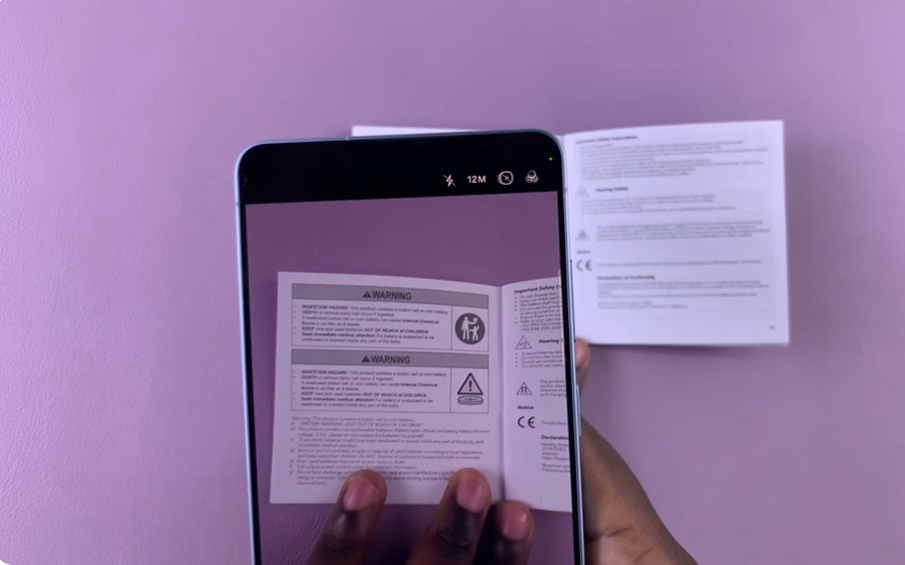
Scanning documents on the Samsung Galaxy S26 is quick and very convenient. It allows you to turn physical papers into digital files without using a traditional scanner. This helps you save time and keep your documents organized on your phone.
The built-in camera tools on Samsung devices make scanning easy. You can capture documents, adjust edges, and save them as clean digital copies. This feature is useful for notes, receipts, forms, and other important papers.
In this guide, you will learn how to scan documents on Galaxy S26 Ultra step by step.
Watch: How To See Wi-Fi Password On Samsung Galaxy s26
Scan Documents On Samsung Galaxy S26:
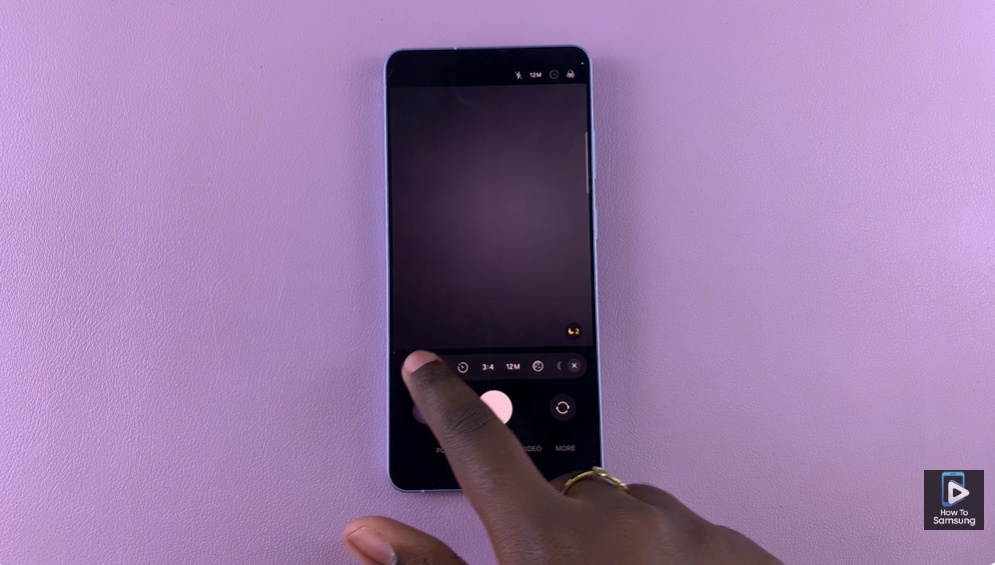
You begin by launching the Camera app on your Samsung Galaxy S26. This gives you access to the built-in tools needed for scanning documents directly. Inside the camera interface, you open the Settings menu. This section contains different options that control how your camera functions and performs.
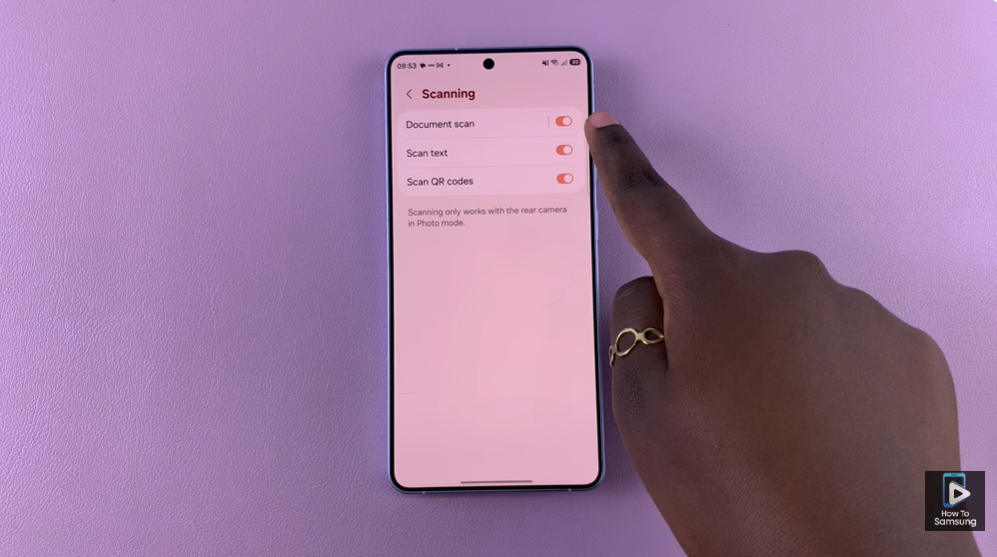
You scroll through the settings and select the Scanning option. This feature is designed to help your phone detect documents more accurately.
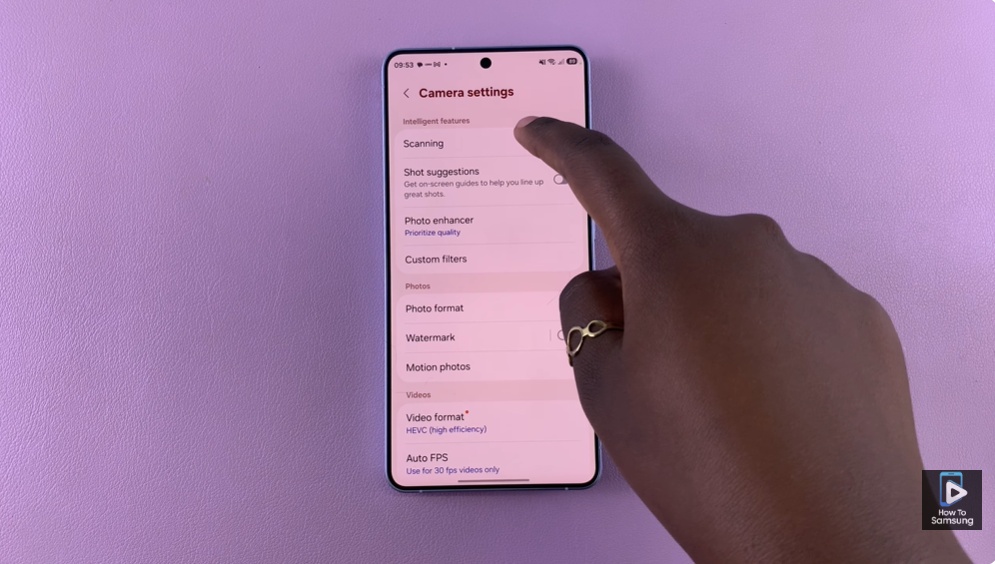
You switch on Document Scan to activate the feature. Once enabled, your Samsung Galaxy S26 can automatically recognize and scan documents clearly.