Personalizing your smartphone can make everyday interactions with technology smoother and more enjoyable. One of the simplest ways to achieve this on your Samsung Galaxy A17 5G is by renaming the device. Changing your phone’s name not only helps you easily identify it when connecting to Bluetooth, Wi-Fi, or sharing files, but it also adds a touch of individuality to your device.
The process is straightforward and can be completed in just a few minutes. This allows you to give your Galaxy A17 5G a name that truly reflects your style or preferences.
Also Read: How To Hide Apps On Samsung Galaxy A17 5G
How To Rename Samsung Galaxy A17 5G
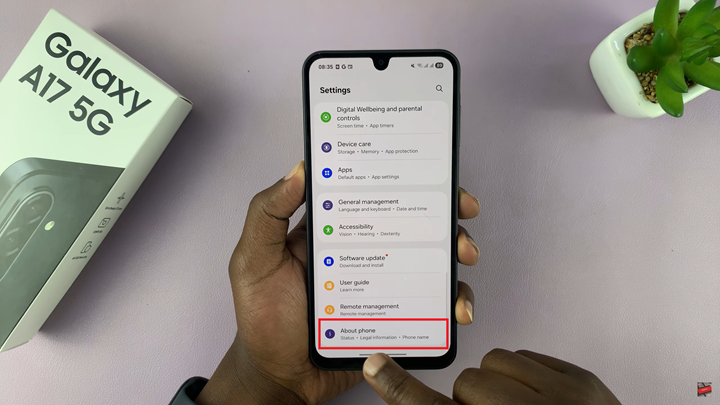
Begin by unlocking your Galaxy A17 5G and opening the Settings app. This application is represented by a gear-shaped icon, typically located on the home screen or within the app drawer. Once you’ve accessed the Settings menu, scroll downward until you find the section labeled About Phone, then tap to open it.
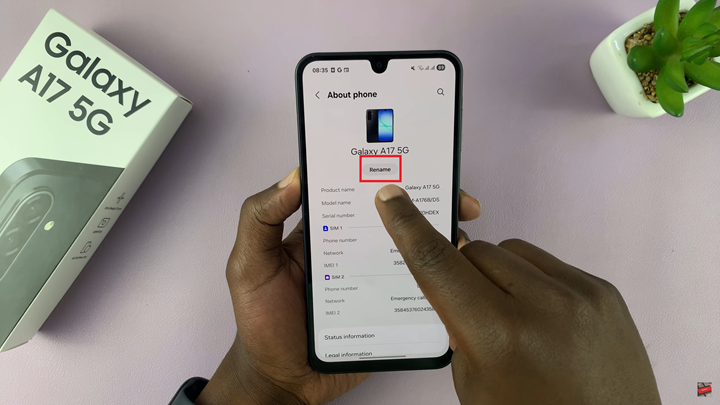
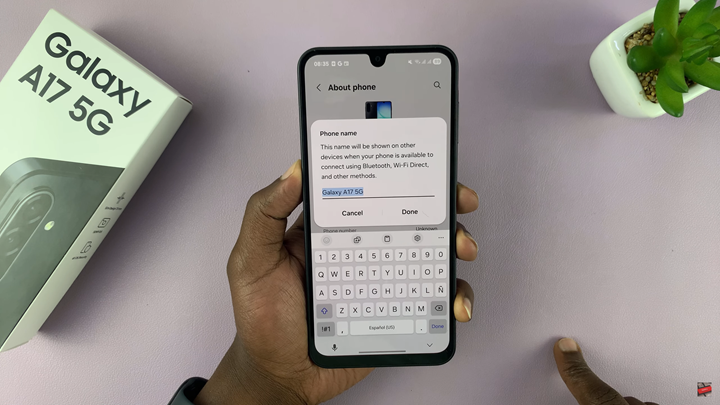
Inside the About Phone section, you will see various details about your device, including its model and software information. Locate the Rename option, which appears just below the current device name. Tap this option to bring up a text field where you can enter a new name for your Galaxy A17 5G.
You can choose any name that suits your preference—whether it’s your own name, a nickname, or a custom identifier that helps you recognize the device instantly. After typing in your desired name, tap Done to confirm and save your changes.
Once completed, your Galaxy A17 5G will now display the new name whenever it connects to other devices, networks, or sharing services such as Bluetooth and Nearby Share. This small customization not only adds a personal touch but also enhances convenience when managing multiple connected devices.