WebPro Education

Tech tips everyday
Menu
  • REVIEWS
  • HOW TO
  • TECH NEWS
  • About Us
Home
how to
How To Purchase Warehouse On GTA Online
how to

How To Purchase Warehouse On GTA Online

Venessa Waititu April 9, 2026

Watch: How To Purchase Vehicle Warehouse On GTA Online

Learning how to purchase a warehouse on GTA Online is one of the most effective ways to start building a steady and scalable income. As a key part of the CEO business system, warehouses allow players to store and sell Special Cargo, turning smart investments and strategic planning into major profits.

However, the first purchase can feel confusing if you’re unfamiliar with the process. From registering as a CEO to navigating the SecuroServ network and choosing the right warehouse location, there are several important steps involved.

This guide will walk you through everything you need to know to purchase a warehouse and start growing your criminal empire successfully.

Purchase Warehouse On GTA Online

First, make sure you are a registered CEO through SecuroServ. Then, log in to the desktop computer in your office. Select special cargo to view available warehouses on the warehouse map.
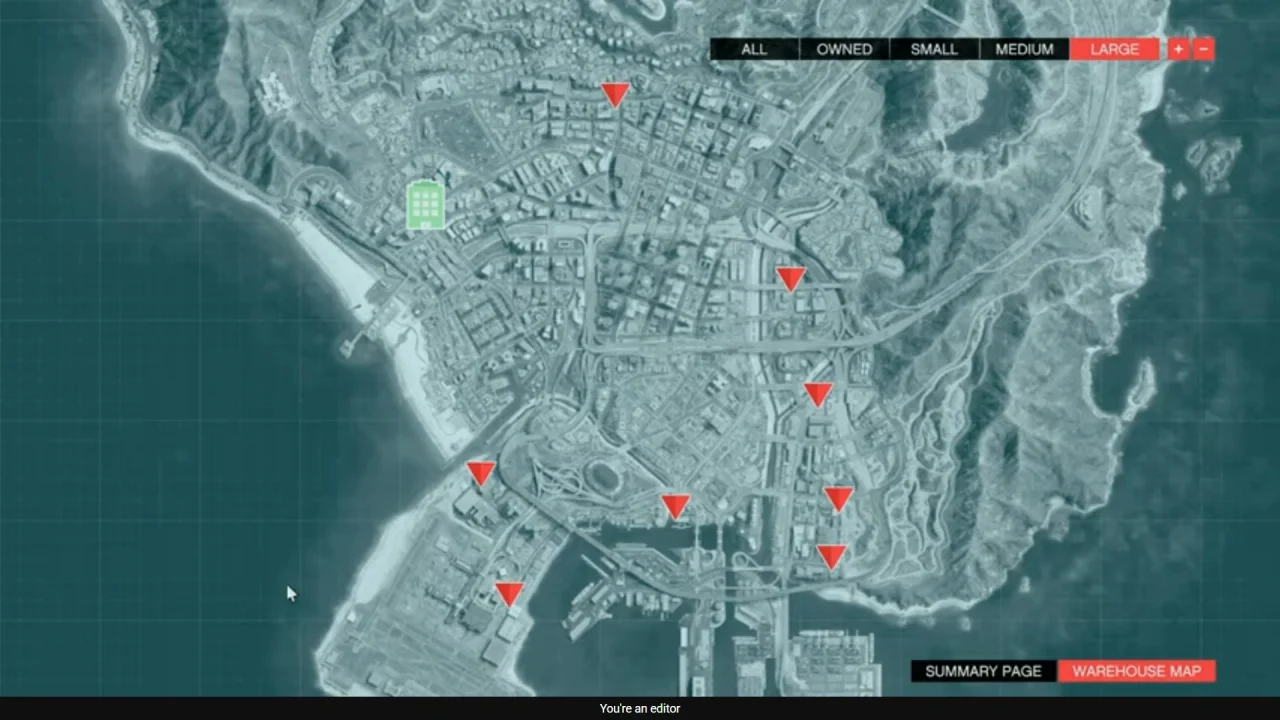
How To Purchase Warehouse On GTA Online

After that, browse through the different warehouse sizes and locations, and select your preferred option. Finally, accept the purchase prompt.

After completing the transaction, your warehouse will be added to your properties. You can now start sourcing and storing Special Cargo, allowing you to build inventory and generate profits over time.

Read: How To Join Friend’s Session In GTA V Online

Share
Tweet
Linkedin
Reddit
Tumblr
Stumble
Whatsapp
Telegram
Email
Prev Article
Next Article

Related Articles

How To Add Pronouns To Your Pinterest Account

How To Add Pronouns To Your Pinterest Account

Samsung Galaxy S24 NEW Lock Screen Features Explained (One UI 6.1)

Samsung Galaxy S24 NEW Lock Screen Features Explained (One UI 6.1)

  • How To Purchase Vehicle Warehouse On GTA Online
  • How To Purchase Warehouse On GTA Online
  • How To Install Windows Games via Crossover On Mac / MacBook
  • How To Type Hashtag On MacBook Neo
  • How To Stop Apps From Opening On Startup On MacBook Neo
DMCA.com Protection Status

Associates Disclosure

WebPro Education is a participant in the Amazon Services LLC Associates Program, an affiliate advertising program designed to provide a means for sites to earn advertising fees by advertising and linking to amazon.com.

WebPro Education

Tech tips everyday
Copyright © 2026 WebPro Education

Ad Blocker Detected

Our website is made possible by displaying online advertisements to our visitors. Please consider supporting us by disabling your ad blocker.

Refresh