It goes without saying that, in order to optimize your MacBook Neo performance, it is imperative to know how to access the Task Manager or Activity Monitor, as it is called in macOS terminology. If your computer runs slowly, applications freeze, and you need to figure out what is taking place, then using Activity Monitor will allow you to analyse the usage of your Mac’s hardware resources.
Although Task Manager is well-known among Windows users, Mac owners often tend to ignore such a handy utility. In this article, we will explore the steps to open and access the task manager (activity monitor) on your MacBook Neo and provide useful hints on process management.
As a result, you will learn how to monitor system activity and solve various performance-related problems efficiently.
Watch: How To Use Timer On MacBook Neo
Open Task Manager On MacBook Neo
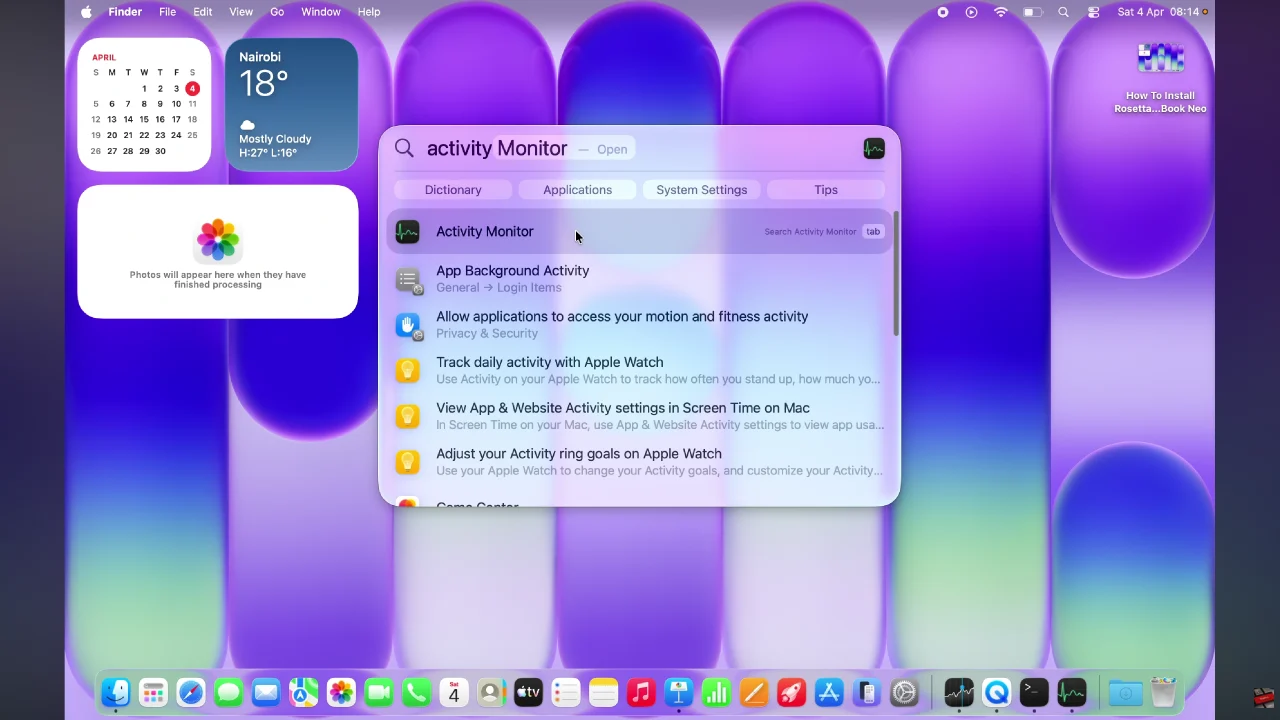
Begin by accessing the Spotlight feature on your MacBook Neo. Simply click on the Spotlight search icon in the top right corner and type in ‘Activity Monitor‘ from the menu that appears.
Following this, you’ll see a list of all the processes running through your MacBook Neo. Additionally, you can see a list of all the applications that are currently running on your MacBook. Not only that, but you’ll also see how the resources are distributed across the CPU, memory and much more.
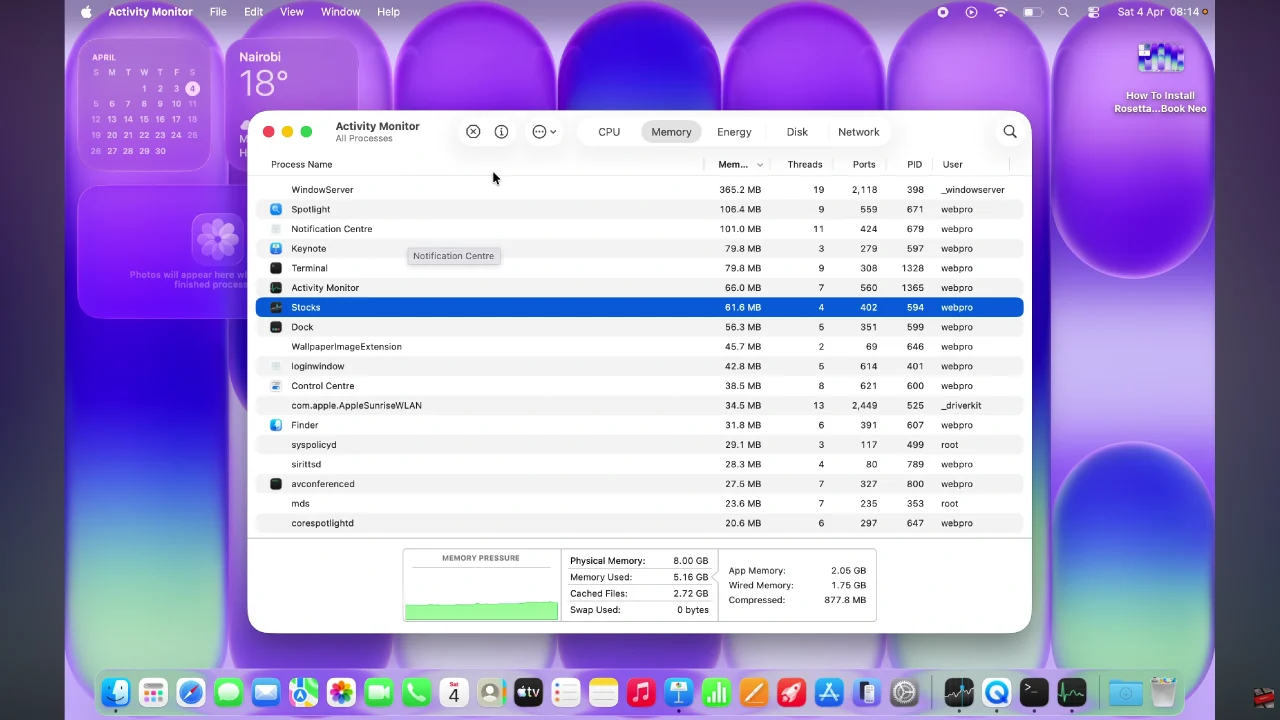
In conclusion, the Activity Monitor on your MacBook Neo is an indispensable tool for keeping your system running smoothly. By learning how to open it and understanding its key features, you gain full control over your Mac’s performance.
Read: How To Pair Sony WF-1000XM6 Earbuds With Mac & MacBook