The Sony WF-1000XM6 earbuds come with a host of smart features that make your listening experience seamless. One such feature is Speak to Chat. This feature is extremely helpful because it pauses your music or any other audio being played when you start speaking.
This feature is extremely helpful when you are in an office environment, walking outside, or even when you are on a call. This feature ensures that you do not miss a single beat while staying connected to your surroundings.
In this article, we will tell you how you can enable & disable speak-to-chat feature using your Sony WF-1000XM6 earbuds. In addition to this, we will also tell you how you can customize this feature to make it work perfectly for your listening experience. By the end of this article, you will have complete control over this smart feature of your earbuds.
Watch: How To Enable Auto Power OFF On Sony WF-1000XM6
Enable & Disable Speak-To-Chat On Sony WF-1000XM6
Begin by launching the Sony Connect app on your device. If you don’t have the app installed, head to App Store or Google PlayStore and download it from there. Then, scroll down and select the ‘Device Settings‘ within the app.
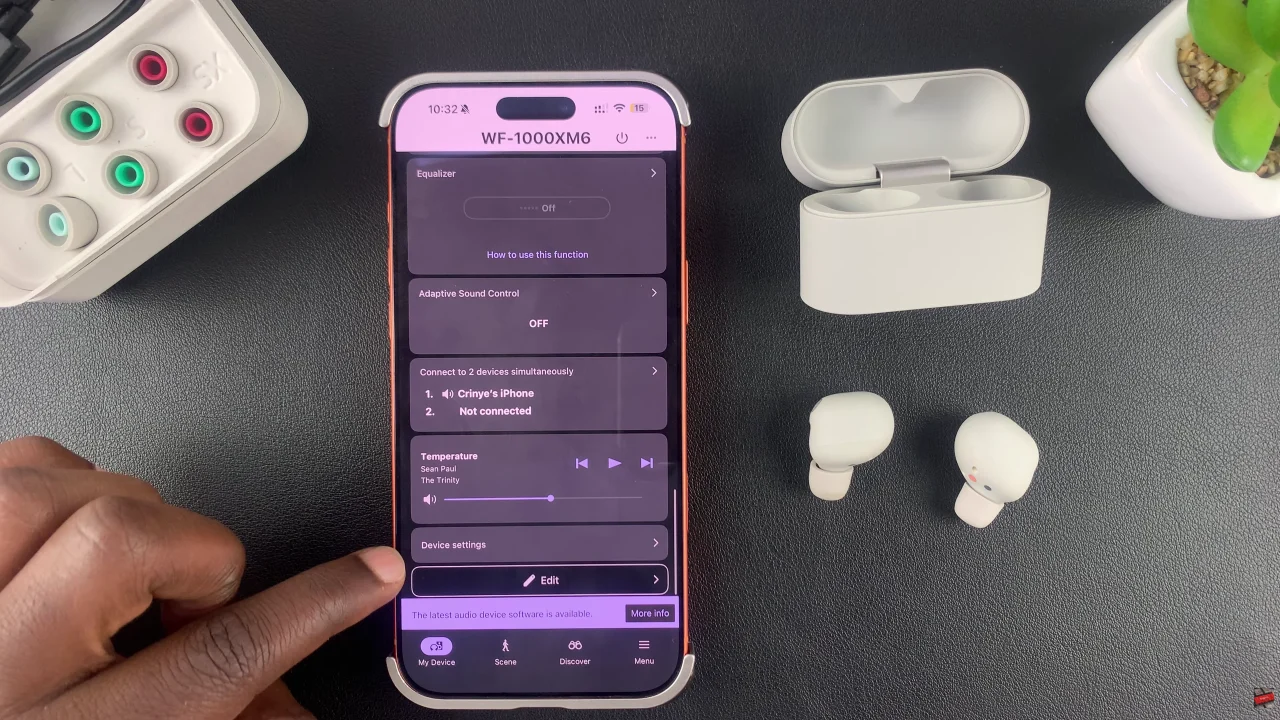
Following this, tap on ‘Noise Cancelling/Ambient Sound‘ and select ‘Speak-to-chat‘ from the menu that appears.
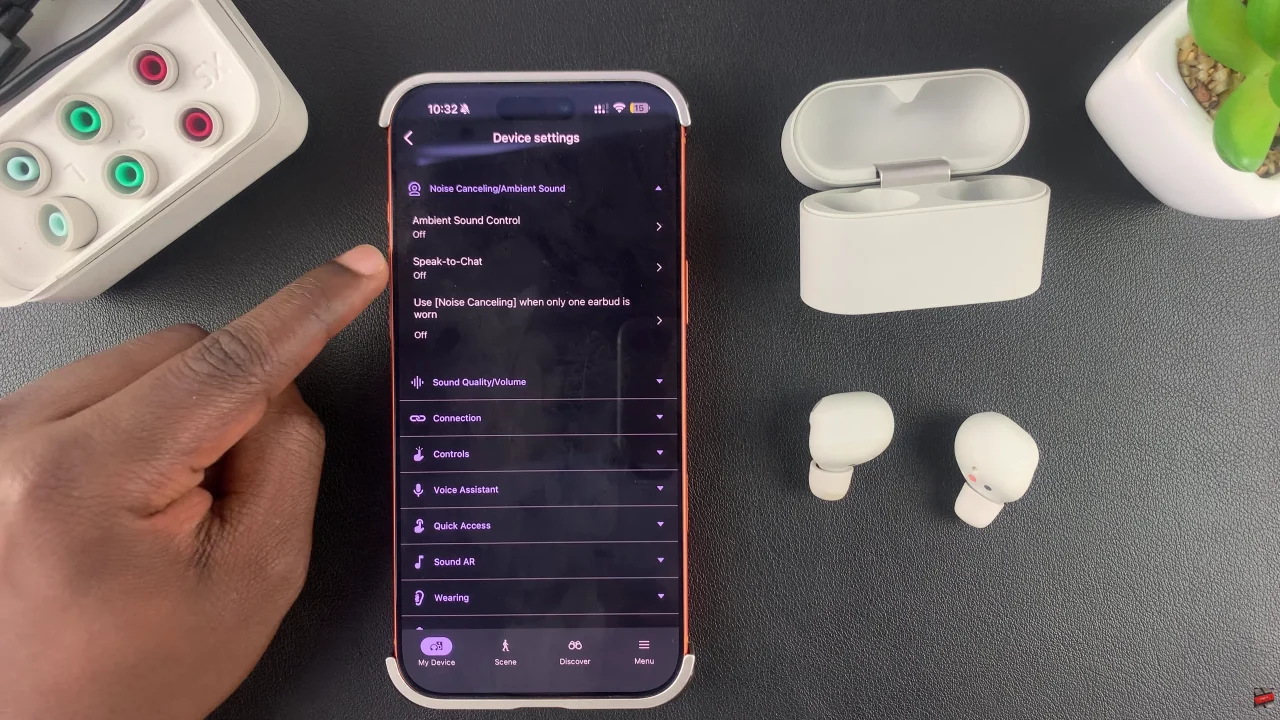
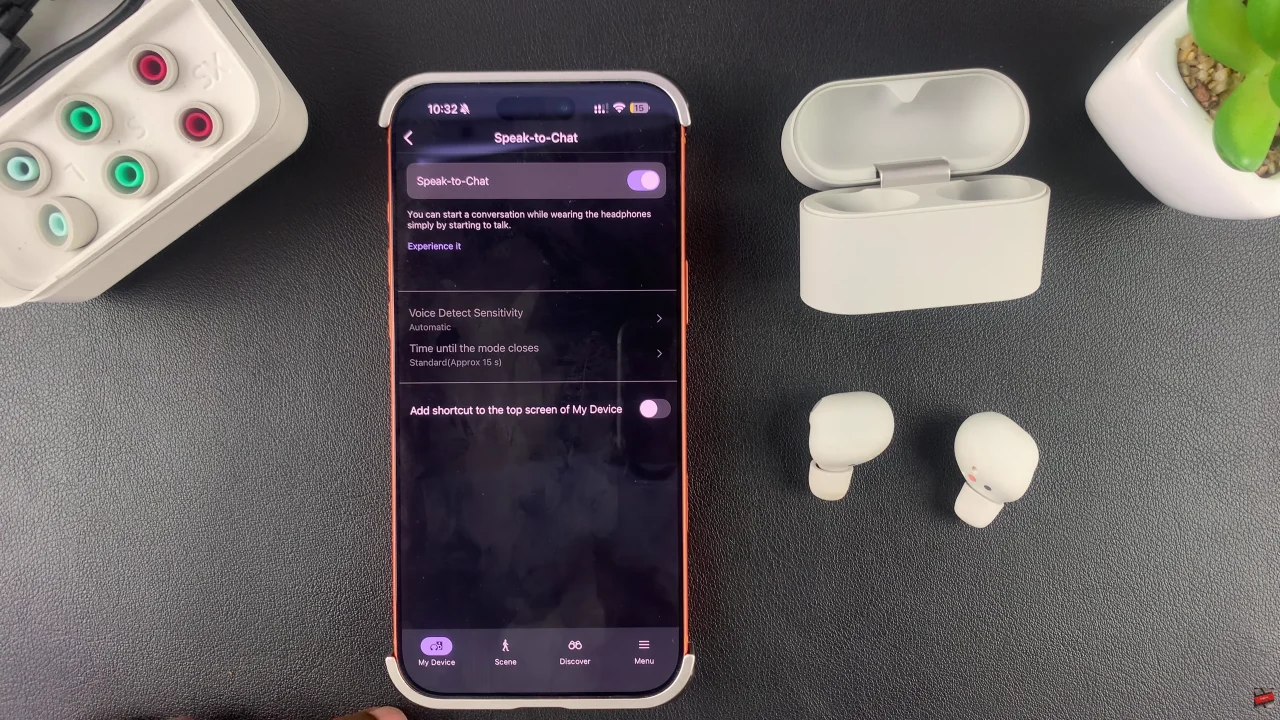
At this point, you’ll see a brief description of what the ‘Speak-To-Chat’ feature is all about. To enable it, toggle ON the switch. Additionally, you can tap on ‘Experience It’ to test out the feature. If you’d like feature off, follow the above steps and toggle OFF the switch.
In summary, Speak-to-Chat is a powerful feature on the Sony WF-1000XM6 earbuds that adds convenience and flexibility to your listening experience. By knowing how to enable or disable Speak-to-Chat, you can ensure your earbuds respond perfectly to your needs—whether you want uninterrupted music or seamless conversations.