The Sony WF-1000XM6 earbuds feature several smart enhancements that allow you to enjoy your songs more fluidly and hands-free. One feature that has recently been added to these earbuds is Head Gestures. This feature allows you to perform certain activities, such as taking a call or declining one etc., with the movement of your head.
Even though Head Gestures can be beneficial to many users, there are also several users who will find this feature too sensitive (changing the way the earbuds respond to movement) and would prefer not to use Head Gestures at all; therefore, it is important to understand how to enable & disable Head Gestures on your Sony WF-1000XM6 earbuds, so you can adapt your experience to your own needs.
This guide will give you all the information you need for managing Head Gestures on your Sony WF-1000XM6 earbuds.
Watch: How To Enable Automatic Power Saving Mode On Sony WF-1000XM6
Enable & Disable Head Gestures On Sony WF-1000XM6
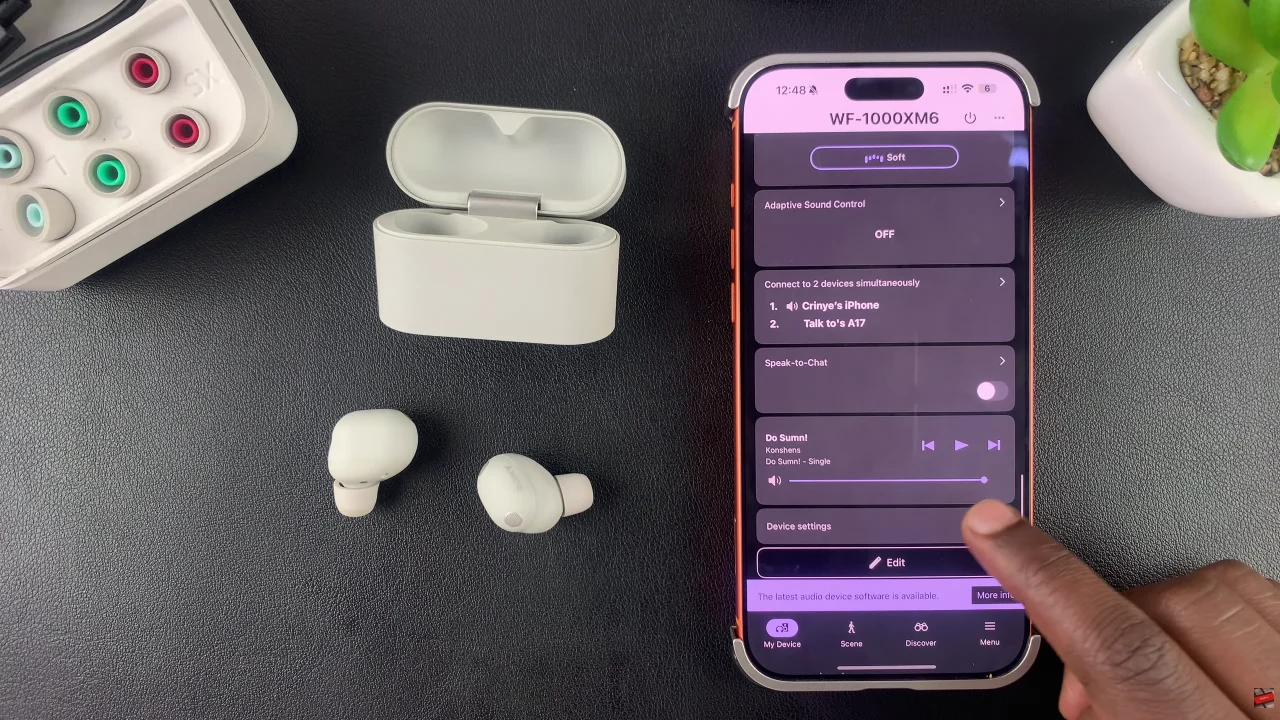
Begin by launching the Sony Connect app on your device. If you don’t have the app installed, head to App Store or Google PlayStore and download it from there. Then, scroll down and find the ‘Device Settings‘ within the app.
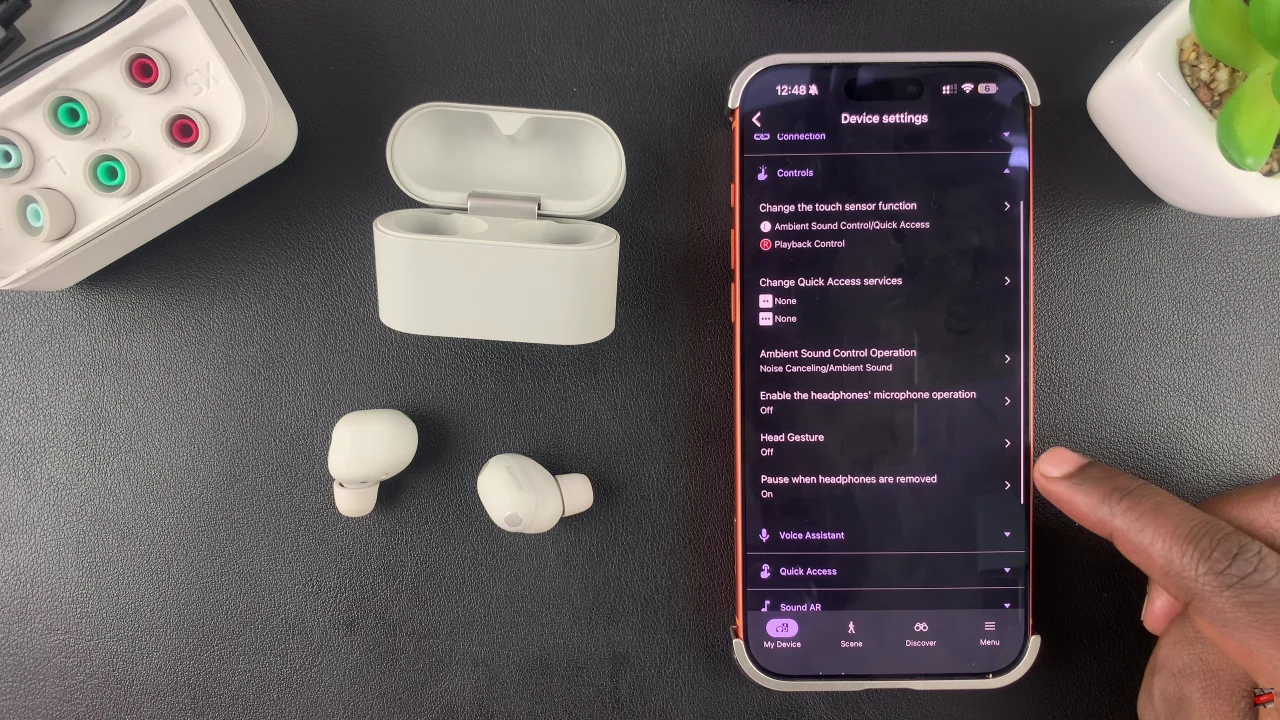
Following this, tap on ‘Controls‘ and select ‘Head Gestures‘ from the menu that appears.
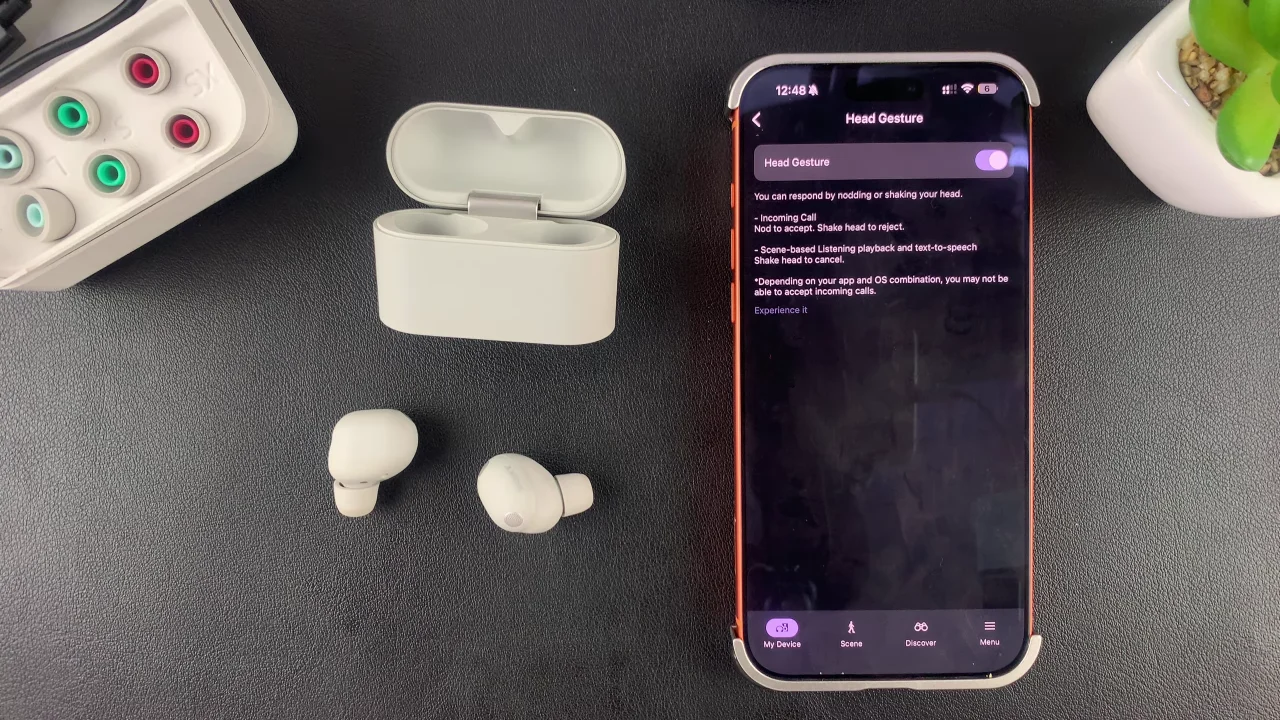
Now, you’ll see a brief description of what this feature is all about. To enable it, toggle ON the switch. However, if you don’t want this feature enabled, you can simply turn it off by toggling the switch to the OFF position.
By following the steps in this guide, you can quickly adjust the settings to match your daily needs and get the most out of your Sony earbuds. Whether you prefer the convenience of hands-free controls or want to avoid accidental actions, enabling or disabling this feature gives you full control over your listening experience.