Connecting a Magic Mouse to your MacBook Neo is among the early actions that will make your life easier. The Magic Mouse by Apple not only looks stylish but also boasts multi-touch capabilities. This makes it a popular choice for Mac users.
For those of you who have acquired a new Magic Mouse, or are reconnecting it to your MacBook Neo, there are very few things you have to do. Using the native Bluetooth capability of your Mac, you can easily discover the mouse and connect it without installing third-party software.
In this article, we will help you go through all the steps that you have to follow when connecting the Magic Mouse to your MacBook Neo, along with some tips for dealing with common problems that may occur while following the procedure.
Watch: How To Screen Record MacBook Neo
Connect Magic Mouse To MacBook Neo
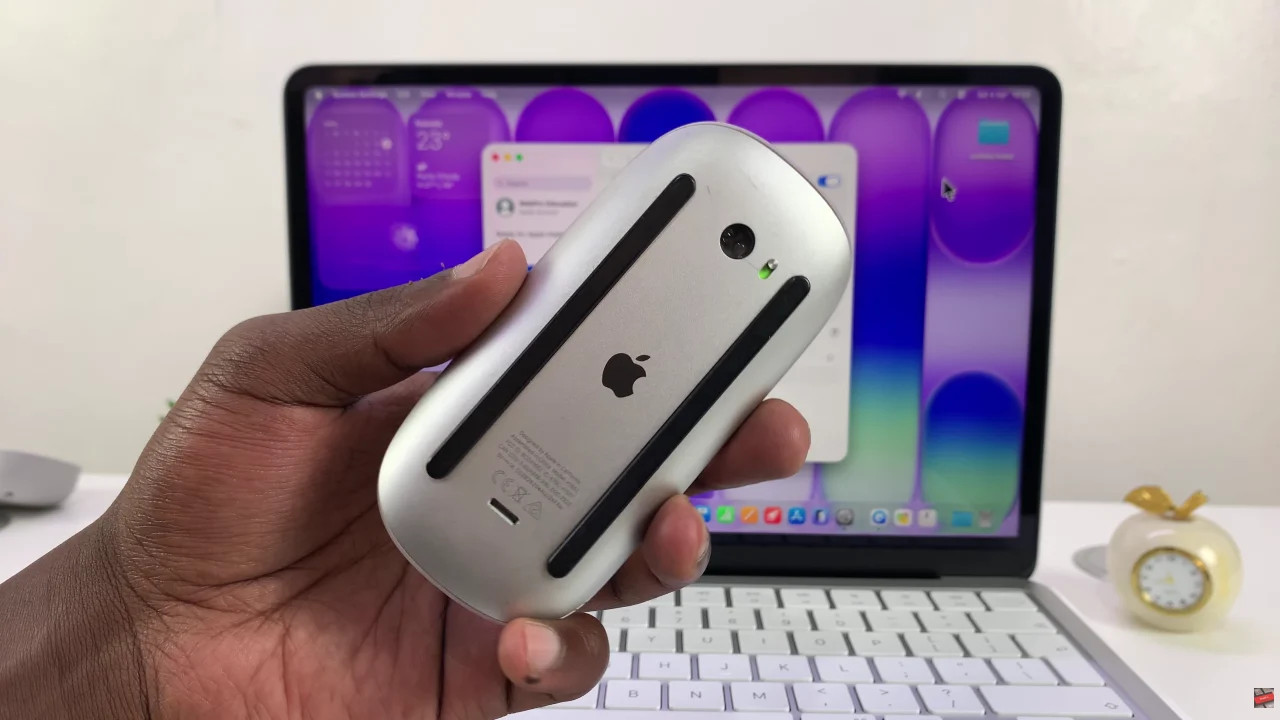
Start by placing the Magic Mouse into pairing mode. To do this, locate the power button located at the back of the mouse. Then, turn on the Mouse and it should automatically enter pairing mode.
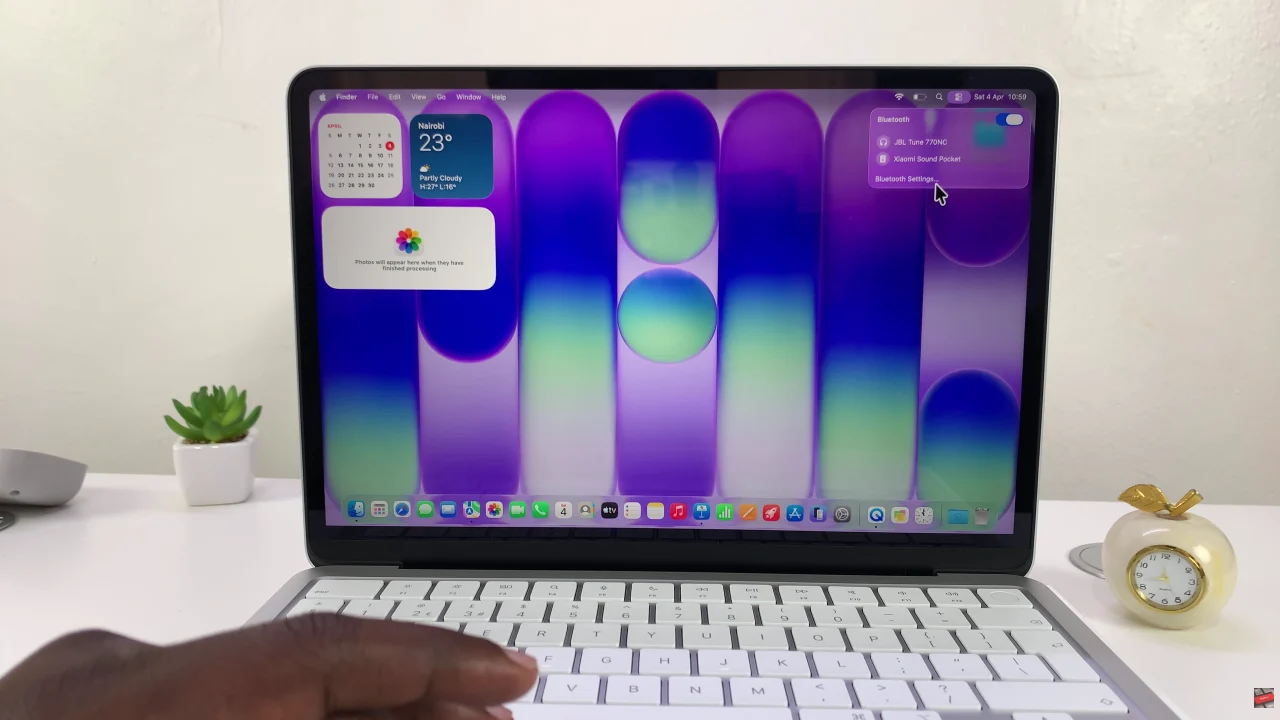
From here, access the Bluetooth settings on your MacBook Neo. Click on the Control Centre icon in the top right corner and select ‘Bluetooth‘. Then, click on ‘Bluetooth Settings‘ and you’ll access Bluetooth on your MacBook.
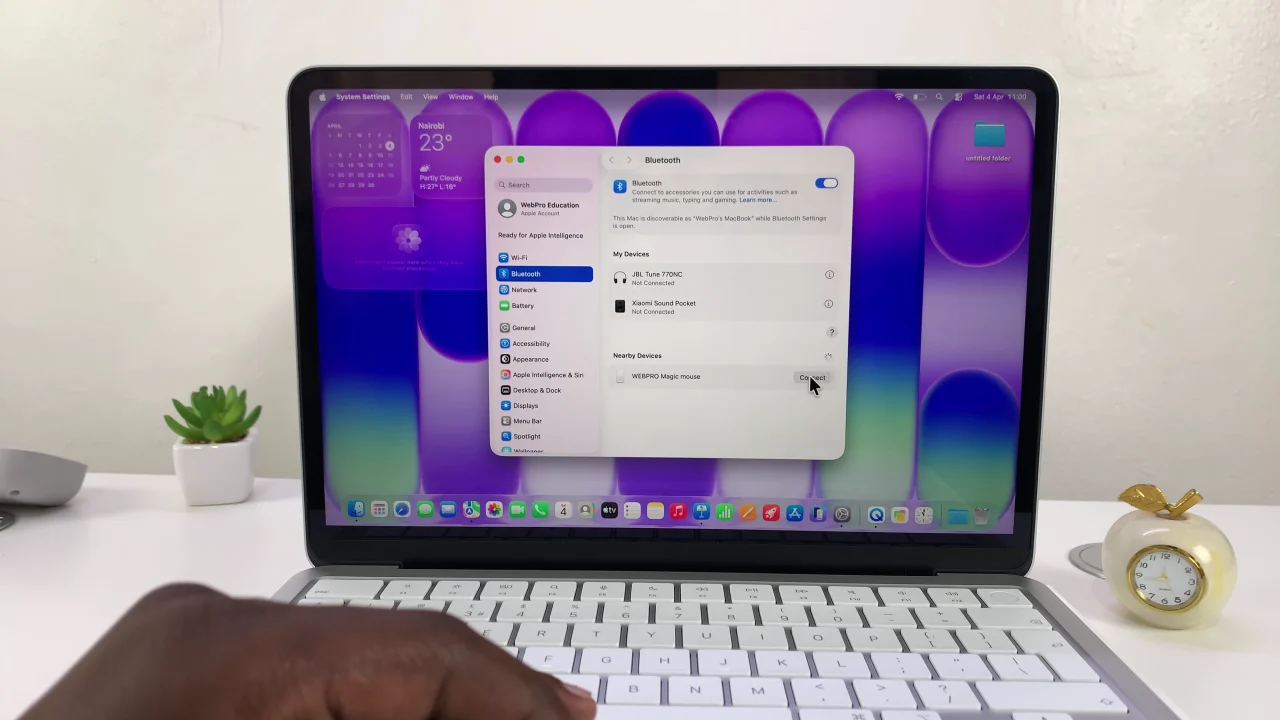
At this point, the MacBook will scan for nearby Bluetooth devices. Find the magic mouse from the list and click on ‘Connect‘ to begin the pairing process. Once done, you can now use your mouse to navigate on your MacBook.
In summary, connecting your Magic Mouse to your MacBook Neo is a quick and straightforward process that can greatly improve your workflow and user experience. With just a few clicks in the Bluetooth settings, you can enjoy smooth navigation and take full advantage of Apple’s intuitive multi-touch gestures.