In this guide, we’ll walk you through how to add apps to the Dock on your MacBook Neo and customize it to suit your workflow.
The Dock is one of the most useful features on your MacBook, giving you quick access to your favorite apps, files, and folders. Learning how to add apps to the Dock can significantly improve your productivity.
The Dock is the bar usually located at the bottom of your screen (though you can move it to the side). It contains app icons that you can click to quickly open programs without searching through Finder or Launchpad.
Watch: Add Timestamps To Photos On Xiaomi Smart Camera C701
Add Apps To Dock On MacBook Neo
One of the easiest ways to add apps to your Dock is through Finder. Simply open Finder and click on Applications in the sidebar.
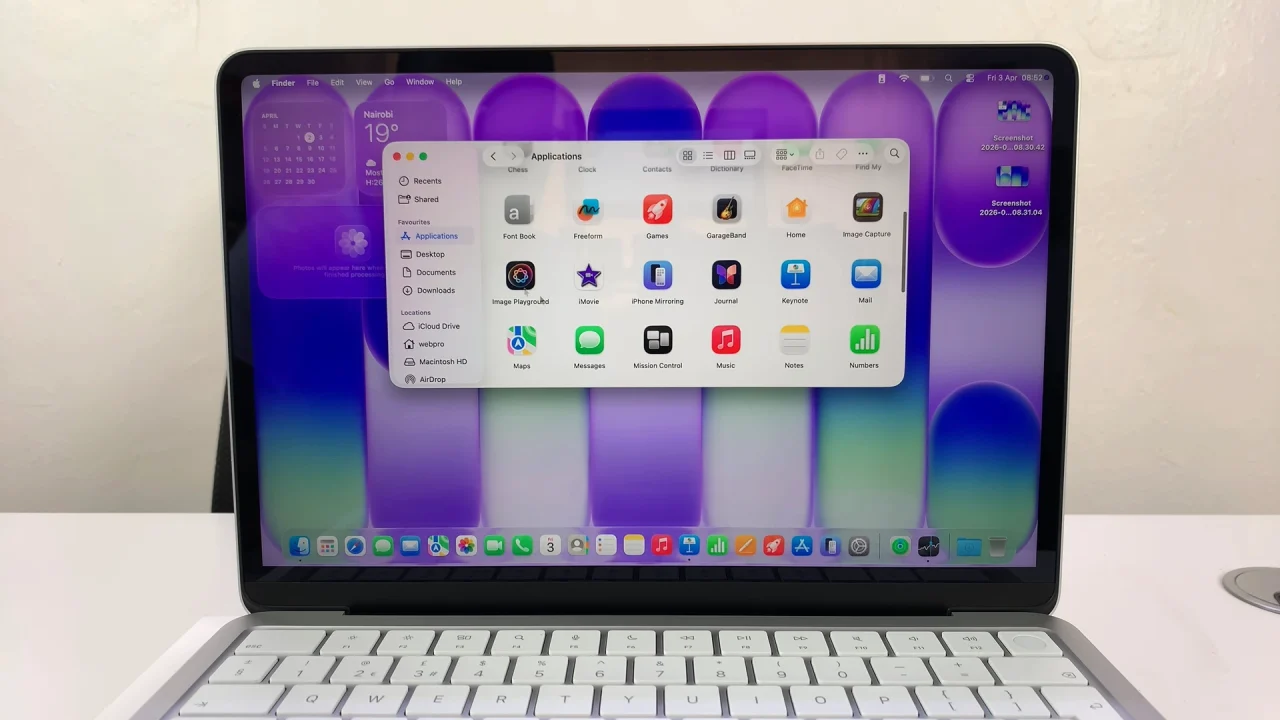
Locate the app you want to add, then click and drag the app icon down to the Dock. Finally, release it in the desired position.
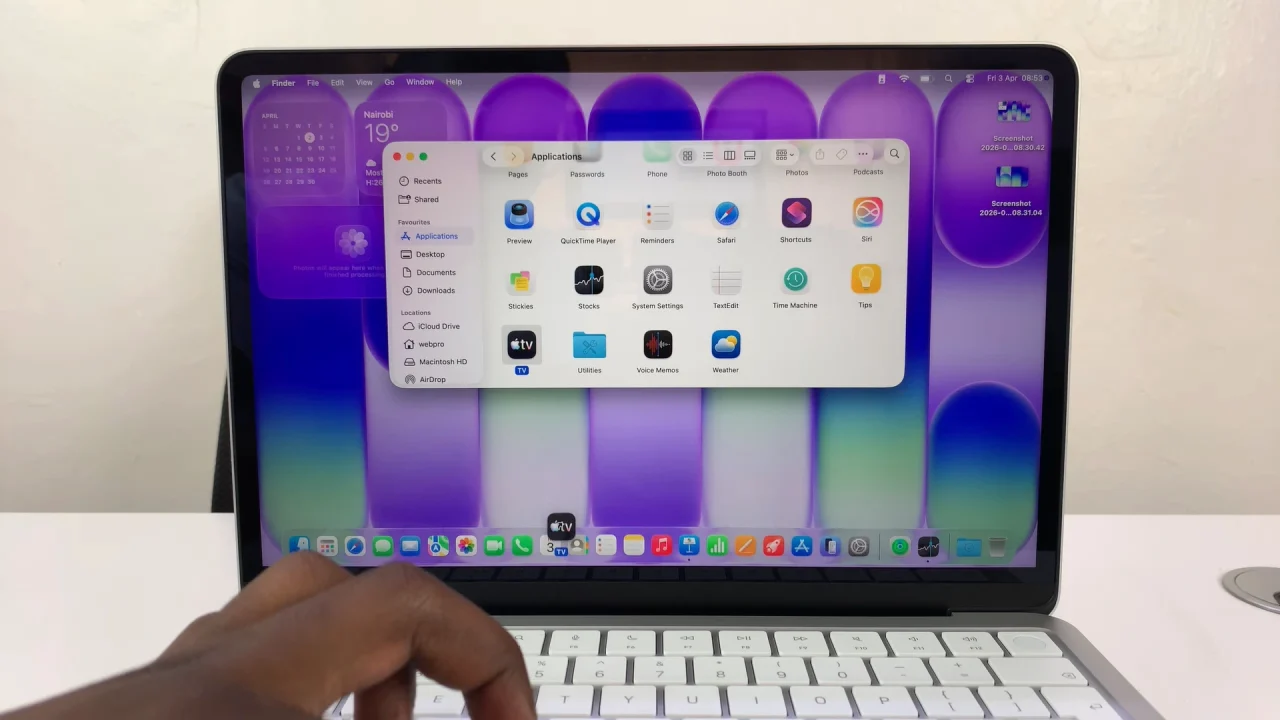
Once added, the app will stay in your Dock for easy access.
Read: How To Add Timestamps To Photos On Xiaomi Smart Camera C701